Tap your profile picture → Go to Settings → Click account preference → Scroll down under account management → Click Close account. Click Continue to enter your password → Tap “Done.”
Blog
How to Delete LinkedIn Account in 2026: Quick and Easy Steps
Curious to know how to delete a LinkedIn account permanently? If yes, you need to open Settings & Privacy, then go to Account Preferences and at last close the account. LinkedIn generally removes your profile within 24 hours and deletes data within 30 days.
You will learn how to delete and deactivate a LinkedIn account on a desktop and on a mobile. Know the difference between deletion and hibernation, and common problems when you delete a LinkedIn account.
Quick Answer
How do I delete my LinkedIn account?
- You need to click on the Me icon after that and click Settings & privacy.
- Now go to Account preferences and then search the account management section.
- Then click on Close and delete account.
- It will ask you why you are closing; check your own reason and then go next.
- Click Close your account after entering your password.
These are nearly the same steps to delete a LinkedIn account in a mobile app too.
Table of Contents:
- How to Delete LinkedIn Account (Desktop + Mobile)
- How to Deactivate a LinkedIn Account Without Deleting It?
- Why People Delete a LinkedIn Account
- What to Do Before You Delete Your LinkedIn Account?
- What Happens When You Delete a LinkedIn Account
- Delete vs. Hibernate: Know Which Is Better for You
- Common Problems While Closing a LinkedIn Account
- Do's and Don'ts of Deleting LinkedIn Account
- Conclusion
- FAQs
How to Delete LinkedIn Account (Desktop + Mobile)
If you want to delete your LinkedIn account, go to Account management in your Settings & privacy. You will not find the delete button in the LinkedIn app because the app considers it a “Close and Delete Account,” but both work the same. After closing an account, you will not be able to see your profile, and all your information will be erased.
Read the steps given below on how to delete a profile from LinkedIn in both desktop and mobile apps.
1. How to Delete LinkedIn Account on Desktop?
You need to follow the steps below delete a LinkedIn account in any browser on your computer:
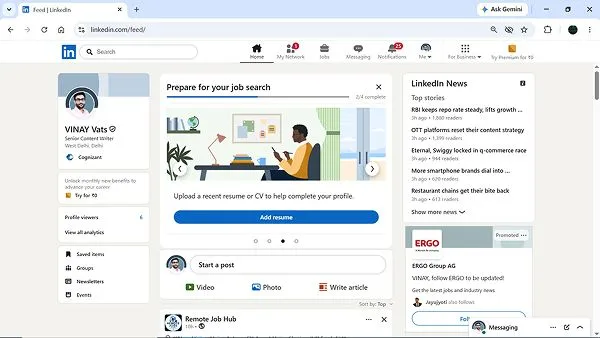
- Log in to your account on your desktop browser and then click the Me icon at the top right of your LinkedIn homepage.
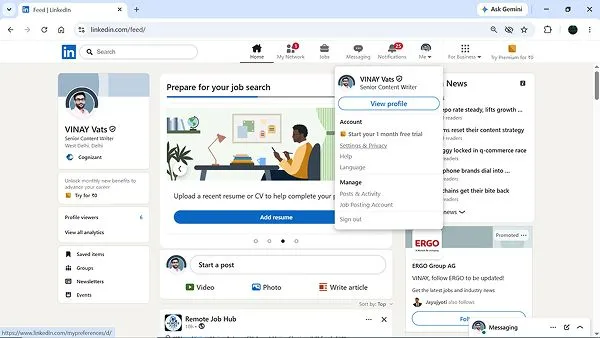
- Select Settings & Privacy from the dropdown menu.
- On the left sidebar, you will see the Account preference tab; click it.
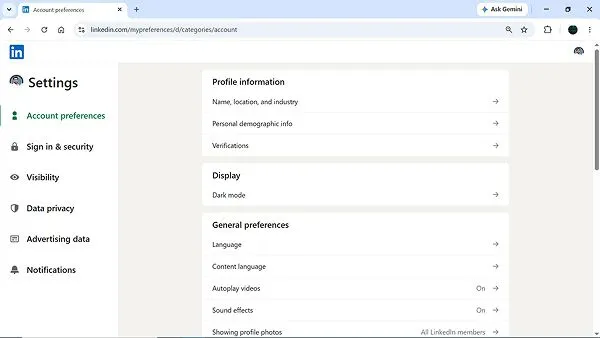
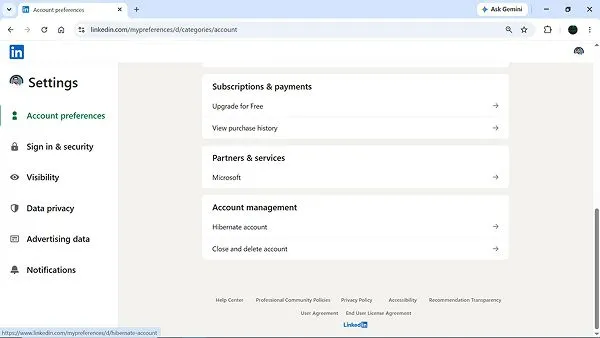
- Scroll down to the Account Management section and click Close and delete the account.
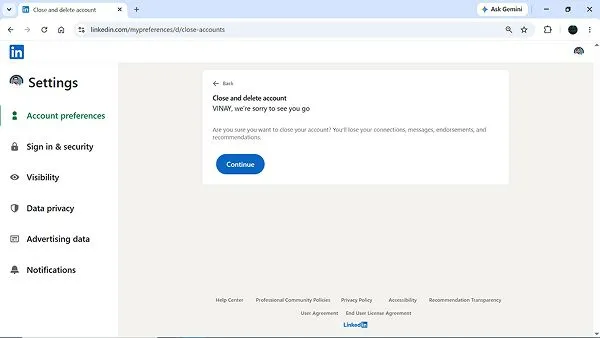
- Click “Continue.”
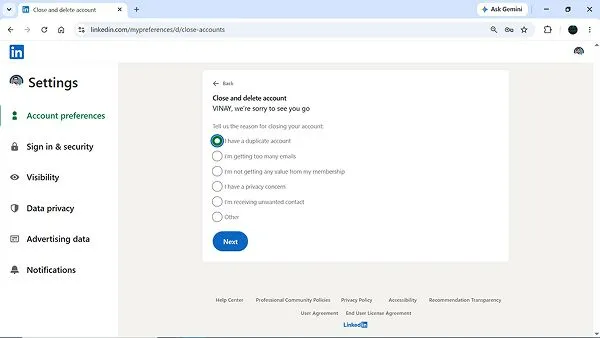
- There are some reasons you have to choose to close your account and then click Next.
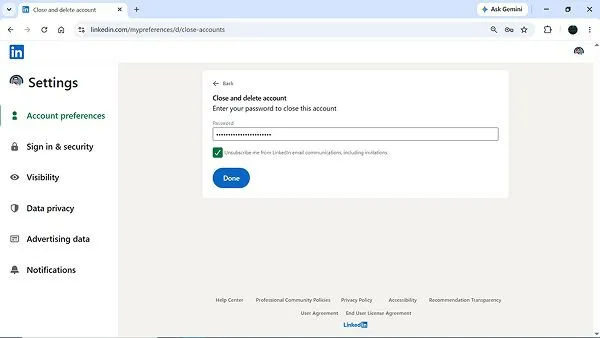
- Enter your account password to confirm your identity and click Done.
2. How to Delete LinkedIn Account on Mobile?
There is a hidden setting behind your profile picture in the app. Follow these steps to find the way:
- Firstly, you need to open the LinkedIn app.

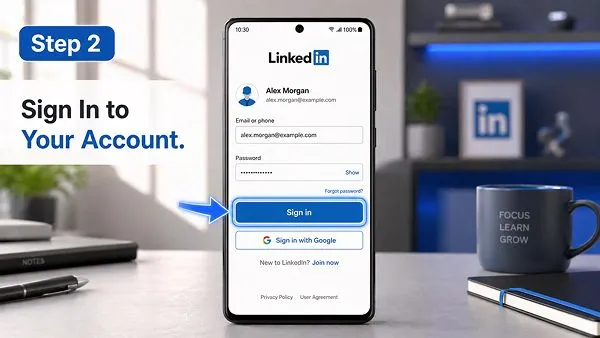
- Sign in to your LinkedIn account with username and password.
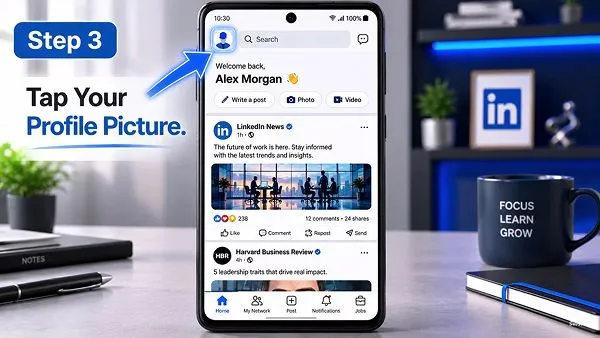
- Click on your profile picture in the top left corner.
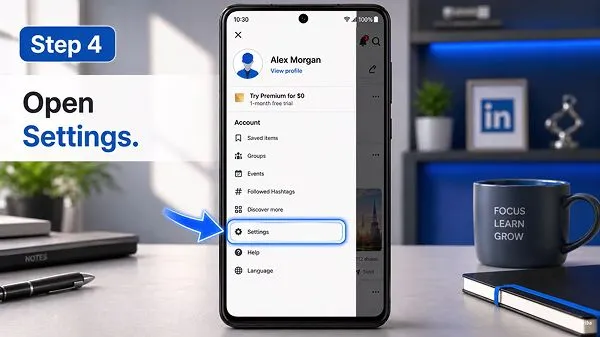
- Now go to Settings.
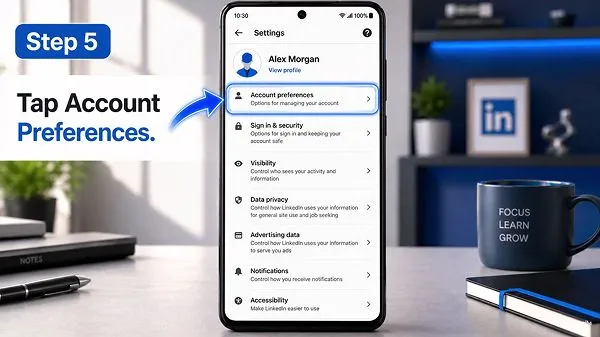
- Click on Account preferences.
- Scroll down to the bottom for Account management.
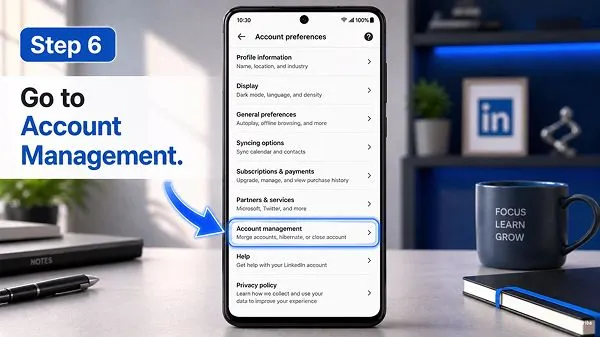
- Click “Close Account.”
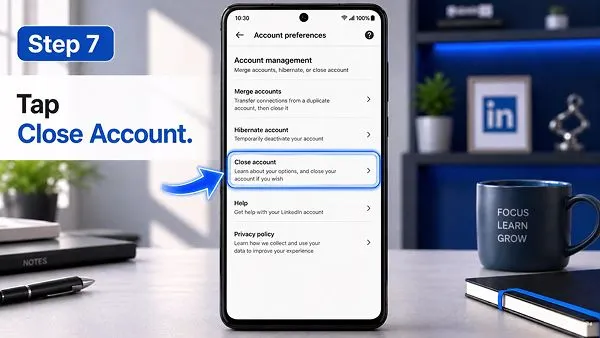
- Read what happens after you delete it and click Continue.
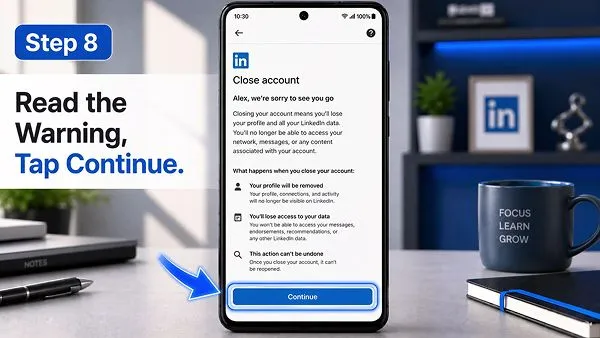
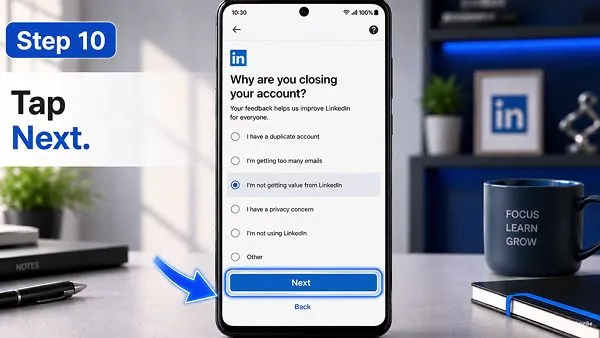
- Choose a reason for closing your account.
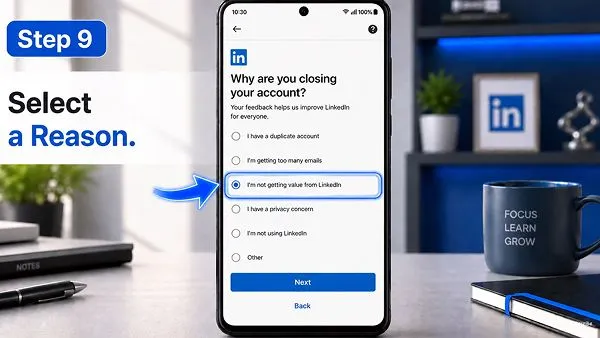
- Click Next.
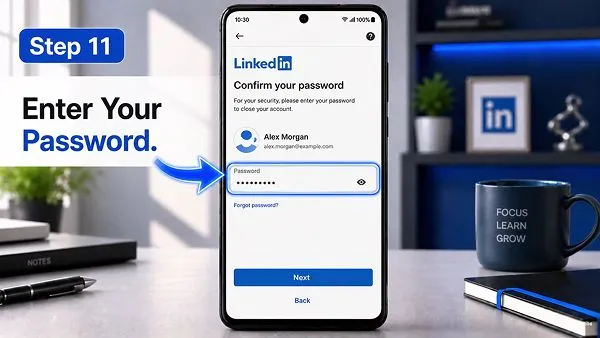
- Type your password and hit Next.
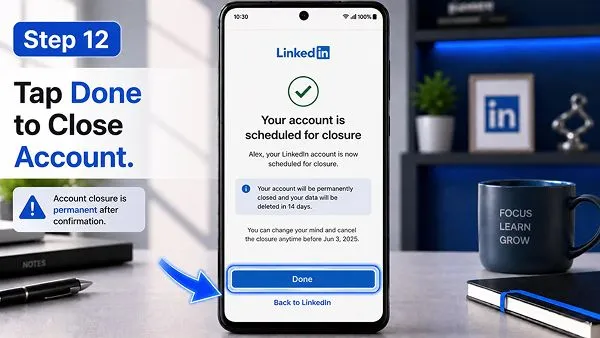
- Click Done to delete the LinkedIn account for good.
How to Deactivate a LinkedIn Account Without Deleting It?
There is no exact button called “deactivate” in LinkedIn. Instead, there is a word named “Hibernate account” that hides your profile but keeps your data safe. If you want to close your account temporarily, it’s a perfect option for you.
Here is how to deactivate a LinkedIn account with simple steps:
- Click on your Me at the top of your LinkedIn homepage.
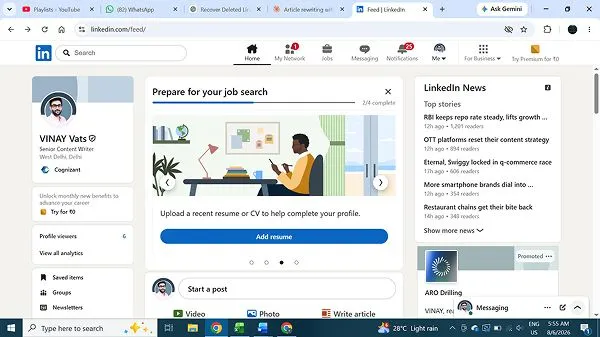
- Select Settings & privacy from the dropdown menu, then click Account preferences from the left-hand menu.
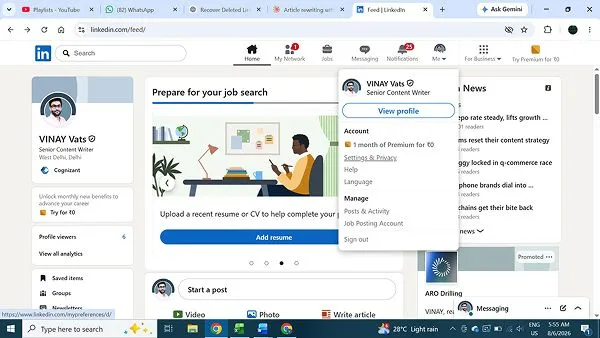
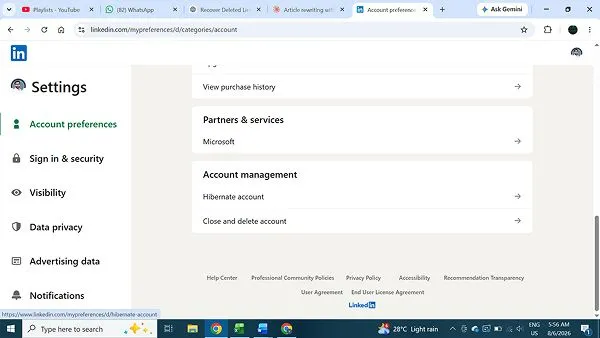
- Scroll down to the Account Management section and click Hibernate Account.
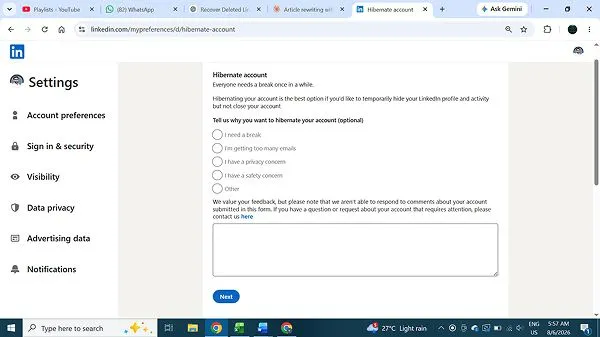
- Select the reason why you are taking a break and then click Next.
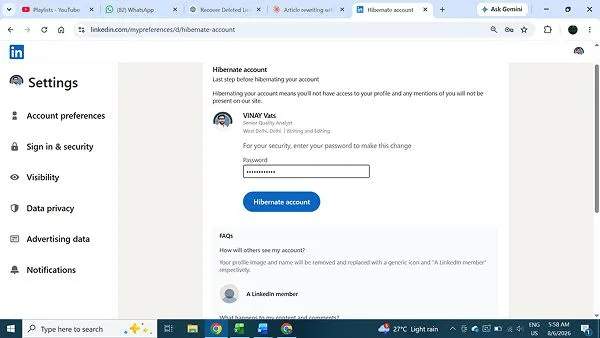
- Enter your account password and click Hibernate account to confirm.
What Changes While Your Account Goes into Sleep Mode?
- Your profile and activity will be hidden from public view while hibernated.
- Your name on past comments or posts changes to a LinkedIn member temporarily.
- You don’t lose existing connections and followers.
- The active subscriptions and premium plans get cancelled automatically.
- Finish some important tasks like giving your admin role to another user or paying a premium subscription fee to avoid future billing.
Note: To reactivate your account or end hibernation, log in to your account using your credentials.
Why People Delete a LinkedIn Account
There are many reasons to delete an account from LinkedIn. Sometimes people want a break from social interaction or personal space. This is up to users’ personal reasons, whether they want to close it permanently or for a short time.
- If a quiet profile is the real problem, working on how to increase LinkedIn followers is usually a better move than closing the account.
- Recruiters and sales messages pile up quickly as automated tools send in volume every day, and you have to skip reading.
- When you remove your job history from your public profile and want to protect it from data scrapers.
- You accidentally created more than one, and then you want to remove one.
- You changed your interests or working fields and want to become a freelancer.
- When you realize that your scrolling feeds are wasting your time and you should spend it on other work.
- Your account is out of your control or might have been hacked.
Note: If you are facing the problem of unwanted notification alerts, try simple fixes like turning off notifications, or you can hide your profile rather than deleting it.
What to Do Before You Delete Your LinkedIn Account?
Before deleting your account, you have to follow some steps such as paid products and group roles. You should download your data because once your account is deleted, you will lose everything for good.
- Firstly, go to LinkedIn → Click Me → Settings & Privacy → then click Data privacy; here you will get a copy of your data.
- You have to cancel your subscriptions like Sales Navigator, recruiter licenses, or premium before deleting a LinkedIn account.
- You need to transfer ownership or hand over the group to another admin, as closing the account removes your group membership.
- Be sure to unlink the email account from LinkedIn as stated by LinkedIn Help.
- If you used Microsoft, Google, or Apple to create or log in to LinkedIn, you should remove access before deleting (optional).
- If you want to be in touch with some group members, save their email or phone number before deleting the account.
What Happens When You Delete a LinkedIn Account
LinkedIn doesn’t delete your account immediately; it takes a full week for deletion. You will not be able to see your profile after 24 hours. Your account details will be permanently closed within 30 days.
- LinkedIn will erase your profile picture, posts, and work history permanently.
- You will permanently lose sent and received messages, accumulated recommendations, and endorsements.
- All your messages, connections, followings, and groups you manage will be lost.
- App system activity and a copy of your data will be deleted within 30 days.
- Whichever posts or photos you have shared already will be stored in a group shown by an unknown member.
- Search engines take a few days to several weeks to remove your dead profile link.
Note: If your account is deleted and you wish to reopen it, do it within 14 days of deletion. But you won’t be able to see your pending invitation, followings, and group membership.
Delete vs. Hibernate: Know Which Is Better for You
Delete and hibernate are two different factors. You must know the difference between delete and hibernate, their impacts, and results. It will help you decide which one is perfect for you.
| Factor | Close Account (Delete) | Hibernate Account (Deactivate) |
| Best for | Quit LinkedIn permanently. | To pause for some time |
| Your Profile | Close for good. | Group members won’t be able to see |
| Your Data | Vanish within a month. | Will be saved in the LinkedIn app |
| Connections | Will go forever | Data stays preserved. |
| Reversible | Possible only before 14 days | Can be easily done any time |
| Premium plan | Must end before you delete | Cancel right away by itself. |
| How to return | Only after creating a new account | Log in with your credentials. |
Note: If you are still feeling confused, then always choose hibernation and then make a decision within a month.
Common Problems While Closing a LinkedIn Account
The most common problem while closing an account is an unresolved subscription or an active enterprise. Here are some blocking reasons to fix before closing the account:
- Close account option missing: Active subscription must be cancelled manually, and you must remove yourself as admin before you can proceed with closing your account.
- Enterprise account attached: Admins have to remove you first. Contact LinkedIn support for help if you don’t know who the admin is.
- Forgot the password: Try using “Forgot Password” to sign back in. You may get identity check questions.
- App deleted, Profile Alive: Just uninstalling the app doesn’t delete a LinkedIn account. For this, you have to go into settings → select delete account; after that, you can delete the app.
Do’s and Don’ts of Deleting LinkedIn Account
Follow these essential do’s and don’ts to protect your data and avoid mistakes:
Dos:
- Save a copy of your data before closing your account. Must cancel your active ad plans manually before you close your account.
- Hand over the group to another admin if you created the group.
- Save contact details in case you want to be in touch with group members.
- Use hibernation if you just need a break.
Don’ts:
- Never believe that LinkedIn app deletion closes your profile itself.
- Do not sign in during the 14-day window once you have decided to delete it.
- Never close the LinkedIn account in case you have any active ad campaigns or job postings.
Conclusion
By now, you must have learned how to delete a LinkedIn account and hibernate it. Hibernation is a better choice than deletion. Deleting a LinkedIn account becomes permanent after 14 days.
Cleaning up your other profiles too? The same approach applies to how to delete a YouTube channel.
Do remember to download your data, cancel active ads, and transfer group roles to an admin before closing your account. If you just need a short break, you should hibernate it and log in again whenever you wish.
FAQs
How do I delete my LinkedIn account permanently?
Can I recover a deleted LinkedIn account?
Yes, you can recover your account only within a 14-day window, but group membership and paid subscription will be cancelled.
Does LinkedIn have a deactivate option?
There is no such word as “deactivation”; you can hibernate your account, which will keep your data safe.
How long does LinkedIn take to delete my data?
LinkedIn deletes your data within 30 days, but your profile will be erased within 24 hours.
Will my connections be informed that I left?
No, LinkedIn doesn’t send messages to your connections. You quietly vanish from their connections list.
Sources:
Close and delete your LinkedIn account: by LinkedIn Help
Hibernate your LinkedIn account by LinkedIn Help
LinkedIn Privacy Policy Section 4.3 Account Closure by LinkedIn Help
Related Post's