No, you can’t edit a snap once it is sent. You have to delete the story or chat, open the saved copy in Memories, make the required changes, and send it again.
Blog
How to Edit Photos on Snapchat: Easy 2026 Guide
If you want to edit a photo on Snapchat, click a new photo or take one from the gallery. Then use the toolbar on the right of the preview screen to add text, stickers, doodles, filters, or lenses before sharing it.
This guide explains how to edit photos on Snapchat. It also covers the latest AI editing lens and guides you on how to save your Snap photo.
Quick Answer
How to edit photos on Snapchat?
To edit photos on Snapchat, open the app and tap the shutter button to take a photo, or you can swipe up and select a photo from Camera Roll. Now go to the Preview screen, select T to add text, the pencil to draw, or the sticker icon to add emojis. Swipe left or right on the photo to use different filters. Click on the download arrow to save the edited photo, or choose Send to share it.
Table of Contents:
How to Edit Photos on Snapchat?
All the photos can be edited from the Preview screen, which pops up immediately after you capture a snap. All creative tools are arranged in a vertical bar on the right side of the screen. In Snapchat, you can also edit photos that are already stored in your gallery, using the same tools.
The steps below show how to edit photos on Snapchat:
How to Edit a Clicked Photo on Snapchat?
Follow the steps given below to edit a new snap photo on the mobile app:
1) Open Snapchat and wait for the camera screen.
2) Tap the shutter button once to take a photo.
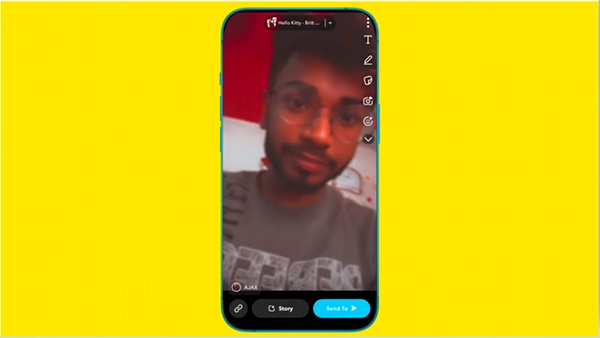
3) Click the three-dot menu.
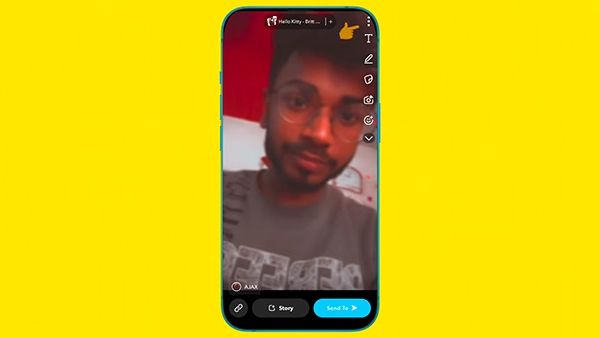
4) Choose Edit Snap.
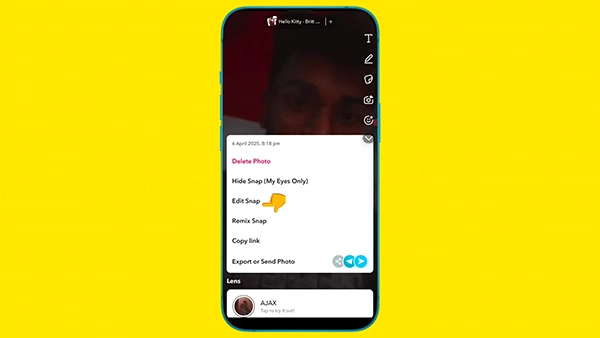
5) Click T on the Preview screen to write a caption.
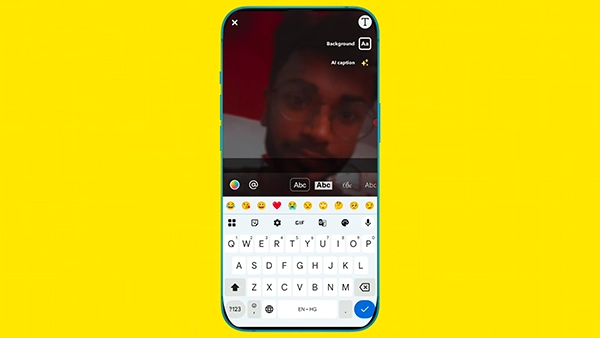
6) Tap the sticker icon to add emojis, Bitmoji, or GIFs.
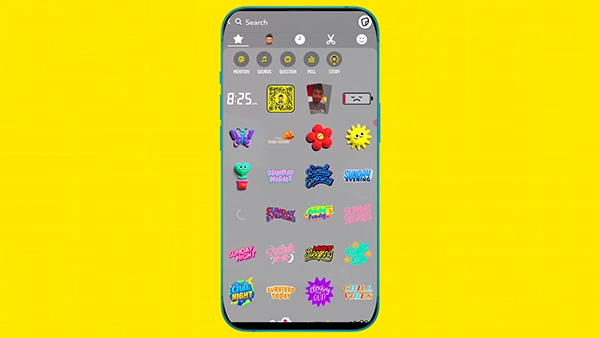
7) Click on the music icon and use songs.
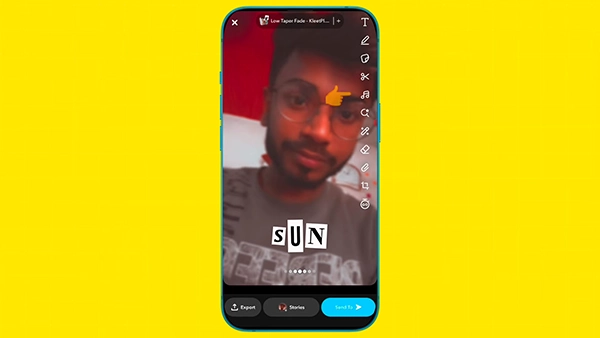
8) Click this search icon to apply filters.
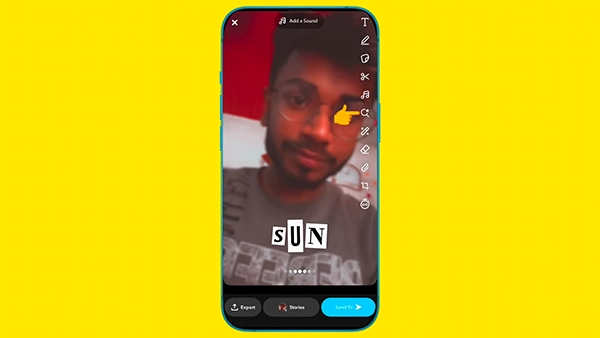
9) Click the frame icon to crop the unwanted part of the photo.
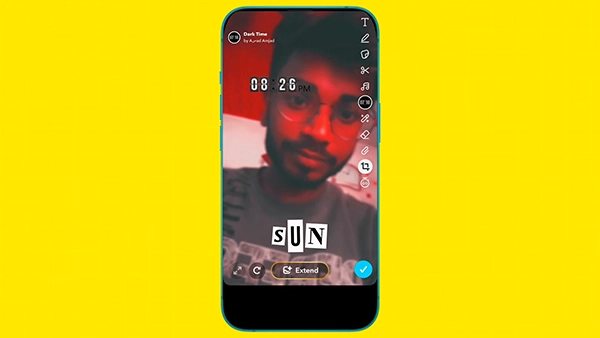
10) Swipe left or right across the photo to select a Filter.
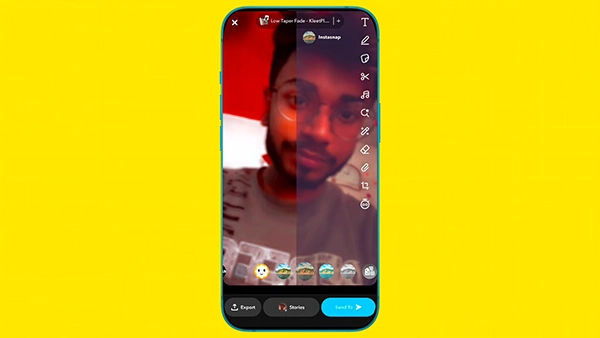
11) Press “Send To” to share it, or click on the export arrow to save it.
How to Edit Photos on Snapchat From Your Camera Roll?
Snapchat also allows you to edit photos that you clicked with your normal camera. Here is how to edit pictures on Snapchat from your camera roll:
1) Swipe up from the camera screen to open Memories.
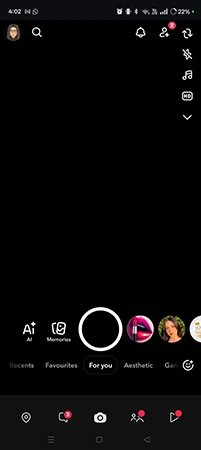
2) Tap the Camera Roll tab at the top.

3) Choose the photo you want to edit.

4) Click the down arrow sign to use the creative editing tools.

5) Write text, doodle, use stickers, or apply a filter.

6) Hit “Send To” to share it, or save it.
Note: When you post a snap from Memories or Camera Roll, Snapchat adds a date border, which can tell your friends that the picture is old and not taken live.
Snapchat Photo Editing Tools
Snapchat gives a specific tool for each icon, and the icons are generally in the same place on every device. The list below is based on the official Editing Snaps support section. It will help you identify each tool on your screen and learn what each tool does before you begin editing.
| Tool | Icon | What It Does |
| Text |  | Adds a caption |
| Draw |  | Freehand doodles |
| Stickers |  | Emoji, Bitmoji, GIFs |
| Scissors |  | Custom stickers |
| Filters |  | Colour and location overlays |
| Lenses |  | Adds AR effects and AI edits |
| Timer |  | Sets viewing duration |
| Link |  | Attaches a website URL |
How to Edit Photos With Lenses, Filters, and AI?
Filters and lenses can help you change the entire look of a photo in a matter of seconds. Swipe left or right on the preview screen to use filters, which add color grades, time, speed, or location artwork. Lenses work on the camera screen and add special effects before the picture is captured.
Snapchat AI Editing
Snapchat also offers AI editing. You can edit your photo simply by giving a prompt describing changes that you want in your photo. All this can be done by using Imagine Lens, which was introduced in September, 2025. It’s an amazing feature of Snapchat, which lets you create, edit, and recreate Snaps by typing your own prompt.
It was first launched for Lens+ and Snapchat+ Platinum subscribers and later opened to all users in the United States, with Canada, Great Britain, and Australia following.
How to Use The Imagine Lens on Snapchat
Here is how to use the Imagine lens on Snapchat:
- Search for the lens in the Lens Carousel and open it.
- Tap the caption to type your own prompt, or use a suggested one.
- Create the Snap, then share it with your friends or on your Story.
Snapchat Photo Editing Tips for Better Results
Your Snapchat photos can even look better just by following a few simple yet effective techniques. The first and foremost step is to ensure that the photo is clear and well-lit.
Given below are some of the tips you can follow to improve your Snapchat photos:
- Choose an appropriate filter: An appropriate filter is the one that improves the photo without covering important details.
- Keep the text concise and clear: Use short text and place it in such a way that it does not cover the important parts.
- Use stickers and emojis: Use only a few emojis to avoid overcrowding your photo.
- Explore different lenses: Different lenses can add different creative effects to your photos and videos. Choose as per your wish.
- Remove unnecessary objects: Use Snapchat’s editing tools, such as Magic Eraser, to remove unwanted parts from the photo.
- Crop the photo properly: Avoid unnecessary space in order to keep the main subject in focus.
- Preview before sharing: Review the final image before saving or sending it to somebody.
- Don’t over-edit: Too much editing can make the photo lose its essence and originality.
Tip: For the best results, start with small edits. You can add more effects later if it is required.
Common Problems While Editing Snaps
Most editing problems are caused by permissions, storage, or an outdated app. Given below are the quick fixes:
- No Camera Roll photos: Allow Snapchat to access your photos through phone settings.
- Edit Snap option not showing: Update the app, then reopen Memories.
- Unable to use lens: Use Wi-Fi, since AI Lenses run on Snap’s servers.
- Edits not getting saved: Make some storage space and ensure your Memories save settings are in place.
Dos and Don’ts of Editing Snapchat Photos
Keep the following dos and don’ts in mind before you edit and share Snapchat photos.
Dos:
- Save one copy of the Snap before sharing.
- Keep the captions concise so the photo can be easily read.
- Label AI-edited Snaps clearly as intended to be shared publicly.
- Ensure filters do not cover any important part of the photo.
Don’ts:
- Don’t depend completely on Snapchat to store your photo.
- Don’t cover the face with too many stickers.
- Don’t edit photos of other people without their permission.
- Don’t download any unofficial Snapchat cameras from unknown websites.
Conclusion
Now you know how to edit photos on Snapchat step-by-step. Capture or select a photo, use the editing tools on the preview screen, and save the edits before sending it. Text, doodles, stickers, filters, and the Imagine Lens provide almost every edit you will need in order to edit a photo. Open Snapchat and explore these tools right away.
FAQs
Can you edit a photo on Snapchat after sending it?
How to edit pictures on Snapchat from the gallery?
To edit a photo from the gallery, swipe up from the Camera screen to open Memories, click the Camera Roll tab, select your photo you want to edit, and tap Edit Snap. Use the editing tools, including text, doodles, stickers, and filters, to edit that picture.
Is the Imagine Lens free for everyone?
No, it’s not. It was first introduced to Lens+ and Snapchat+ Platinum subscribers. Later, it was extended to all users in the United States, followed by Canada, Great Britain, and Australia.
Where do edited Snapchat photos get saved?
They are saved as per your memory settings. Make changes in your settings to save them in Memories, Camera Roll, or both. Photos saved in chats remain on Snapchat servers unless you store them on your device.
Can you edit photos on Snapchat for the Web?
Only to a limited extent. Snapchat for Web allows users to chat, call, and share PNG, JPEG, and GIF images. However, the complete tool set is available in the mobile app, so edit your photo there first before sending.
Sources:
Imagine: A New Way to Create with Lenses: by Snap Newsroom
How do I add text to a Snap: by Snap Newsroom
How do I draw on a Snap: by Snap Newsroom
Related Post's