No, there is no specific option to deactivate it. But when you choose to “delete account,” your account is paused for 30 days as a temporary break. When you log back in within 30 days, everything comes back as it was. If you don’t return, the account gets deleted permanently.
Blog
How to Deactivate Snapchat Account in 2026?
If you want to reduce your screen time and deactivate your Snapchat account, there is no specific “deactivate” option. You have to undergo the deletion process. It will deactivate your account for a 30-day period. After this time frame, if you don’t log back in, it will be deleted forever.
Learn how to deactivate Snapchat account, delete Snapchat account permanently on iOS and browsers, and solutions to common problems.
Quick Answer
How can I deactivate my Snapchat account?
- Go to Settings in the Snapchat app and select Delete account from the Account actions menu.
- You will reach the Snapchat account portal; log in once again here.
- Click on Delete my account → Type your password again → Hit Continue to confirm.
After this process, your account will go into hibernation for 30 days. If you sign in during this period, it will be reactivated; otherwise, staying logged out leads to permanent deletion.
Table of Contents:
- How to Deactivate Snapchat Account
- What to Know Before You Deactivate
- Know The Difference Between Deactivate and Delete
- What Happens After You Deactivate
- Common Problems While Deactivating
- Is It Safe to Deactivate Your Snapchat Account?
- Managing Stories, Chats, and Friends Before You Leave
- Dos and Don'ts of Deactivating Snapchat Account
- Conclusion
- FAQs
How to Deactivate Snapchat Account
You can deactivate your Snapchat account either through the app or a web browser. After you request it, Snapchat puts your account in a 30-day deactivation period before anything gets erased permanently.
Here is how you can deactivate your Snapchat account:
How to Deactivate Snapchat on Android and iOS
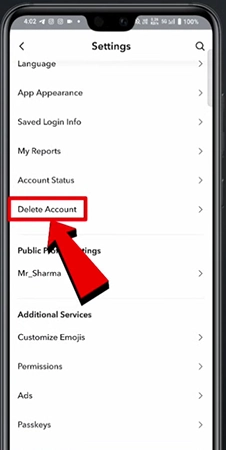
1) Open your profile screen and click Settings.
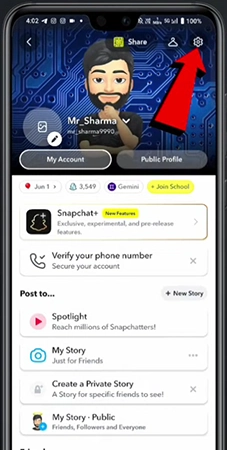
2) Select Delete account under Account Actions, and it takes you to the Snapchat accounts portal.
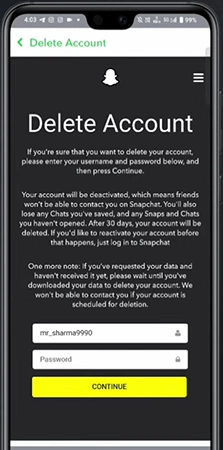
3) Enter your password and tap “Continue”.
How to Deactivate Snapchat on Browser
The Android app does have the built-in delete option; however, Android users and those on desktops need to use the Snapchat web login.
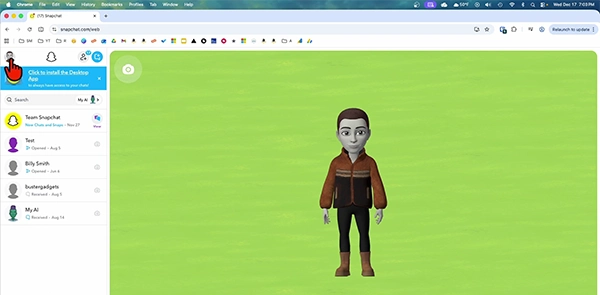
1) First, go to the Snapchat accounts portal and log in to your account.
2) Then, click on Account Settings.
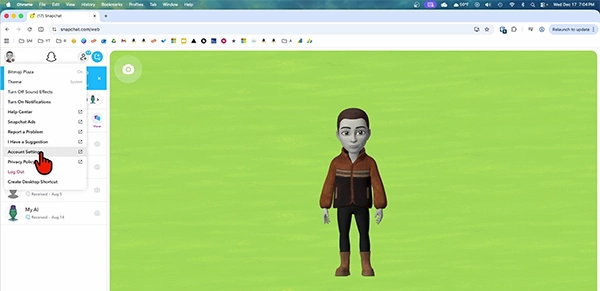
3) Scroll down and select “Delete my account.”
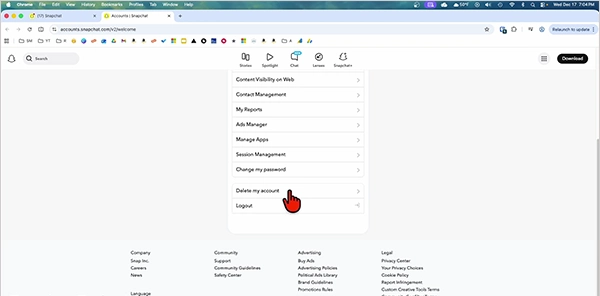
4) Type your password and hit Continue to confirm.
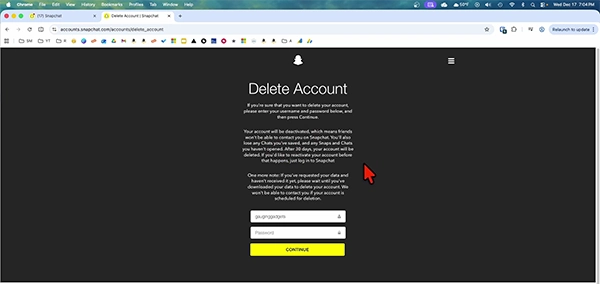
Your account will deactivate instantly after confirmation. Your friends won’t be able to see or message you during your decision period about reactivation.
What to Know Before You Deactivate
Before you start the process of deactivating your Snapchat account, make sure to save your password and data. Once the process begins, you will not be able to reset passwords or download data.
- During deactivation, you will not be allowed to change or reset your password.
- After hitting the deactivate button, you will get a 30-day window wherein you can save your data via My Data in the Accounts portal.
- Always remember that even when everything is deleted, Snapchat may still hold onto some purchase and legal records.
- Reactivating your account is all up to you; Snapchat support can’t give you a hand in this process.
- Your friends will not be able to contact you or see your profile while your account is inactive.
Know The Difference Between Deactivate and Delete
Deactivating or deleting your account follows the same button on Snapchat. The first step is deactivation, in which your profile and data will be temporarily unavailable for a 30-day period. Once you do not log in again within this time frame, your account will be permanently deleted.
| Factor | Deactivation (30 days) | Permanent Deletion (Day 31+) |
| Trigger | Selecting “delete account” | Staying logged out for 30 days after deactivating the account. |
| Visibility | Profile hidden from friends instantly | The account cannot be restored. |
| Reversible | Sign in to restore within 30 days. | No, it cannot be restored. |
| Data | All data remains safe. | Disappears from the main server |
Now, which option fits you: deactivation or deletion?
If there is any chance you might want to return to Snapchat or reconnect with your friends there, just deactivate and do nothing else. However, if you are certain you are done with Snapchat forever, simply remain logged out beyond those 30 days for permanent deletion.
What Happens After You Deactivate
When you delete your Snapchat account, your profile will vanish immediately from search, friends’ list, chats, and Snap Map. For the first 30 days, your account is only deactivated, so you can get everything back by simply logging in.
- Immediately: Your account will disappear from search and Snap Map, and people will not be able to see or message you.
- Day 1-30: Your account is only deactivated, not permanently deleted. If you log back in, everything comes back.
- Day 31: If you have not logged in, Snapchat starts permanently deleting your account and its data.
- Day 60: If you have not downloaded your data, it will be permanently deleted.
- India-specific rule: The account is still deactivated for 30 days, but it takes 180 days for permanent deletion because of local regulations.
Common Problems While Deactivating
Many deactivation errors come from device restrictions, forgotten passwords, or VPN use instead of actual account issues.
- “Security Restriction” error: You mostly get a “security restriction” error on a new device or while using a VPN. In case you receive this error, you had better try switching between the app and website or wait for 72 hours.
- Forgotten password: If you cannot remember your password, you had better reset it through “Forgot password” before deactivating. Because you will not be able to reset it later.
- No delete option in the Android app: If you can’t find the delete option in the Android app, open a mobile browser and go to accounts.snapchat.com instead.
- Profile still visible to a friend: Your profile can still be visible to your friend for a short time window. Since syncing your friends’ list across other devices takes time.
Is It Safe to Deactivate Your Snapchat Account?
Yes, deactivating your Snapchat account will not affect your data for a 30-day period. Snapchat keeps all your memories, saved chats, and even your friend list safe on their servers during this period. The actual problem takes place if you forget your password, since you cannot reset it when the account is inactive.
In spite of deleting the account permanently, Snapchat holds onto some sensitive data, such as your saved payment method and previous acceptance of Terms of Service dates. All this happens because of legal and security reasons.
Managing Stories, Chats, and Friends Before You Leave
You can clean up your Snapchat account without deactivating your account. The app allows you to remove stories, friends, and chats one by one.
How to Delete Snapchat Story
To clear your Snapchat story, open My Story → then swipe up on a snap and click the Trash Can button → Confirm you want to delete it.
Do this for each snap in the story until everything is gone. That’s what Snapchat support advises.
How to Delete Chat in Snapchat
If you need to delete a message sent through Snapchat, first tap and hold the message on the chat screen. Then click on the Delete button.
Once you do this, Snapchat will remove it from its servers and also try to delete the message from the recipient’s phone.
How to Delete Friends on Snapchat
When you are on the chat screen, hold and press your friend’s name. Then choose More from the options. Finally, hit Remove friend for confirmation.
Dos and Don’ts of Deactivating Snapchat Account
Dos
- Make sure to write down your password before deactivating and save it somewhere secure.
- Do wait for a few days if you run into the “Security restriction” problem.
- Tell your friends about an alternative means to get in touch with you before turning off your account.
- Save your data using the My Data tool first if you want to keep memories or chat logs.
Don’ts
- Don’t forget the important thing: once you have deactivated, it will be impossible to reset your password.
- Don’t think there is an option for temporary deactivation. It is all or nothing with deletion using the same steps.
- Never expect that Snapchat may inform your friends about deactivation.
- Don’t let 30 days pass if you are planning to keep your account active. Because after that point, deletion becomes irreversible.
Conclusion
Now you know how to deactivate your Snapchat account officially. Instead of a simple deactivate button, there is a 30-day period after you request to delete your account to change your mind. Before starting the process, make sure to write down your password and save a copy of your data because they vanish once the countdown begins. If you sign back in within 30 days, everything will be restored.
FAQs
Is there a way to temporarily deactivate Snapchat without deleting it?
Can I deactivate Snapchat from the Android app directly?
Not directly; although the Android version has a delete button, it redirects you to the Snapchat accounts web portal. Go to Sign in, select “Delete my account” and confirm with your password to start deactivation.
Will my friends know when I deactivate my Snapchat account?
No, your friends will not get notified by Snapchat. Your profile will not be available on their chat lists, search results, and Snap Map. So it’s better to inform your close friends to reach you another way before deactivating.
Can I change my password while my account is deactivated?
No, you cannot reset your password or log in with your email or phone number during this period, as per Snapchat support. You should write down your password because if you forget it, your account will be locked.
How long do I have to reactivate a deactivated Snapchat account?
You have 30 days to bring everything back by logging in after you start the deactivation. If you do not log in within 30 days, Snapchat will wipe out your chats, profile, snaps, and friend list for good.
Sources:
How do I deactivate or delete my Snapchat account? By Help Snapchat
My account settings aren’t working by Help Snapchat
Related Post's