Yes, you can delete your YouTube channel, as it just erases your uploaded videos, channel data, and comments. Your Gmail, Google account, and Drive data don’t get affected.
Blog
How to Delete YouTube Channel: Steps, Problems, and Solutions
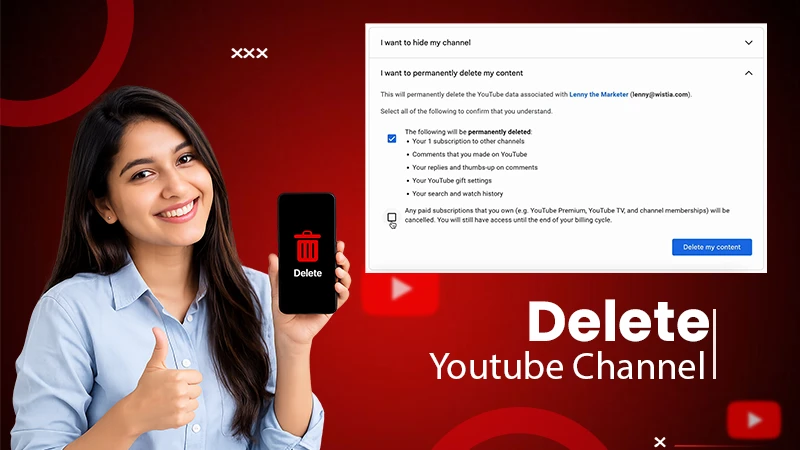
To know how to delete YouTube channel permanently, go to YouTube Studio and sign in to the channel. Click on the channel from the left sidebar, move to advanced settings, and tap “Remove YouTube Content.”
You must understand that deleting erases videos, playlists, subscribers, and comments. Know the steps of how to delete your YouTube channel, hide it, common problems, solutions, and how to save your data before deletion.
Quick Answer
How can I delete my YouTube channel?
Deleting a YouTube channel removes the whole channel data, including playlists, videos, subscribers, and comments, which you can never restore in the future.
Follow these steps one by one to delete your YouTube Channel
- Go to YouTube Studio and Sign in
- Click Settings → Tap on Channel → move to Advanced Settings
- Scroll down to the bottom → Tap “Remove YouTube Content.”
- Select “I want to permanently delete my content.”
- Check mark both boxes and hit the “Delete My Content” button
Table of Contents:
- How to Delete a YouTube Channel Permanently?
- How to Hide a YouTube Channel Temporarily?
- Hide vs Delete a YouTube Channel: Key Differences
- How to Delete a YouTube Channel on Android and iPhone?
- What Happens After Deleting a YouTube Channel?
- Common YouTube Channel Deletion Problems and Solutions
- Dos and Don’ts Before Deleting a YouTube Channel
- Conclusion
- FAQs About Deleting a YouTube Channel
How to Delete a YouTube Channel Permanently?
Deleting your YouTube channel permanently erases all channel data, including videos, comments, subscribers, subscriptions to channels, playlists, and community, forever.
To delete your YouTube channel permanently, follow these steps one by one. But make sure to back up your important data first.
Here is how to delete YouTube channel step by step:
- Go to your desktop browser and sign in to YouTube Studio
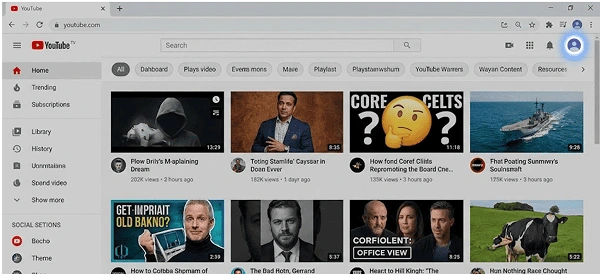
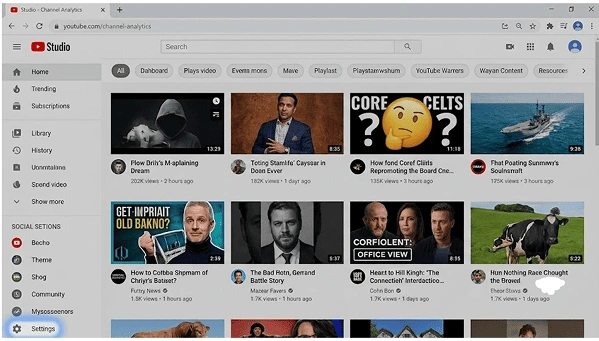
- From the bottom left sidebar, click Settings
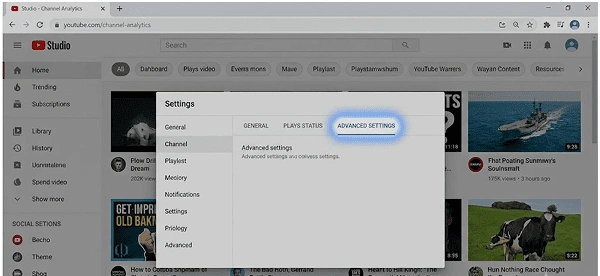
- Click on “Channel” then go to “Advanced settings”
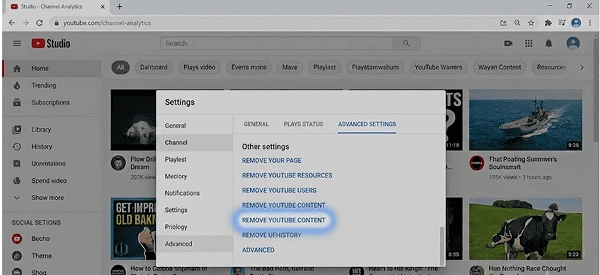
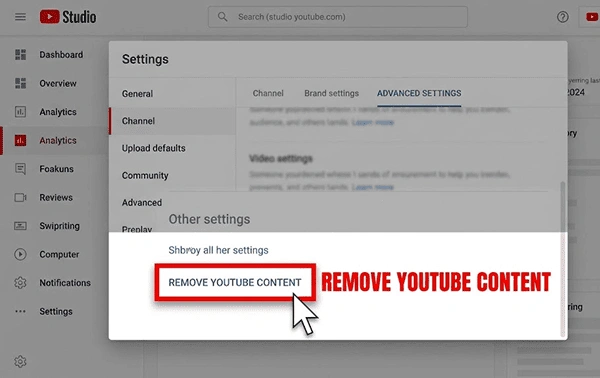
- Scroll down to the bottom and tap “Remove YouTube content”
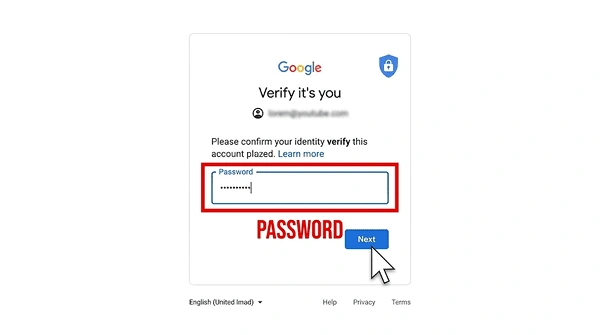
- Google asks for your password to verify
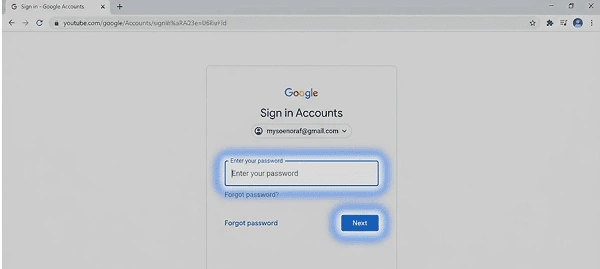
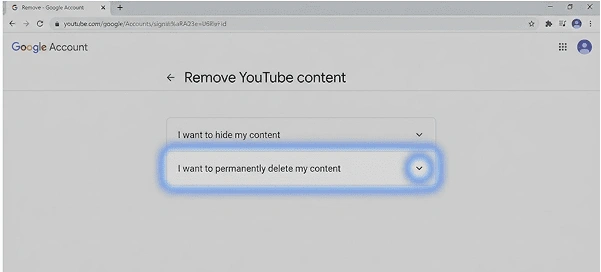
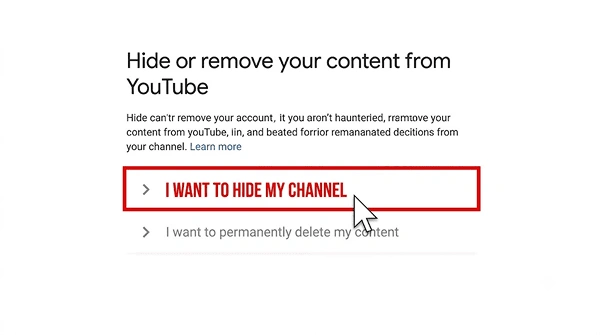
- Tap the “I want to permanently delete my content” option
- Hit the “Delete my content” button
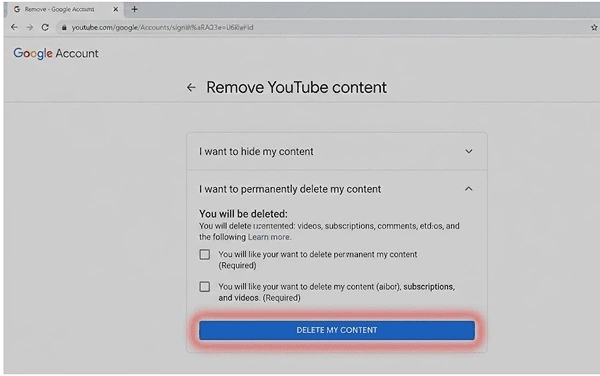
Pro Tip: Back up your data with Google Takeout before you hit the delete button. It generally takes from a few hours to a few days.
Note: YouTube takes some hours to a few days to completely remove your data. The total time depends on your channel data. During this time, you may still see some thumbnails and videos temporarily.
Also Read: What is the Best Time to Post on YouTube for Shorts & Videos?
How to Hide Your YouTube Channel Temporarily?
Hiding removes your channel name, likes, comments, videos, and subscribers temporarily when you need short breaks. You can restore your channel anytime after your break.
To hide your YouTube channel, follow these steps one by one.
- Go to YouTube Studio → go to settings
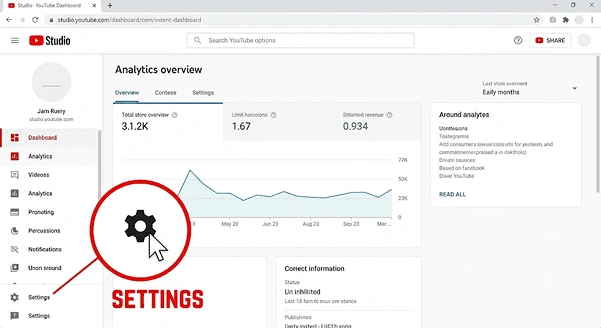
- Choose the channel you want to hide, then go to Advanced settings
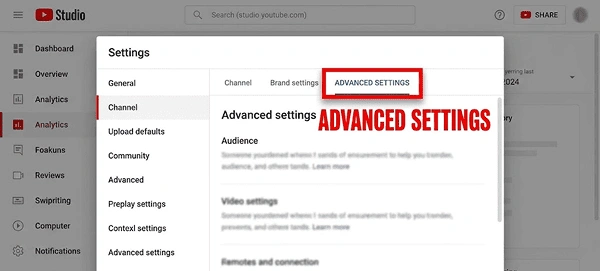
- Tap Remove YouTube Content
- Google needs to verify your password
- Select “I want to hide my channel”
- Click the “Hide my channel” button at the bottom right
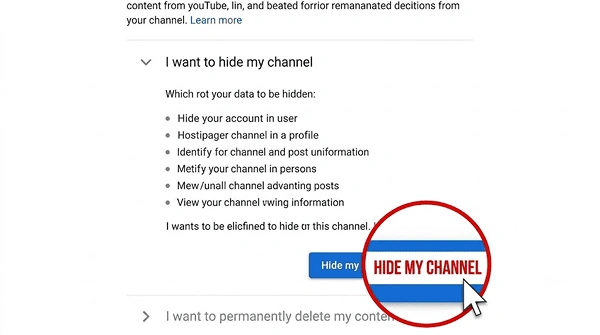
Remember: When you hide your account, the total counts of comments, likes, and subscribers also disappear. These all become visible once you restore your channel.
Hide vs Delete a YouTube Channel: Key Differences
When you hide your YouTube channel, it removes your whole channel data, including videos, playlists, comments, likes, and subscribers, temporarily. You can restore a hidden channel anytime you want with exact data.
But deleting a YouTube channel removes the whole channel data, including videos, comments, playlists, channel name, and subscribers, permanently. Once deleted, you can never restore your channel with the same data again.
| Action | Reversible | What It Does |
| Delete Channel | No | Erase all channel content & data permanently |
| Hide Channel | Yes | Remove videos, comments, playlist temporarily |
Remember: When you delete your YouTube channel, it just erases your channel data, including playlists, videos, subscribers, community, and comments. But it doesn’t delete your data from the drive, Gmail, and Blogger.
How to Delete a YouTube Channel on Android and iPhone?
The YouTube app does not allow you to delete a YouTube channel directly. If you want to delete using a mobile phone, no matter if it’s an Android or an iPhone, go to your preferred browser, such as Chrome (for Android phones) or Safari (for iPhones).
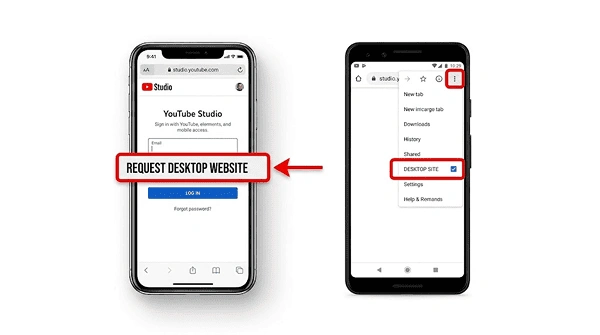
Check the browser to enable the desktop site, which then shows all steps just as on a desktop.
Here are the steps on how to delete YouTube Channel on mobile:
Steps to delete your channel using a phone:
- Go to the browser Chrome for Android phones and Safari for iPhones
- Click Studio.youtube.com and sign in to your YouTube channel
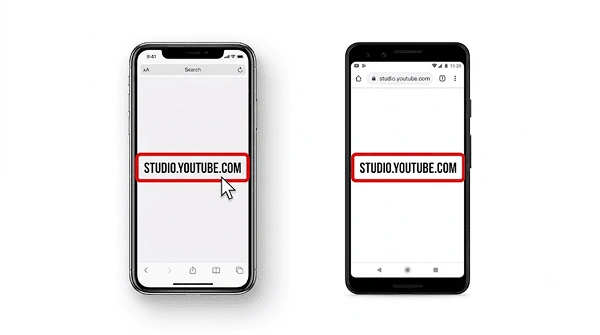
- Click the browser menu and checkmark to enable the Desktop site
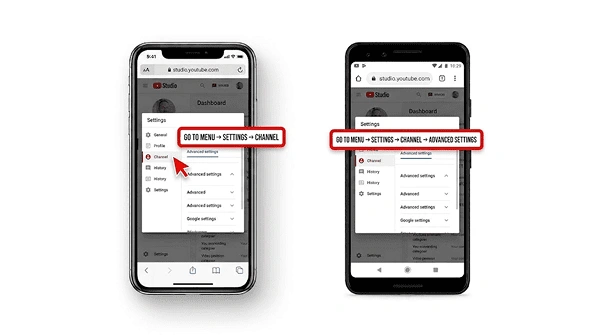
- Go to Menu → Settings → Channel → Advanced settings
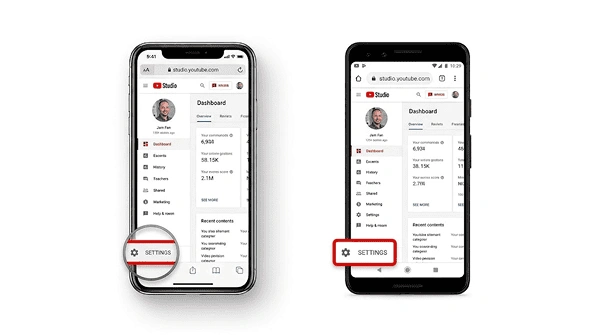
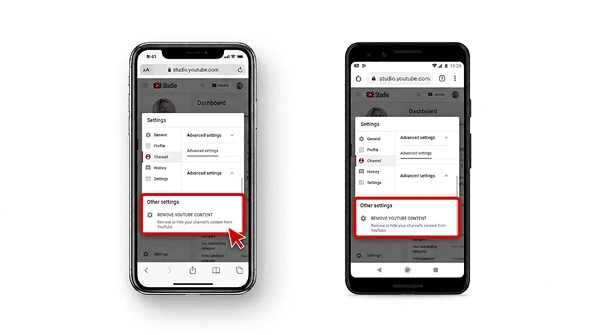
- Click “Remove YouTube Content.”
- Select “I want to permanently delete my content”
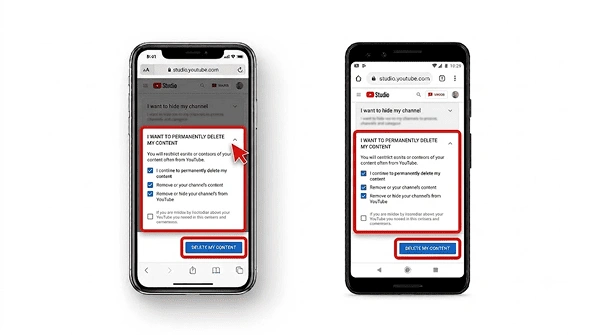
- Tap the “Delete my content” button
What Happens After Deleting a YouTube Channel?
After you delete a YouTube channel permanently, all the channel data is erased forever. It includes videos, comments, playlists, subscribers, and messages that you can never retain.
Don’t worry about your Google Account, Gmail, and Drive data, which is 100% safe. Understanding the results of deleting a YouTube channel may help you decide whether to hide or delete it.
Here is what deleting a YouTube channel affects:
| Item | Result |
| Channel Name and URL | No longer searchable |
| Comments and Likes | Permanently removed |
| Google Account | Stays active and usable |
| Subscribers | Lost and not recoverable |
| Videos and Playlists | Permanently deleted |
| Your Subscriptions | Removed from this channel |
Common YouTube Channel Deletion Problems and Solutions
Here are the most common reasons why your YouTube channel deletion problems exist. It can be a missing “Remove YouTube content link,” account termination, or showing content after deleting the channel permanently. Don’t worry! You also have the best solutions for each problem below.
Problem 1. The Delete Link is Missing
The delete link may be missing in the YouTube settings for some people. It generally happens because of account restrictions, browser issues, or the YouTube app.
Solution: Open YouTube Studio in Incognito mode using a desktop browser. Firstly, disable extensions for some time and clear the cache and cookies from the browser. Finally, check by signing out and in again.
Problem 2. Wrong Channel
Some people have multiple channels with one Google account. When you go to the settings to delete a YouTube channel, you may open another channel’s settings by mistake.
Solution: Make sure you check the channel name twice. If this is not the channel you want to delete, kindly switch accounts by clicking the profile > switch account > confirm channel name with profile picture > go to YouTube Studio again.
Problem 3. Password Not Accepted
When you delete your channel, Google asks you for your password for security purposes. If it is not accepted, it can be because of typing mistakes, entering an old password, a password manager autofilling old credentials, or you being logged in with a different account.
Solution: You should type the password yourself, make sure the caps lock is off, try using a different device, or reset your password. Wait for some time if you have reset the password.
Problem 4. Content Still Visible
Some users panic when they see a few videos or thumbnails after deleting the channel permanently. It happens because YouTube takes time to erase videos, playlists, cached thumbnails, and comments.
Solution: You should wait for at least 72 hours, clear the cache, check in an incognito tab, and check when logged out. Google may still show old content temporarily in search results till the index is updated.
Problem 5. Terminated Channel
YouTube terminates your channel in case it finds policy violations, including spam activities, violations of community guidelines, or copyright issues. You can’t see the delete option if your channel is terminated.
Solution: Check the email sent by YouTube to know the reason for account termination. Reply to the mail appealing for the restoration of the channel if the reason is invalid.
Dos and Don’ts Before Deleting a YouTube Channel
Dos
- Back up the channel data first, with videos, using Google Takeout, before the deletion process.
- Select “I want to hide my channel” if you need a break.
- Always delete from a desktop browser, as the app doesn’t have an option to delete a channel
- Inform your audience in advance about your next move to delete the channel
- Make sure you are signed in to the channel you want to delete.
Don’ts
- Don’t depend on the mobile YouTube application because it does not have the delete option.
- Never hurry when deleting a channel, as you can never get it back.
- Don’t think that deleting a channel will delete everything from your Google account.
- Never delete a channel in case you may need your subscribers back in the near future.
Conclusion
By now, you must have learned how to delete YouTube channel or hide it effortlessly. Hiding just disappears your videos, playlists, subscribers, and other channel data, which you can restore anytime.
Deleting a YouTube channel erases all the channel data, which you can never restore. Now make the decision that meets your requirements. But don’t forget to back up content before deleting.
Next step: Firstly, back up your channel content using Google Takeout; only then decide whether you want to hide or delete. Make a decision wisely, as once deleted, you can never get it back.
FAQs About Deleting a YouTube Channel
Can I delete my YouTube channel without deleting my Google account?
Can I recover my YouTube channel after deleting it permanently?
No, once you have deleted your YouTube channel permanently, there is no way to recover your videos, comments, or subscribers again. You can hide your channel to get it back again in the future.
How can I delete my YouTube channel using a phone?
Follow these steps to delete a YouTube channel using a phone;
- Go to your mobile browser > search studio.youtube.com → enable desktop site.
- Go to Settings → Channel → Advanced Settings → Tap “Remove YouTube Content.”
- Select “I want to permanently delete my content.”
- Check the box and tap “Delete my content.”
- There is no option to delete a channel on YouTube, so you have to take help from the browser.
What is the difference between deleting and hiding a YouTube channel?
Deleting a YouTube channel erases complete channel data permanently, including videos, comments, and subscribers. Hiding a channel temporarily disappears your videos and subscribers, which you can retain anytime.
How long does it take to delete a YouTube channel?
The process to delete a YouTube channel starts just after confirming the request. But YouTube may take some hours to a few days to erase all channel data permanently. Some thumbnails or channel information may be visible temporarily during this time. The total time depends on the content your channel has.
Related Post's