No, you must remove all the members before deleting a group. If you leave without removing them, Facebook gives someone admin controls rather than deleting the group.
Blog
How To Delete A Facebook Group in 2026: Latest Guide
Want to know how to delete a Facebook group? There is no direct button to delete an FB group at once. You have to remove every member from the group one by one and then remove yourself to continue the deletion process.
Learn how to delete a group from Facebook on a desktop browser or a mobile app, reasons for deletion, important points, and common problems you might face.
Quick Answer
How to delete a Facebook group?
Follow the steps if you wish to delete a group from Facebook;
- Go to the members list and remove every member one by one.
- After all have been removed, you need to leave the group as the last member.
- Facebook auto-deletes the group permanently if the creator or an admin with administrative controls leaves the group.
This is the same procedure in both desktop and mobile apps.
Table of Contents:
How to Delete a Facebook Group?
Deleting a Facebook Group is not just like deleting a file from your mobile with a single click. You need to dive deep for it. Worry not! Here you will know how to delete a Facebook Group step by step on the mobile app and desktop browser.
1. How to Delete a Facebook Group on Mobile
Follow these steps one by one on how to delete a Facebook group using a mobile app:
- On Facebook, log in to your account

- Go to Menu → Choose Groups

- Go to Manage and pick the one you want to delete.

- Click “All members” below the group name.

- Click “See All.”
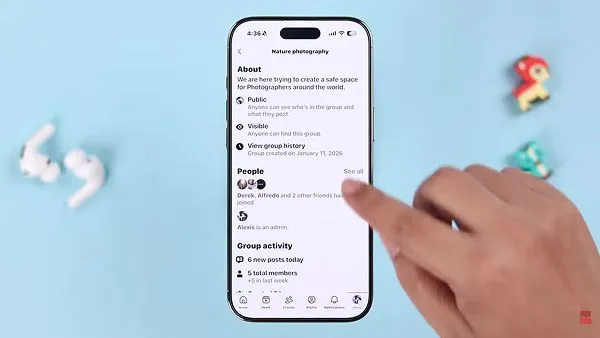
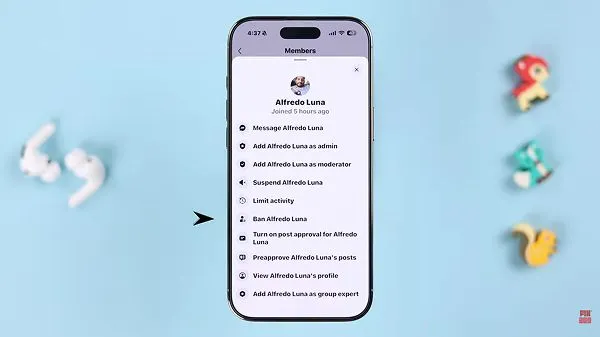
- Click every member’s name and select “Ban Member.”
- When you are the only member, click on the shield icon on the group.

- Scroll down and select “Delete Group” and confirm the deletion prompt.
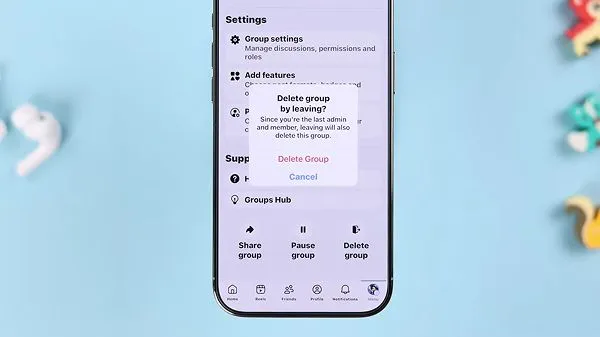
Note: No matter if you are using a desktop or mobile app, the procedure to delete a Facebook group is almost the same on both. Once the last member or admin leaves the group, it will be automatically deleted.
2. How to Delete a Facebook Group on Desktop
Here are the steps on how to delete a Facebook group using a desktop browser.
- Log in to your Facebook from your desktop browser.
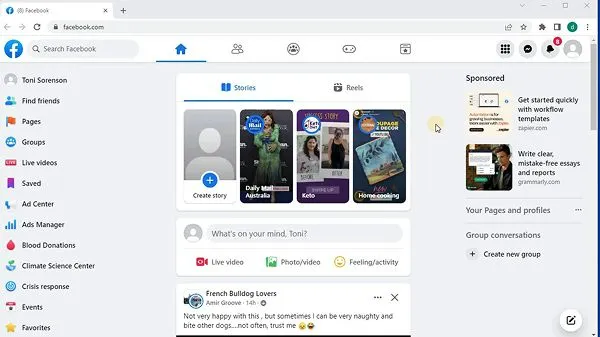
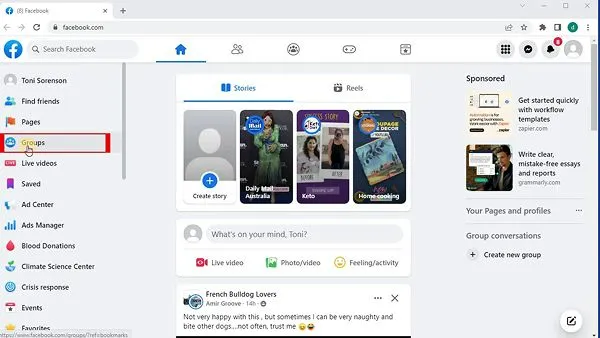
- Click Groups on the left-hand sidebar.
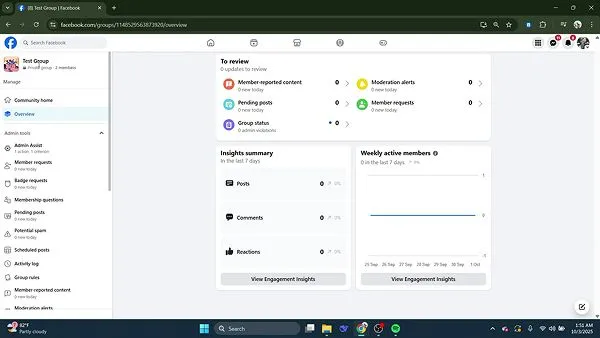
- Select the group you want to delete under Groups you manage.
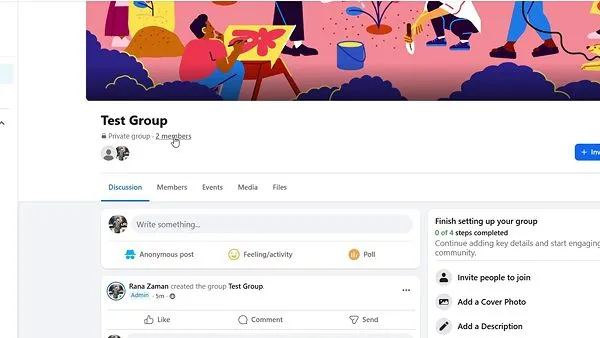
- Go to the Members to see the list of people.
- Click the three dots (…) next to each member’s name.
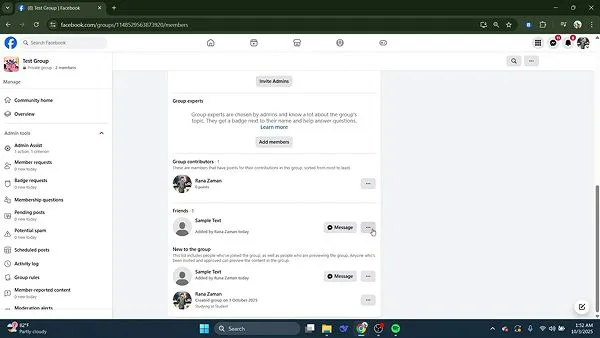
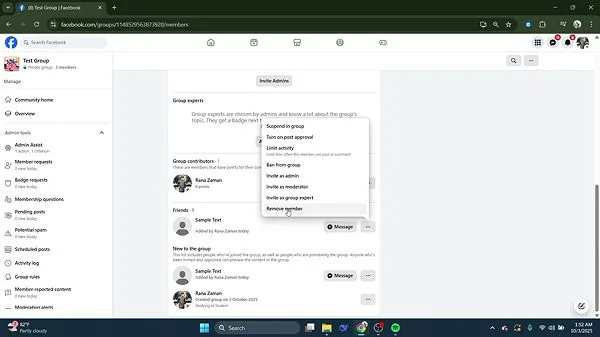
- Select Remove Member.
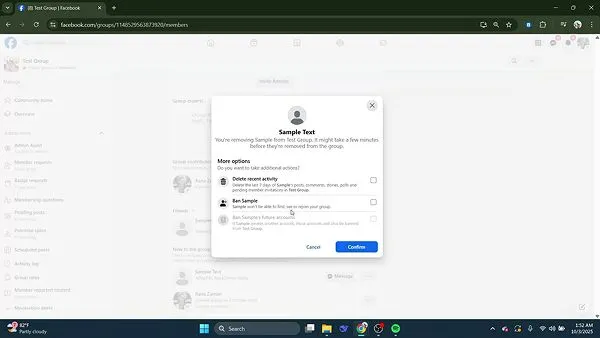
- Click Confirm (repeat this procedure until you are the only member or admin left in the group.)
- Return to the main page of your group, click the (…) next to your name, and select Leave Group.
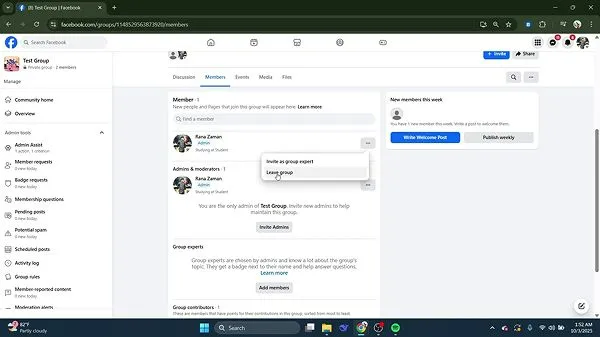
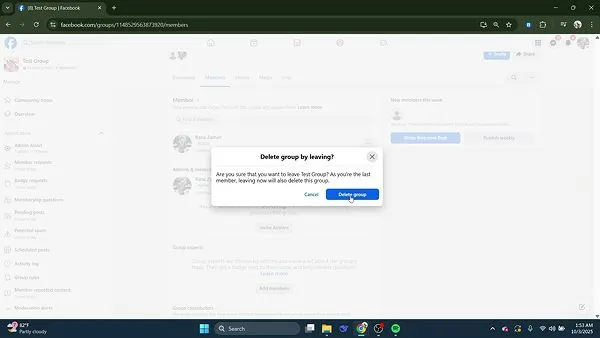
- A prompt will appear confirming that leaving as the last member will permanently delete the group.
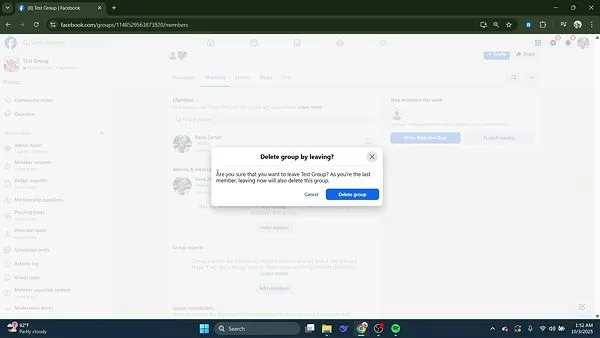
- Click Delete Group to finish.
Note: You can’t remove all the members at a time; instead, you can remove one at a time.
Why Delete a Facebook Group?
People wish to delete a Facebook group when it’s no longer active, becomes difficult to moderate, or serves its original purposes.
If the group has only gone quiet, working on hashtags on Facebook is usually a cheaper fix than deleting it outright.
There are a few common reasons to delete a Facebook group:
- When members stop posting, commenting, or interacting, the group remains empty and stagnant.
- When you have created two or more of the same groups at one time.
- The group was created for a specific temporary event, class, or project that has already ended.
- When you want to move your community to a different platform and want to start with a new focus.
- Some groups are removed to protect members’ privacy.
- When an admin needs a clean break from social interaction, he prefers deletion to leave the group.
These points might help you before you are willing to delete a group. Once you delete the group, you have no other option to bring it back.
What to Know Before You Delete A Facebook Group
You must remove every member before you delete a group from Facebook. You should be the last person remaining in the group. The process of deleting a group is totally different from deleting a post or page. For this, you need to know some facts about it.
- Only the group creator has authority to delete the group. Other admins can delete the group only after the original admin has left or given them administrative controls.
- Whenever you delete a Facebook group, the members will not be notified about the deletion of the group.
- The process of deleting a group is not temporary; its posts, photos, and member list will be permanently deleted.
- If you delete a group without removing all members, Facebook will remove you from the group and give its control to another member of the group.
- There is no option to remove everyone at one time on Facebook. You will have to remove every member one by one.
The above list will help you avoid getting stuck while removing or deleting the Facebook group; you should keep in mind all the instructions carefully.
What Happens After You Delete The Facebook Group?
There are many differences you will see after deleting the Facebook group, such as:
- It is permanently removed from Facebook along with all of its posts, photos, comments, and member list.
- Deleting a group is a permanent action; you cannot recover it.
- Facebook doesn’t send a notification to members when a group is deleted. Therefore, members will be unaware of the deletion.
- The group will disappear from search results, bookmarks, and group members’ lists.
- If members have invited people to join the group or there are some other pending group requests available, they will be cancelled automatically.
Delete Vs. Archive: Which One Fits You
If you are not sure about deleting a group, there is another option: Archive. When you archive a Facebook group, new members can’t be added, and current members can’t make new posts or comment on old ones. They can only view what is already there. You can reconsider the decision to delete the group.
| Factor | Delete Group | Archive Group |
| Best for | Groups you will never need again | Groups you may revisit later |
| Content | Instantly removes the content from your public view and standard activity areas | Removes post or chat from public timeline, stores it to read-only |
| Posting | Not applicable | Disabled for members |
| Reversible | No | Yes, can be reactivated |
If you are not willing to lose items of the group permanently, then archiving is the perfect choice for you.
Troubleshooting: Common Problems While Deleting a Group
Many people face this problem while deleting a Facebook group. There are some issues that you can fix.
- Can’t see an option to delete a group: Facebook doesn’t show it openly. You need to go inside the “Leave Group” settings to do it.
- Stuck at the last member: If someone does not leave the group willingly and you are unable to remove him, give it a try after some time. You can try removing him from another device.
- Admin, not the creator: You can only see leave, share, or post options if you are an admin and not the creator. Only the creator or an admin who has administrative controls can delete a group.
- The Group shows as archived and not deleted: It shows only when you leave the group without removing all the members. You need to check that no member is left and then delete it.
If you delete a group without removing every member, you will be left out of the group. But other members will be present in the group, and you will see the group is archived, not deleted.
Do and Don’t Before Deleting A Group
Make sure to know about these important do’s and don’ts before you delete an FB group.
Dos:
- Must post an announcement a few days before deletion to let people know the group is closing and where they can find you next.
- Save any important photos, files, or documents that you might need in the future.
- Go to the group’s member tab and remove each person one by one.
- If you are the admin of multiple groups, make sure that you are deleting the right group.
Don’t:
- Group deletion is permanent and can’t be reversed or restored.
- If you don’t remove all members from the group, you will not get the delete button, so make sure to remove them.
- Don’t just leave the group randomly or pass the admin role; the group will go in a paused state, and it won’t automatically delete itself.
- Don’t decide to delete the group without giving notice to other members, as they can save their posts and documents in their private space.
Conclusion
Now you know how to delete a Facebook group. Deleting a Facebook group is not a temporary process; it is permanent. So before deleting a group, back up anything important like posts or documents. Don’t forget to remove members one by one and notify them at least one week before deletion.
Clearing out other accounts at the same time? The same step-by-step approach covers how to delete a YouTube channel.
If you have doubts about deleting the group, archive is the best option for you to prevent losing data.
FAQs
Is there any way to delete a Facebook group without removing all members?
Does Facebook notify members if a group is deleted?
No, team members do not get any notification when a group is deleted. If you want to inform them, you should send them messages before removing them.
Do all admins have the right to delete a Facebook group, or only the creator?
No, only the creator has the right to delete a group. Other admins can delete it if the main creator is no longer a member and they have got administrative control.
Are deleting a Facebook page and group the same?
No, Facebook pages and groups are two different things; therefore takes separate deletion processes. Deleting a page on Facebook just removes a business profile and its content.
However, Facebook still keeps the page deleted for 14 days before finalizing it. Deleting a group discards everything like members, content, and messages.
Is there any way to recover a Facebook group after deleting it?
There is no way to recover a Facebook group after you have deleted it. All the photos, posts, and member lists disappear permanently. You need to keep back up for all the important content in advance.
Sources:
Delete a Facebook group you admin | Facebook Help Center
Related Post's