If any of your Instagram chats have a dark background and your messages and media disappear after viewing or closing the chat, it means Vanish Mode is active. Curious how to turn off Vanish Mode on Instagram? Open Instagram chat with the dark background and swipe up from the bottom of the screen to turn it off. Know how to turn Vanish Mode off, usages, problems, and solutions.
Quick Answer
How to turn off Vanish Mode on Instagram?
Follow these simple steps to turn off Vanish Mode on Instagram;
Go to the Instagram app on your phone
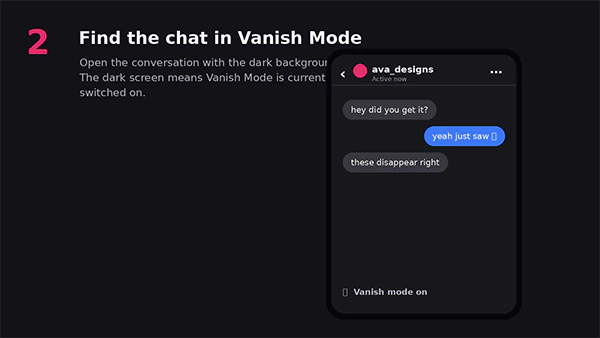
Open the chat with a dark background, which means Vanish Mode is active
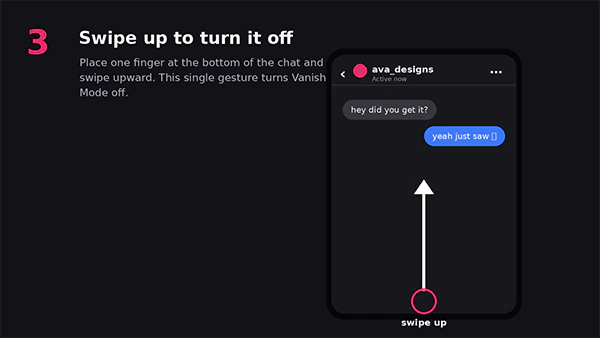
Swipe up from the bottom of the screen and leave
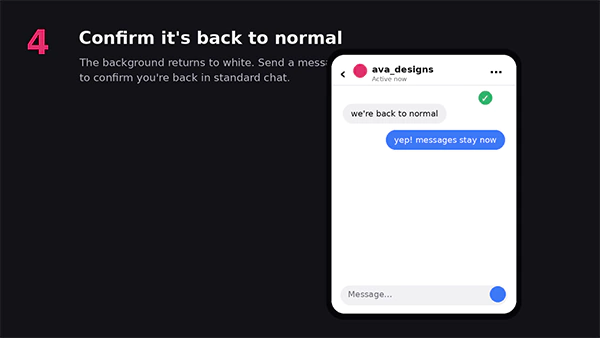
The chat background returns to normal colour, and both people get a notification saying Vanish Mode is off.
Note: If this swiping up doesn’t work for you, update the app, reboot your phone, or use the profile menu in the chat.
Vanish Mode is a messaging feature that makes the chat content disappear once a user sees it and closes the conversation. People can send messages, videos, photos, stickers, and other content in a chat which automatically disappears from the threads. This feature was officially launched on November 12, 2020, under the message integration.
It can work for one-on-one chats between two accounts that already follow each other or have sent messages. Users cannot enable it for group chats. This feature is only accessible via the Instagram app and does not work on a desktop browser or the Instagram website.
Important to know: When Vanish Mode is enabled, the chat background becomes dark, and a label is visible at the top of the screen, which informs both users that this feature is on. Either user can disable it at any time, Instagram sends a notification in chat at the same time when it is turned off.
How to Turn Off Vanish Mode on Instagram Step-by-Step?
The best way to disable Vanish Mode is to swipe up from the bottom of the screen, the same way it is turned on. It works the same on Android and iPhone because it is only a mobile-based feature.
Follow these steps to turn off Vanish Mode;
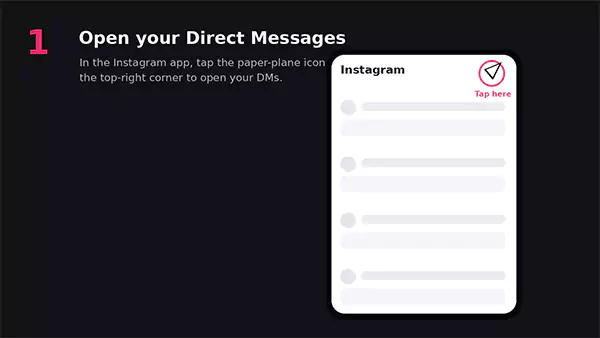
Go to the Instagram app and click on the paper-plane icon to see Direct Messages (DMs)
Choose the chat that has a dark background, which means Vanish Mode is active
Use your finger from the bottom of the screen to swipe up carefully. You get a notification that Vanish Mode is off, and the background turns to its normal colour.
Check it by sending a new message if it has returned to standard messaging.
Both users get a notification in chat once either of you turns off Vanish Mode, so it becomes clear whether chats will be saved or not.
Note: In some Instagram versions, you can turn off Vanish Mode via the chat menu. Click the person’s name at the top of the chat, go to Privacy and Safety, and disable it.
How to Turn Off Vanish Mode If the Swipe Doesn’t Work?
When swiping up cannot turn off Vanish mode, there can be several reasons behind this issue, such as a weak Internet connection, an old version of the app, or an incorrect gesture, and not an account freeze.
Here are some of the most common problems, causes, and possible solutions to fix this issue;
Problem
Possible Reason
Solution
Swiping up does not work
Gesture performed fast
Try swiping up again slowly, and hold before leaving
Vanish Mode reactivates
Using the old app version
Update the app from the Play Store for Android and reinstall for iOS
Missing toggle option
Temporary glitch in the app
Close the app forcefully and reopen it.
The screen freezes while swiping up
Unstable internet connection
Switch to Wifi or turn on data on the phone
Nothing is working
Bug in the server
Report it through Settings – Help – Report a Problem
Suppose none of these solutions works for you, you should follow these steps;
Close the Instagram application first
Reboot your phone
Go to the chat again
Try turning it off now by swiping up from the bottom of the screen.
Note:Clearing the cache for an Android phone and reinstalling the Instagram app for iPhone generally resolves this issue.
Can You Turn Off Vanish Mode Permanently?
No, Instagram does not give this special feature to turn off Vanish Mode permanently for all chats at once. You have to manually disable it for every chat separately. Either you or another user can turn it on at any time by swiping it up from the bottom of the screen again.
As there is no specific way to turn off Vanish Mode permanently, the effective way to prevent random activation is to change the way of scrolling;
Check the message history slowly, as swiping up may activate Vanish Mode.
Either drag slowly or use double fingers carefully near the bottom corner of the chat.
Check if the chat has a dark background; it is the easiest way to confirm active Vanish Mode.
Inform your close contacts that you don’t want to use this feature because either of you can enable it.
What Happens to Your Messages When You Turn Off Vanish Mode
When you turn off Vanish Mode, it does not restore any messages, photos, videos, or stickers that you sent while it was active; those conversations disappear permanently. You will only have the chats in the history that you share with other users after turning off this mode.
Know what works and what doesn’t when you turn Vanish Mode off;
Before: Messages shared before turning on Vanish Mode are safe in chat history.
During: Messages you send during active Vanish Mode are removed for good and can’t be restored later.
After: Messages exchanged after turning off Vanish Mode remain safe just like normal DMs.
According to Instagram’s help center, users can report a message that was sent while Vanish Mode was active for up to 14 days, even when they can’t see the message themselves.
Note:You can report a message only using either Android, iPhone, or iPad apps and not on computers or laptops.
Do’s and Don’ts of Using Vanish Mode
Do’s
Activate Vanish Mode only for unimportant, short, sensitive conversations which you no longer need.
Use the latest version of the Instagram App so that the swipe gesture activates for your account.
Always confirm the background colour of your chat to know which mode the chat is in.
Deactivate Vanish Mode by swiping up from the bottom of the screen if it was mistakenly turned on.
Don’ts
Don’t depend on Vanish Mode to hide a conversation completely, as users can take screenshots.
Never share addresses, passwords, or any confidential information, believing these disappear instantly; consider them DMs.
Don’t be confused with Vanish Mode and “View Once” video or photo messages; these are two different things.
Never think that Vanish Mode Off is applied to all the chats in one go; you have to disable it separately for all chats.
Vanish Mode vs. Disappearing Messages
Vanish Mode and disappearing messages are similar features, but not the same. Check the table below to know the difference between the two.
Feature
Vanish Mode
Disappearing Messages
How it works
Deletes all the messages once the person reads them or the chat closes
Deletes messages only after a specific time frame, generally 24 hours.
Timer options
Can’t customise the time duration
Have a fixed time period.
Turning the feature off
Deactivates Vanish Mode for upcoming chats, but can’t get previous chats
Existing messages are visible until the 24-hour time expires, even after it turns off.
Media support
All, including photos, videos, voice messages, stickers, and text, vanish after seeing or closing the chat
All photos, videos, voice messages, stickers, and text disappear only after a specific time window.
Availability
The older feature is currently being replaced in some regions.
The latest feature is gradually rolling out to accounts.
Best use case
Unimportant chats that are invisible after checking.
Chats are available for a specific time before disappearing.
Conclusion
By now, you must have learned how to turn off Vanish Mode on Instagram. It just needs one swipe up from the bottom of the chat where it is active, and the same works to turn it on. If you are facing an error doing it, you should update your Instagram app, restart it and then try; otherwise, the Privacy and Safety menu in the chat resolves it.
Note: You have to turn Vanish Mode on and off for every chat individually as there is no option to activate or deactivate it in one go for all the chats.
Next Step: Go to Instagram chats to check how many chats have a dark background; it shows the active Vanish Mode. Swipe up from the bottom to disable it, which saves your regular conversation with the user.
FAQs
How can I turn off Vanish Mode on Instagram?
Follow these steps one by one to turn off the Vanish Mode;
Go to the chat where it is active
Swipe up from the bottom of the screen and leave
Both will get a confirmation message in chat for turning off Vanish Mode, and the dark background in chat will return to its normal colour for both users.
Why is Vanish Mode not turning off on my phone?
Users generally face this issue just because of a weak Internet connection, an old app version, or an extremely fast swipe. Therefore, you should update the Instagram app and restart it, then try to turn off Vanish Mode again.
Is it possible to turn off Vanish Mode for all chats permanently?
No, Instagram has not given this advanced feature to any account as of now. You have to turn it off in every chat separately, wherever it is active.
Can I get my old messages back when I turn off Vanish Mode on Instagram?
No, you can’t get any messages, photos, stickers, or emojis back if you send them to someone while in active Vanish Mode because these all disappear permanently. You only receive messages sent before it was activated or after it was inactivated in the chat.
Is another person aware when I turn off the vanish mode?
Yes, Instagram sends a notification to both users in the chat at the same time when either of you disables Vanish Mode, so that no one is confused in terms of privacy.