No, the Instagram download option is only available on Reels from public accounts that have enabled the download option. Private videos, regular posts, and stories usually don’t have a download option.
Blog
How to Download Instagram Videos: 2026 Latest Guide
Downloading Instagram videos can be useful when you want to watch your favorite content offline. It takes a few seconds to download the videos, but never forget it takes a lot of storage on your device
Here you will learn how to download Instagram videos step by step, download all your media, what you can download and what you can’t, and safety tips.
Quick Answer
How can I download Instagram videos?
To download Instagram videos, you need to use third-party websites to save them to your storage.
Here is how to download Instagram videos step-by-step;
- Open the Instagram app and copy a video link you want to download.
- Open the Indown website and paste your link in the search box.
- Click Search.
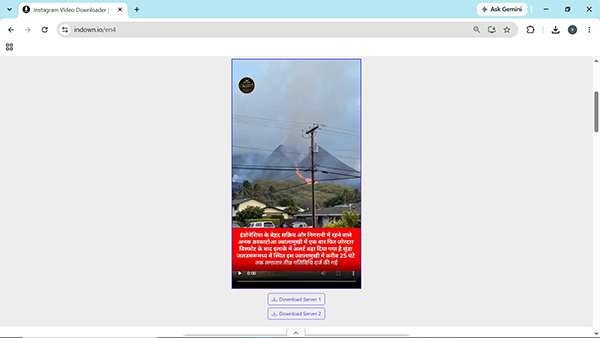
- Tap either server 1 or 2 to start downloading.
Table of Contents:
- How to Download Instagram Videos
- How to Download Your Own Instagram Videos
- How to Download All Your Videos at Once
- What You Can and Cannot Download from Instagram
- Why The Instagram Download Video Button is Missing
- Instagram Video Download 4K: The Honest Answer
- Instagram Downloader Websites: What to Know First
- How Can You Use Screen Recording as a Backup?
- Do's and Don'ts of Downloading Instagram Videos
- Conclusion
- FAQs
How to Download Instagram Videos
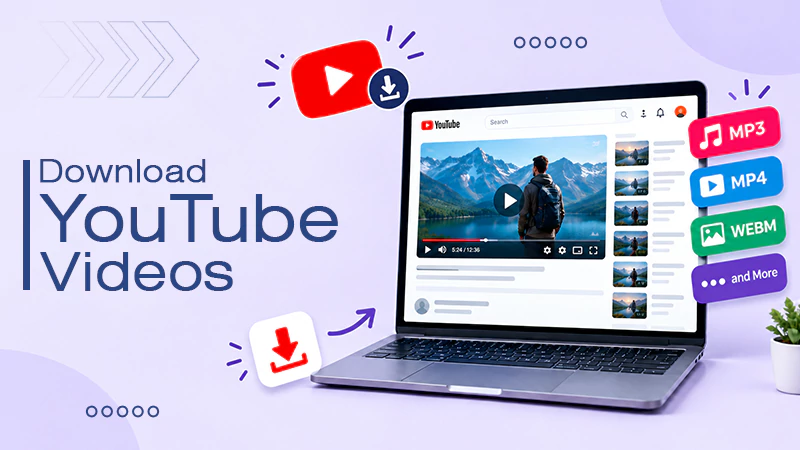
You can save a reel directly to your phone. First, open the reel, tap the share button and select Download. In order to download Instagram videos, you need to take the help of third-party websites such as Instagram Downloader, Indown, Igexport and Save Clip.
Here is how to download Instagram Videos quickly;
- Go to your Instagram → Reels and copy the link of any Reel you want to download.
- Go to any Instagram video downloader like Indown.
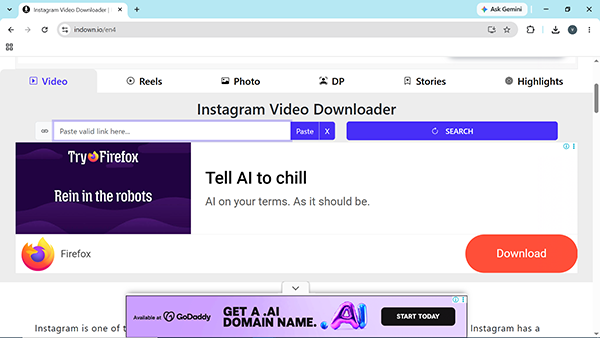
- Paste your link in the search box and click search.
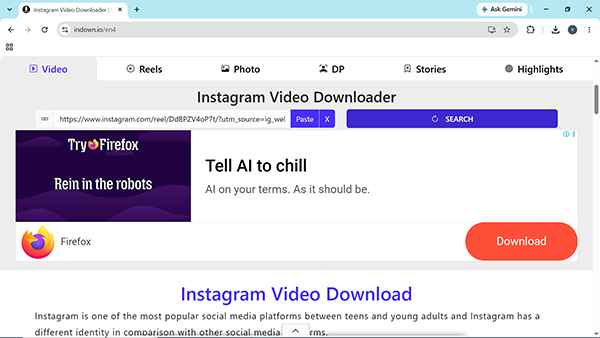
- Click either server option to start downloading your video.
How to Download Your Own Instagram Videos
You can download your own reels without a watermark on Instagram. It also saves drafts directly from the Reels editor. This gives you the best video file, so it is better to use Instagram’s own download option rather than any third-party Instagram downloader websites.
- Go to your profile and open the Reels section.
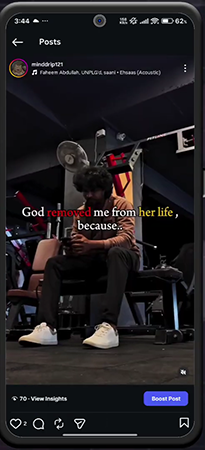
- Now open the reel you want to download, then click the sharing option (paper plane icon at the bottom).
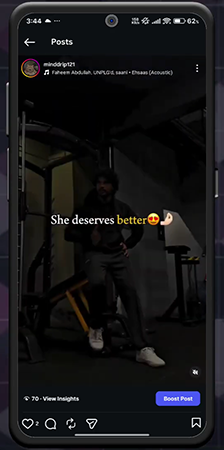
- Scroll left until you see the download option. Click it to save the video to your phone.
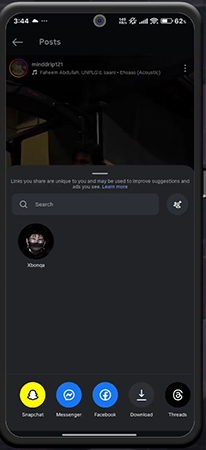
Note: Keep in mind that the bookmark icon does not download the video. It only saves the post inside Instagram, so you can find it and watch it later.
How to Download All Your Videos at Once
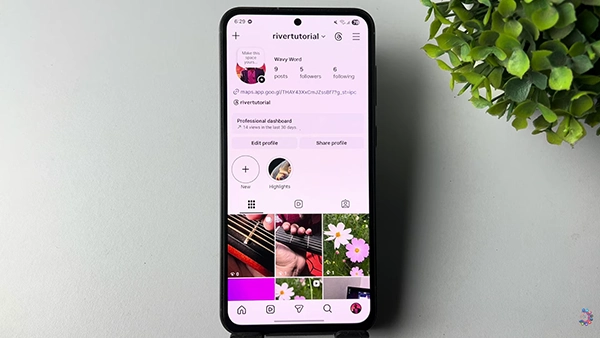
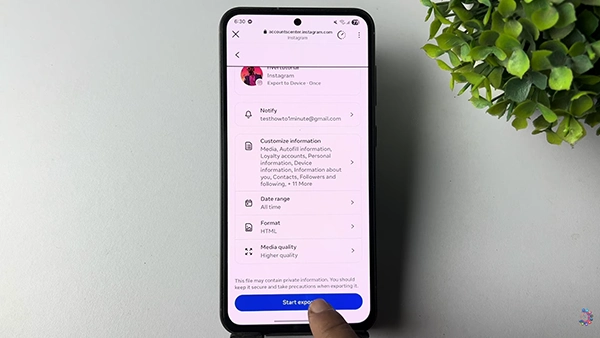
If you want to download all your photos and videos, including stories and reels, you can do it directly through Meta’s Account Centre. You don’t need to install any other app.
- Go to your profile
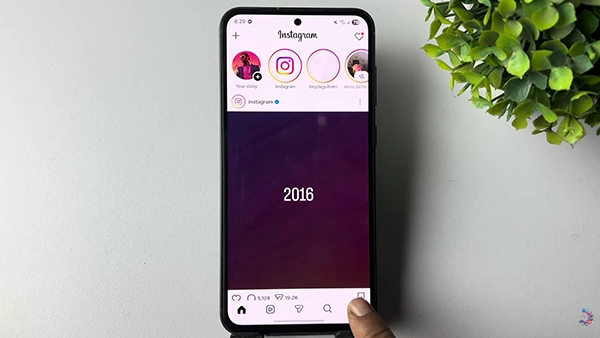
- Tap the three-line menu in the top right corner.
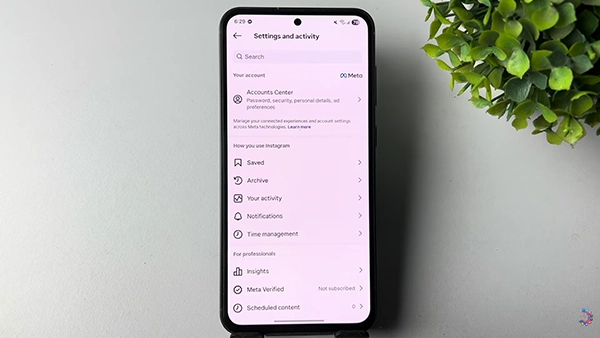
- Then click the Account Centre.
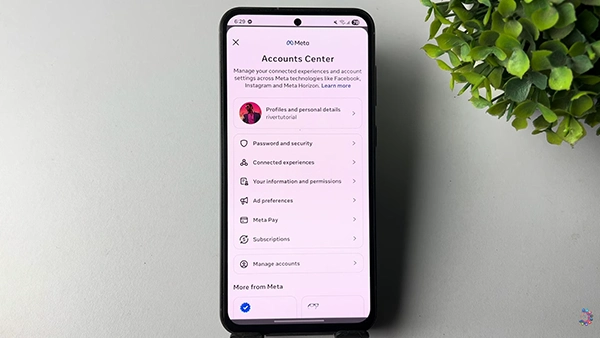
- Select your information and permissions.
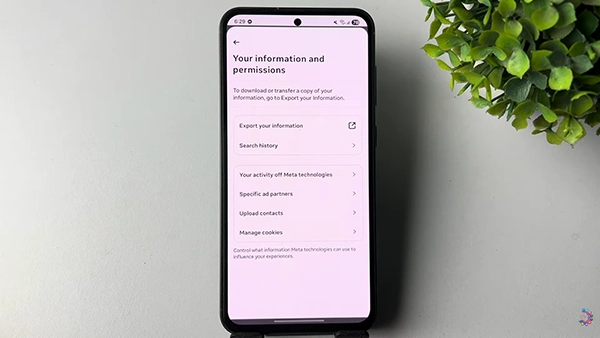
- Click Export your information.
- Tap Create export.
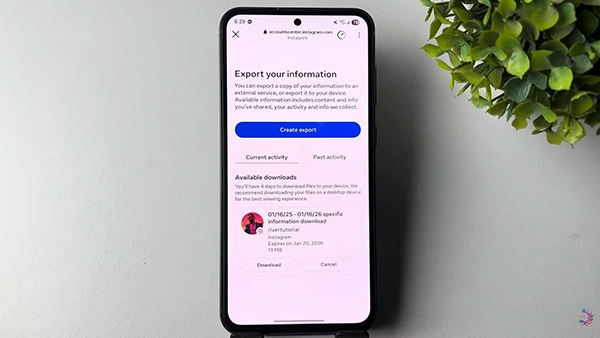
- Now select where you actually want to export data. Click Export to device.
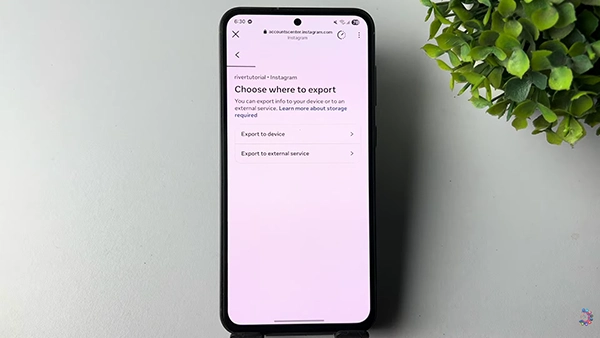
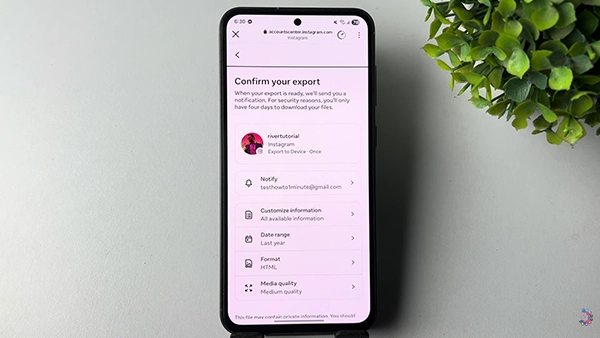
- Click “customize information.”
- Find the “Media” option and check it.
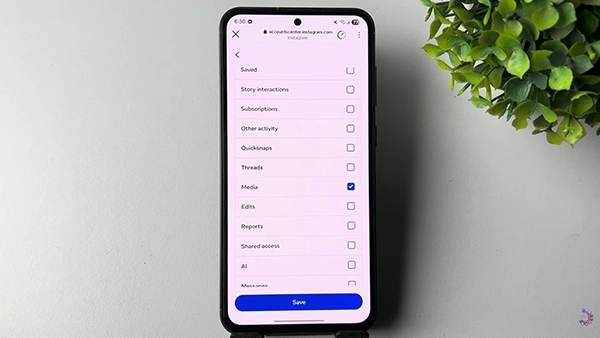
- 10. Now hit the Save option and click Notify.
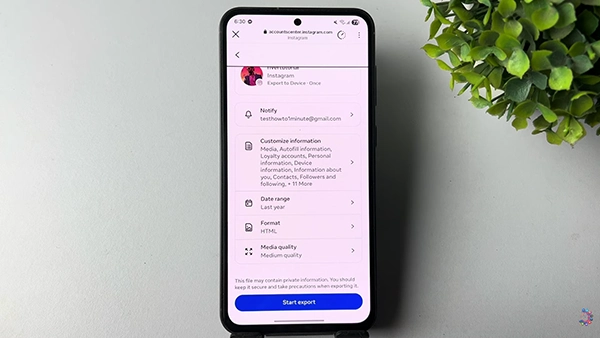
- Choose the mail where you want the notification.
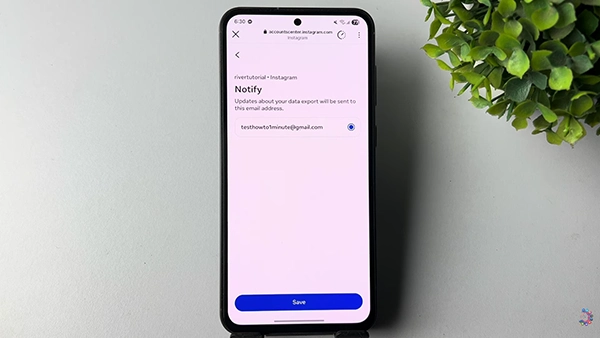
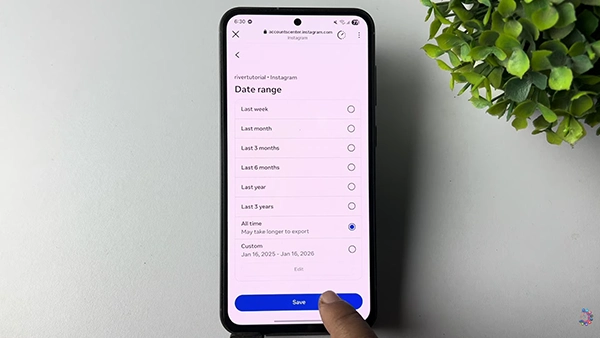
- In Date Range, select all times.
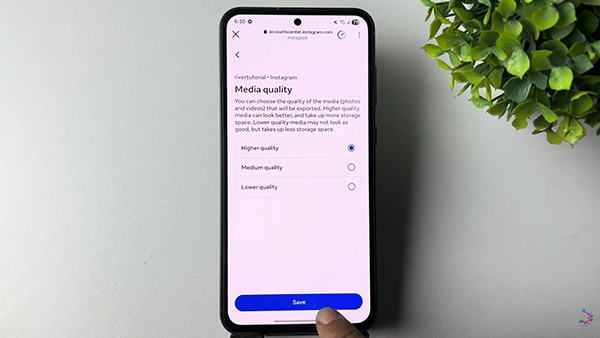
- In Media Quality, select higher quality.
- Finally hit the “Start export” button.
- Verify your password to start exporting data.
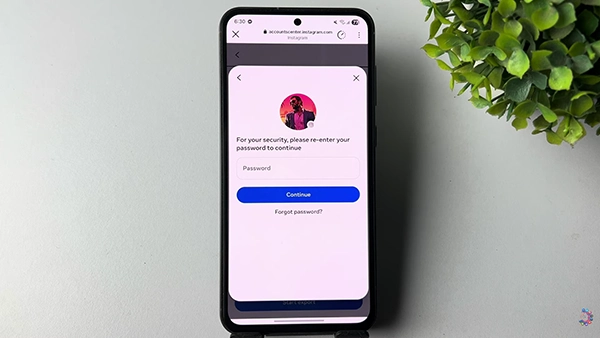
Note: You will receive an email when your download is ready. The download can take up to 30 days. The download link expires after four days, so make sure you save your files promptly.
What You Can and Cannot Download from Instagram
Instagram doesn’t provide a direct download option for every type of video. The download button is mainly available for public reels. Regular feed videos, stories, and content from private accounts generally don’t have this option. So if you don’t see a download button, it simply means that Instagram doesn’t allow downloads for that particular content.
| Content Type | Download Button | What you Get |
| Public Reel | Yes, if allowed by creator | MP4 file with a watermark |
| Your Own Reel | Always available for the content creator | Clean video without a watermark |
| Feed Video Post | Not provided by Instagram for regular feed videos | Can only be saved within Instagram |
| Story | Not provided as a direct video file download | Screen recording is the alternative |
| Private Account Video | Disabled to protect user privacy | No official way to download it. |
There is one simple rule behind the whole table: Instagram makes it easy to download content which is designed for sharing. The reels are created to go from one app to another, and therefore they can be downloaded. Feed posts and stories do not have a download option; thus, any app or website that claims to download them uses a different approach.
Why The Instagram Download Video Button is Missing
If the download button doesn’t show up, there are no issues with your Instagram application because the feature is often disabled. Even if you reinstall the app, it will not bring the button back.
Here are some common reasons why you can’t see the Instagram video download button:
- Private Account: You cannot download reels from a private account.
- Creator turned it off: The creator may have disabled downloads in their Instagram settings.
- Under-18 Account: The download option is by default turned off for teen accounts.
- It is a feed post, not a reel: Videos posted as regular feed posts don’t have the same download option as Reels do.
- Older Reel: If the Reel was posted before the download feature was available at your location, those posts will not have the download option.
Instagram Video Download 4K: The Honest Answer
There is no way that Instagram can provide you with real 4K videos. Although you can upload content in high quality, the maximum video download quality is limited at 1080p. This clearly shows that you cannot download a real 4K video from Instagram directly. Therefore, if you come across any third-party websites claiming Instagram video download 4K is just upscaling 1080p videos.
| Stage | Resolution | What it means |
| Your upload | Accepts videos up to 4 K | Instagram processes and compresses the video. |
| What viewers see | Video shown at a maximum of 1080p | This is the practical viewing ceiling |
| Advertised 4k download | True 4k downloads is not possible | It is basically an upscaled version, not real 4k detail |
In case you really want to have any videos or reels in high quality, go to the uploader and ask him to send you the original file. There is no way to get the same quality through any online portals after Instagram compresses them.
Instagram Downloader Websites: What to Know First
Third-party Instagram downloader websites and applications are risky. They are against Instagram’s rules that you are not allowed to get information or download data without permission or in an automated way. Most video downloader tools follow the same approach. You should know this before pasting any link into such apps or websites.
- Breach of policy: Downloading Instagram content in an automated way without permission is against Instagram’s policy.
- Copyright: You can download Instagram videos for personal use. But reposting someone else’s videos without permission will raise copyright issues.
- Login Requests: There is no legal downloader that will ask you for your Instagram password. If a site does, that’s a major warning sign.
- Ads and Malware: Many free downloader websites show excessive ads and redirect users to other sites, which can lead to malicious URLs.
- No Private Access: Legitimate tools cannot simply access private Instagram videos. Websites claiming this are either scams or want to steal your data.
How Can You Use Screen Recording as a Backup?
You can record anything that appears on your phone’s screen, such as Instagram Stories and regular feed videos. The quality drops in screen recordings. You will also see the button/ interface of the app. This is different from breaking automated access rules, as you are just recording your own screen.
- iPhone: First, add screen recording from Settings. Now go to the Control Centre. Just swipe down to start the screen recording.
- Android: Pull down the quick settings menu and choose Record screen.
- Trim afterwards: After recording, you can trim off the extra seconds at the beginning and end using your media or photo app.
Advice: Before you start recording, turn on Do Not Disturb mode so notifications can’t pop up on the screen and ruin the recording.
Do’s and Don’ts of Downloading Instagram Videos
If you want to download Instagram videos, you need to follow some steps before starting the process:
Do’s
- Use the download button in your Instagram app as the priority.
- Save the original version through the Account Centre if it is your own video.
- Give credit and tag the creator if you share someone else’s video.
- Ask the creator for permission before reposting their reel.
- Check your sharing and reuse settings if you don’t want others downloading your content.
Don’ts
- Never enter your Instagram password on a third- party downloader website.
- Don’t repost someone else’s reel and claim it as your own.
- Don’t rely on websites promising downloads from private accounts or in high quality, like 4 K.
- Don’t depend on a downloaded copy as your only backup. Keep the original video safely stored.
Conclusion
Now you have learned how to download Instagram videos. You need to use Instagram’s download button for public reels. If it is your own video, you must use the Account Centre to save it. If there is no download option, you can use screen recording. But avoid websites or apps that promise private videos or downloads in 4k quality. However, give the creator credit if you share his videos.
FAQs
Q1) Can I download any Instagram video?
Q2) Why does my downloaded reel have no sound?
Sometimes Instagram removes copyrighted music from downloaded videos. If the reel uses original audio, the sound will stay. So a video without sound can be normal and not a bug in the app.
Q3) Can I download Instagram videos in 4k?
No, Instagram generally provides videos at up to 1080p. Websites claiming to give you real 4k are usually just making the video larger in size, not adding real detail.
Q4) Are Instagram Downloader websites real?
No, these can be risky. Some websites may break Instagram’s rules or create copyright problems, especially when you repost someone else’s video without permission.
Q5) How long does the Instagram data download take?
It can take up to 30 days, although it often takes less time. When you receive the download link, save the files quickly or request a fresh copy because the link is available only for 4 days.
Q6) Does the creator know when I download their reel?
Generally, no, the creator doesn’t get notified from Instagram when you download a public reel. However, creators can turn off the option “Allow people to download your reels”; then no one will be able to download reels.
Sources:
Information available to download from your Instagram profile by Instagram Help Centre
Who can download your Instagram reels by Instagram Help Centre
Instagram now allows anyone to download public Reels by Techcrunch
Related Post's