In order to tag someone on Facebook, you need to open a photo, post, or comment, then type the @ symbol and their name. Choose the correct profile name from the pop-up list, then complete your post. The process is the same in both a mobile app and desktop browsers.
Blog
How to Tag Someone on Facebook Step-by-Step in 2026
Do you want to know how to tag someone on Facebook? When you tag someone, Facebook creates a direct link to their profile in a post, photo, or comment. Users get a notification if someone tags them. The tagging feature is available in both a mobile app and a desktop browser.
Here you will know how to tag someone in a post, comment, photo, and story step-by-step, dos and don’ts.
Quick Answer
- Click on your posts or photos on which you want to tag someone.
- Type the @ symbol in the text box of your post or comment.
- Either type your friend’s name, page, or a business and select their profile from the pop-up list.
- Finally, finish the post by hitting the Post button.
- The steps of tagging someone on Facebook are the same on a desktop and a mobile app.
Table of Contents:
- How to Tag Someone on Facebook?
- How to Tag Someone in a Comment?
- How to Tag Someone in a Photo or Video?
- How to Tag Someone in a Facebook Story?
- Tag vs. Mention: Know the Difference
- What You Need to Know Before You Tag Someone
- How to Control Who Can Tag You on Facebook?
- Common Problems When You Tag Someone on Facebook
- Dos and Don'ts for Tagging on Facebook
- Conclusion
- FAQs
How to Tag Someone on Facebook?
To tag someone in a Facebook post, comment, or photo and video, start preparing your post first. Now type the @ followed by their name. Then select their profile from the shown list. Lastly, finish your post and click Post.
Now you know how to tag someone on Facebook in both mobile apps and desktop browsers. The tagging process follows the same steps in both the mobile app and the desktop browser.
How to Tag Someone on Facebook on Mobile?
Follow these steps to understand how to tag someone on Facebook posts quickly using a mobile app:
- On Facebook, click “What’s on your mind?” at the top beside your profile picture.

- Write or insert anything you want to share with the tagged user.

- Touch the display anywhere to see the @ sign on the screen. Click it to get some suggested names.
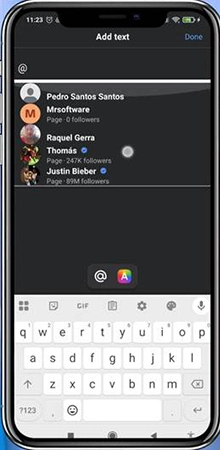
- Tap Done at the top right corner after tagging a user.

How to Tag Someone on Facebook on Desktop?
Follow these steps to tag someone on Facebook using a desktop browser.
- Log in to Facebook on your computer.
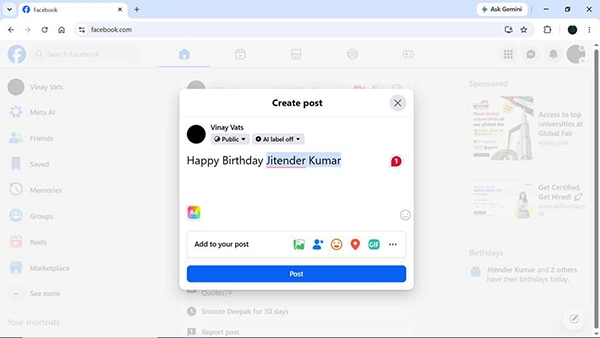
- Click the option “What’s on your mind” at the top of the screen.
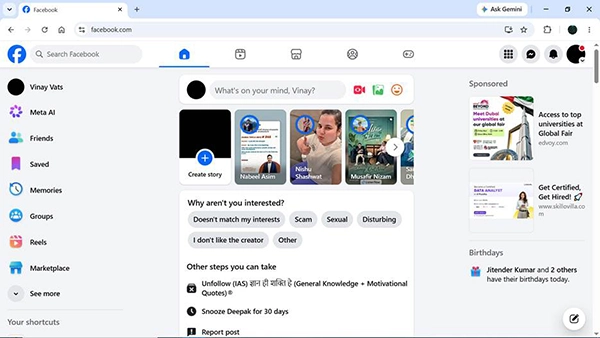
- Now type @ symbol and start writing the person’s name.

- Several profiles will be shown in the suggestion list; choose the correct profile from there.
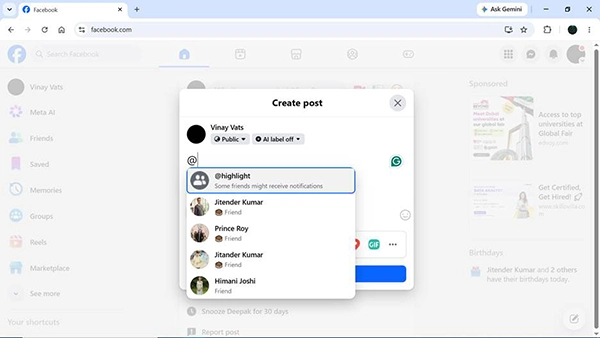
- Click Post, and the post will be shared.
How to Tag Someone in a Comment?
To tag someone in a Facebook comment, type their name with the @ symbol in the comment box. Make sure to select their profile from the pop-up list only.
Here is how to tag in Facebook comments, whether a page, user, or any business.
- Open Facebook and click on any post.

- Click the comment icon to start typing your comment.

- Start with the @ symbol and write any name of a user or page you want to tag.

- Tap on the correct name when it pops up in the suggestion box.

- Tap the arrow → icon to post the comment.

- You have successfully tagged a business in a comment on Facebook.

How to Tag Someone in a Photo or Video?
To tag someone in a photo on Facebook, open the photo and click the Tag icon at the top. Tap anywhere on the photo and type their name simply. Then you have to select their profile.
- Log in to Facebook and click your picture.

- Tap Photos under your bio section.

- Choose any photo from the list and click the Tag icon at the top right.


- Type the person’s name you want to tag and choose from the suggestions only.

You have successfully tagged a user on a Facebook photo.
Note: When you tag someone, it will link the photo to their profile. It can appear on their timeline, but again, it depends on their privacy settings.
How to Tag Someone in a Facebook Story?
To tag someone in a Facebook story, you need to create a story first. Then click on the text or sticker icon and type the @ symbol followed by their name. Now select their name from the pop-up list and post the story.
Here is how to tag people in Facebook stories:
- Open the Facebook app on your phone and click the first option, “Create story.”
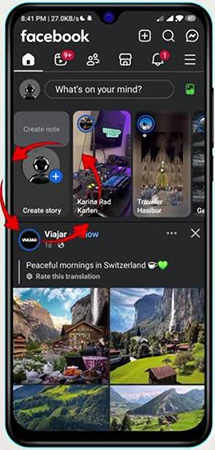
- Choose a photo or video of your choice and click the @ mention from the bottom left.

- Type the person’s name and click what comes up in the result.
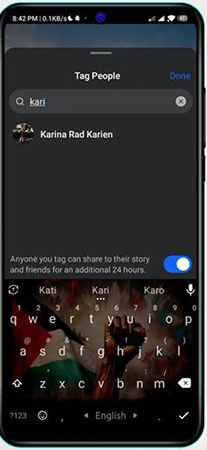
- You can drag and edit its color by clicking it.

Now click Share, and the tagged person will get a notification for being tagged.
Tag vs. Mention: Know the Difference
A tag links to a person’s profile, and it can appear on their timeline, while a mention simply names them in a post or comment and notifies them.
| Factor | Tag | Mention |
| Best for | Identifies users in content, often a photo or video, using @ | Refers to someone in the text. |
| Shows on timeline | Posts may appear on your feed or timeline. | Facebook doesn’t automatically show up a mention on your timeline. |
| Notification | The tagged profile is notified. | The mentioned profile is alerted. |
| Use | Used in specific photos, videos, or posts. | Used to casually reference someone in comments, captions, or messages. |
What You Need to Know Before You Tag Someone
You need to keep these points in mind before you tag someone on Facebook.
- Tagging is a wonderful feature that works best for friends, but you can also mention non-friends only if their profile comes up in search results.
- It depends on a user’s settings whether your post goes straight to their timeline or it needs their approval first.
- Your tagging alerts the user, and it can also go to their friends. But it totally depends on their audience settings.
- You can tag groups and pages just like users. Write the @ symbol and type the group or page name, and tap their names from the drop-down results.
- It is possible to add many names in a single comment, photo, or post.
How to Control Who Can Tag You on Facebook?
If you know the Facebook settings, you can control who can tag you easily;
Open your Facebook profile > Go to Settings & privacy > Settings > Choose Profile and tagging under the Audience and visibility section.
Here is how you can change your tagging with multiple options, like
- In the “Who can tag me” option, you can select public, only friends, or me.
- You can check and approve posts before they show on your page after turning on Timeline Review.
- Tag review allows you to see the posts if anyone on Facebook tags you. If you approve it, only then will it be visible to the person who tagged you and their friends.
- Choose who can see tag suggestions for you when your friends post your photos.
Common Problems When You Tag Someone on Facebook
There are some problems that people face while tagging on Facebook. You need to follow the steps below to solve these issues:
- Name does not show in suggestions: Enter the person’s name with correct spelling. If you do not get the person’s name in the suggestions, their privacy settings for “Who can tag me” might be the reason for this issue.
- The tag does not convert into a link: You had better choose the person’s name from the dropdown suggestions. If you simply type their name in text, it will not create a clickable link.
- Can’t see tagged post on their timeline: If they have enabled the timeline review settings, the posts will need their approval first to show in their timeline.
- Unable to tag a page: If any page is unpublished or banned by country or age, then it will not appear in tag suggestions for you.
Dos and Don’ts for Tagging on Facebook
Dos
- Tag people only when the post is related to them.
- Get their permission first before tagging someone on personal or private photos.
- Tag people or businesses to give them credit when appropriate.
Don’ts
- Don’t forget to choose the person’s name from the suggestions while tagging.
- Don’t assume friends of the tagged person will see the post; it depends on their privacy settings.
- Don’t get confused with tags and mentions. These work differently on Facebook.
Conclusion
You have learned how to tag someone on Facebook in a post, photo, or comment on both the browser and mobile app. Tagging becomes much easier when you know where to find the @ or tag people option. Always use tags carefully and respect others’ privacy, especially when tagging a personal photo or post. If you are worried about your privacy, change the privacy settings for “Who can tag me”.
FAQs
Q1) How can I tag someone on Facebook?
Q2) Can I tag someone who is not my friend on Facebook?
Yes, it is possible only if their privacy settings “Who can tag me” allow it. You can simply start with the @ symbol and then type their name and choose their profile in case it comes up.
Q3) Why am I not able to tag someone on Facebook?
There can be multiple reasons that prevent you from tagging someone. It can be due to the wrong spelling of their names, or they have updated their “Who can tag me” settings to “Only Me” or “Friends.”
Q4) How can I stop users tagging me on Facebook?
Open Settings & Privacy from your Facebook profile and go to Settings. Now move to the profile and tagging section to update “Who can tag you in posts.” You should change it to either Friends or Only Me and toggle Timeline Review on. From now onwards, tagged posts will need your approval first before they appear on your profile.
Q5) How can I tag someone in a post on Facebook?
Go to the post or start a new post. Write the @ sign and then their name; choose from the drop-down suggestions. Complete the post and head to Post It. This is how their name becomes a direct link for their profile, and they will receive a notification for it.
Q6) What is the difference between tagging and mentioning someone on Facebook?
A tag links to a person’s profile, and it can appear on their timeline depending on users’ settings. Whereas mentioning simply means to name them in a post or comment just to notify them without a timeline link.
Sources:
What Is Tagging on Facebook and How Does It Work? by the Facebook Help Center
See posts that you’re tagged in before they appear on your profile by the Facebook Help Center.
Tag people or Pages in photos on Facebook by the Facebook Help Center
Related Post's