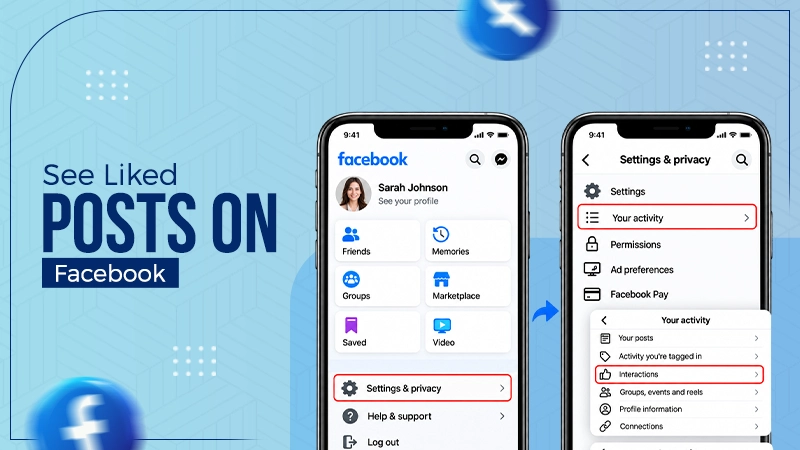
First, you have to delete the photo, then go to Trash under Activity Log to remove it manually. Else Facebook will remove it after 30 days automatically.
Blog
How to Remove Photos From Facebook in 2026: Step-by-Step Guide
In order to remove photos from Facebook, you have to open the app on your device. Click your profile picture and go to the photos that you have uploaded. Click the three dots at the top and delete the photo you don’t want now.
Learn how to remove photos from Facebook using a desktop and mobile app and how to delete profile pictures and multiple photos and remove tags from photos.
Quick Answer
How do you delete photos on Facebook?
Follow these easy and quick steps to delete photos from Facebook:
- Go to your Facebook app and click the profile picture.
- Click Photos and choose the one you want to delete.
- Open it in full screen by clicking it.
- Tap the three dots at the top right corner to open the menu
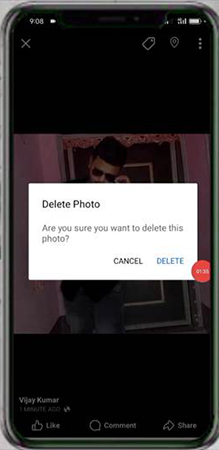
- Click Delete and confirm the pop-up warning by tapping “Delete.”
Note: You can restore the deleted photos only within 30 days from the trash bin.
Table of Contents:
- How to Remove Photos From Facebook?
- How to Delete Multiple Photos on Facebook?
- How Do You Delete Facebook Profile Pictures?
- What Happens After You Delete Photos From Facebook?
- What to Do If Someone Else Posted the Photo?
- Common Problems and How to Fix Them
- Dos and Don'ts of Deleting Photos on Facebook
- Conclusion
- FAQs
How to Remove Photos From Facebook?
It generally takes a few steps to delete photos from Facebook. You can only delete photos that you have uploaded, not someone else’s posted photo. These steps explain how to delete photos on Facebook with both a desktop browser and a mobile app. Both lead to the same results.
1. How to Delete Pictures on Facebook Using the Mobile App?
You need to follow these steps one by one to delete Facebook pictures using the app:
- Open the Facebook app on your mobile.
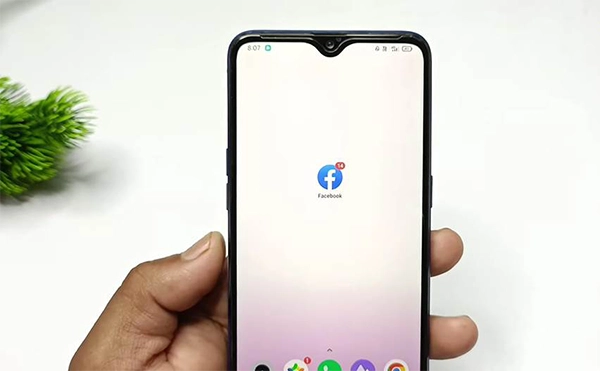
- Click your profile picture at the top right.
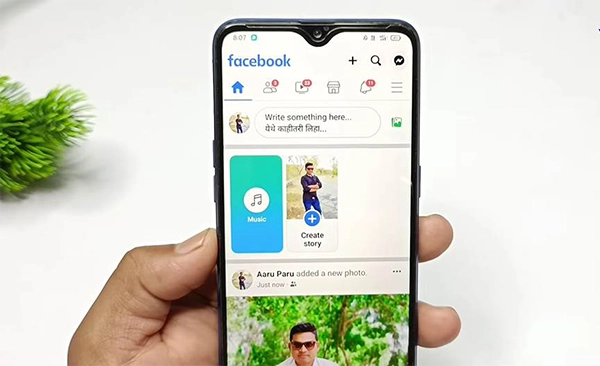
- Tap photos under bio
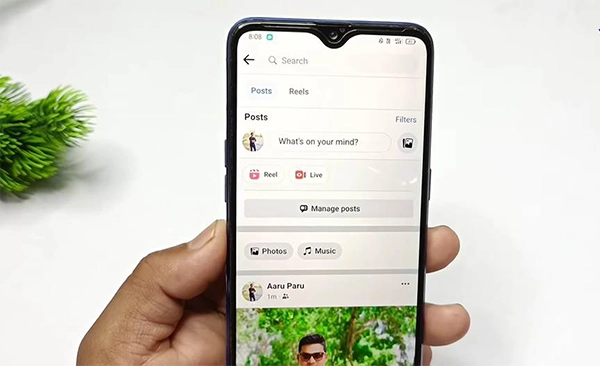
- Click the photo that you no longer want.
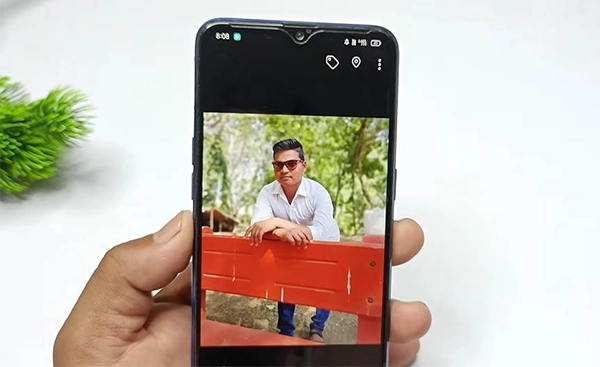
- Tap the three dots at the top right corner to open the menu.
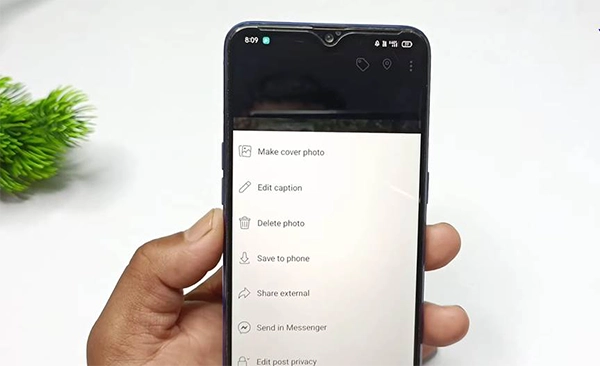
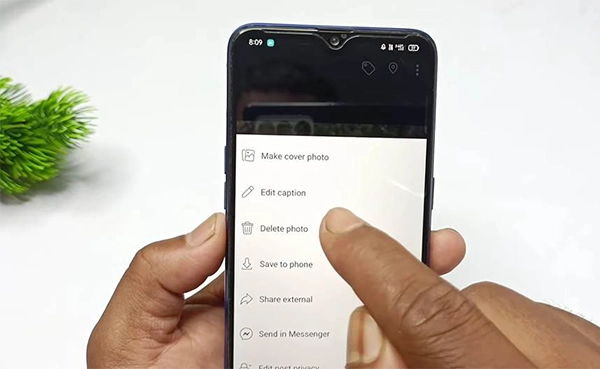
- Choose Delete photo from the dropdown menu.
- Click Delete on the confirmation message.
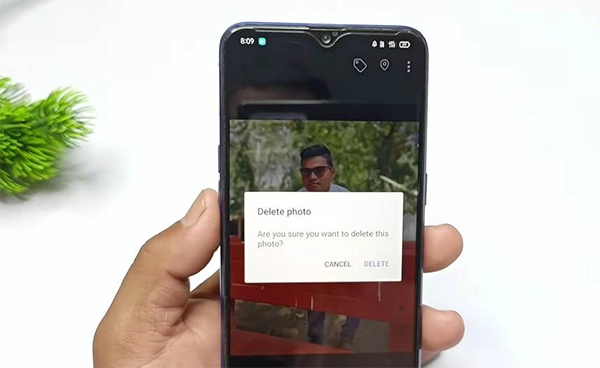
Note: If your photo has multiple images in a single post and you delete it, it will remove all the images in one go.
2. How to Delete Photos in FB on a Desktop Browser?
- Open Facebook on a browser and click on your name at the top left corner.
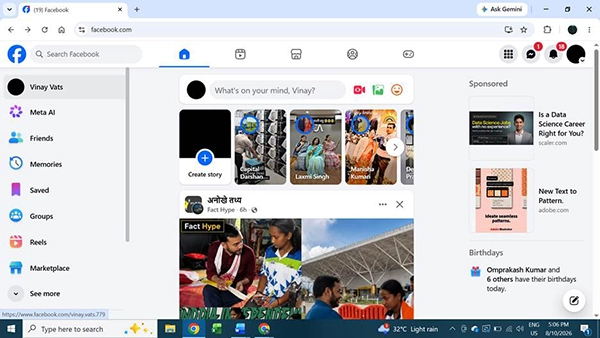
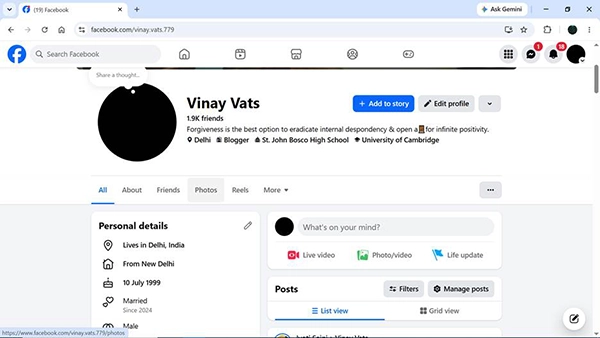
- Click Photos under the bio.
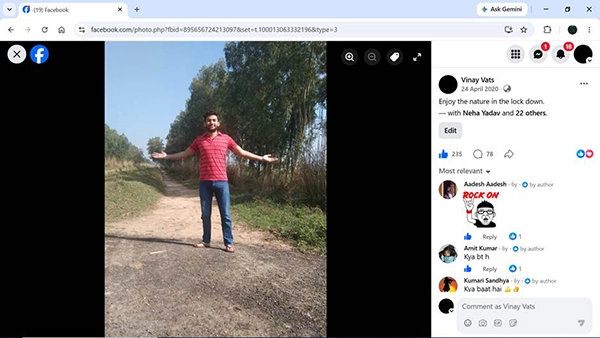
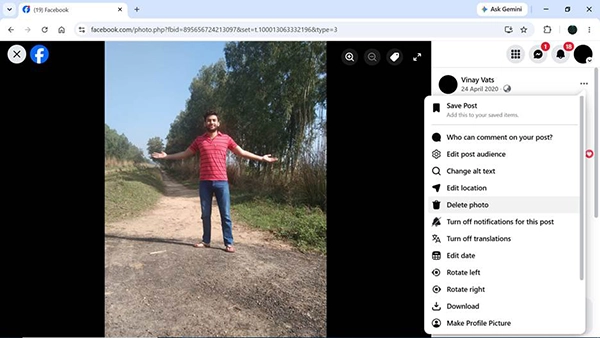
- Click the photo you want to delete.
- Click the three dots at the top right corner.
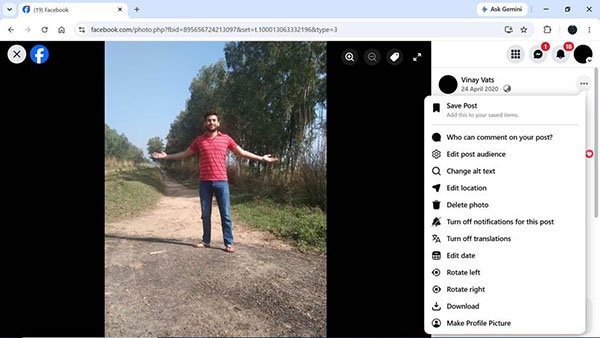
- Click “Delete photo.”
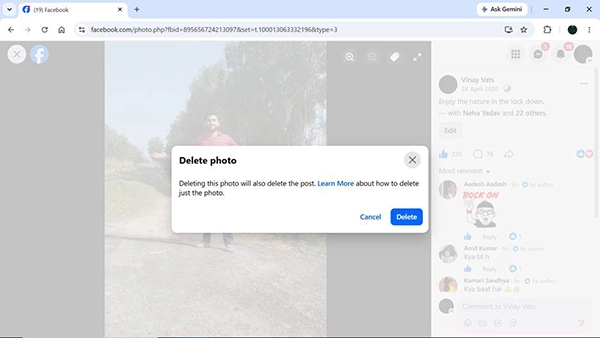
- Read the warning message and click “Delete.”
How to Delete Multiple Photos on Facebook?
Although Facebook has a select-all button for photos and videos, it is better to choose the ones you no longer want. The select-all button will delete all media in one go. The best way is to use Manage Posts under Activity Log. It allows you to filter the posts by category, month, and year. You can even delete the whole album you created at once, but it will remove all the photos.
Follow these steps on how to delete multiple photos on Facebook:
- Open Facebook and tap on your profile photo.
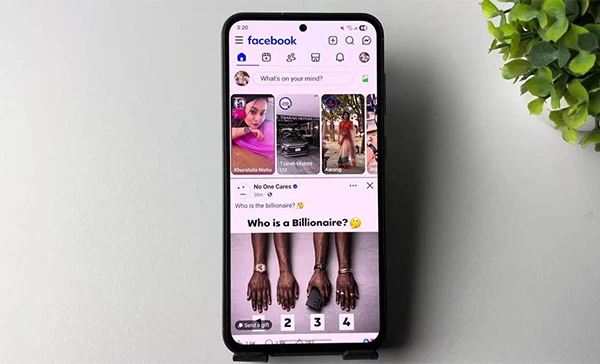
- Click the three-dots menu at the top right corner.
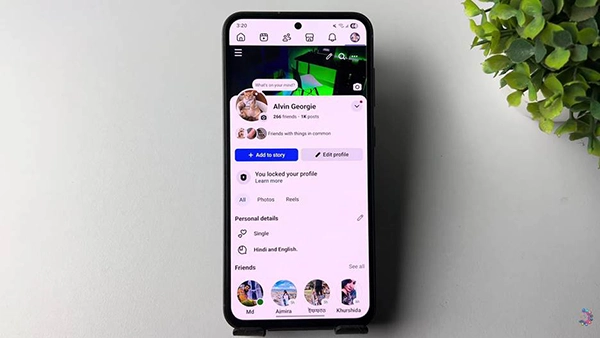
- Go to Activity Log.
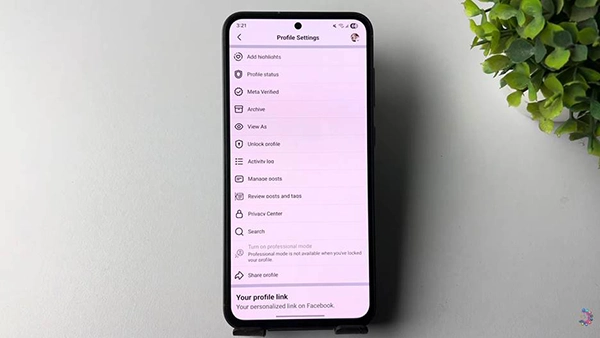
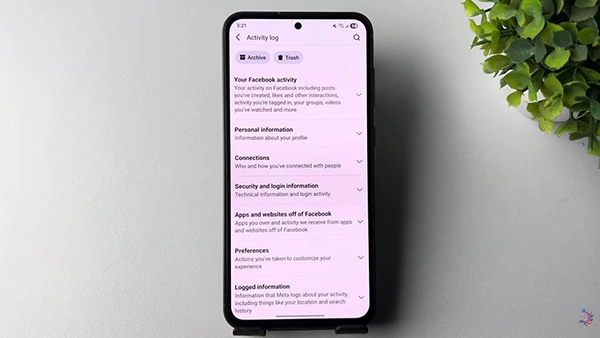
- Then Your Facebook Activity.
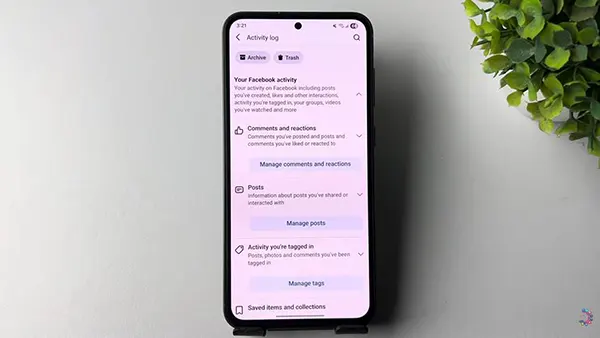
- Click Manage posts.
- Tap on Filters.
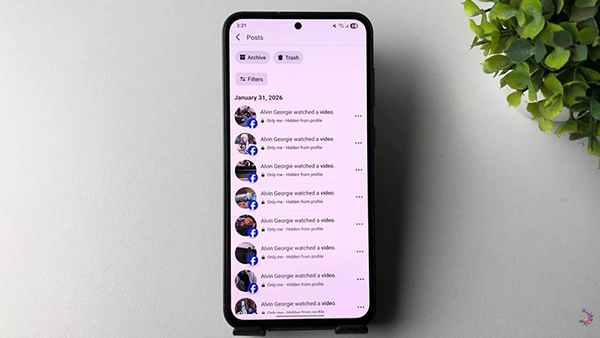
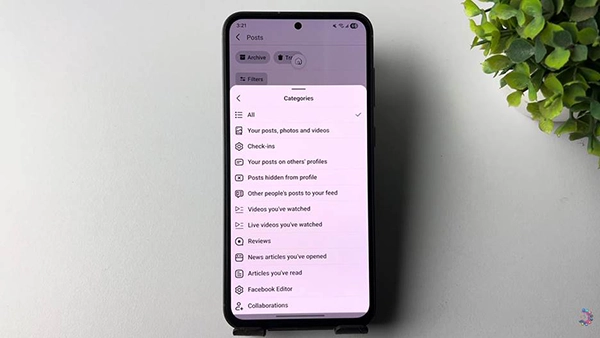
- Select “Categories.”
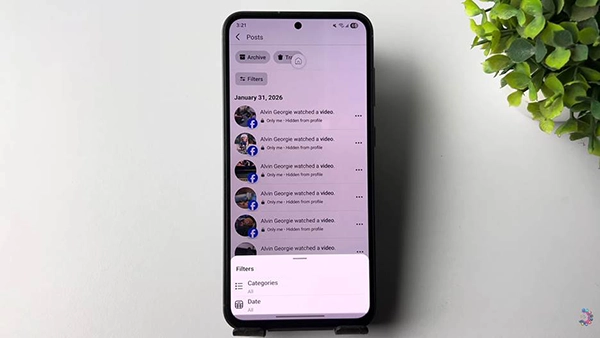
- Choose your posts, photos, and videos.
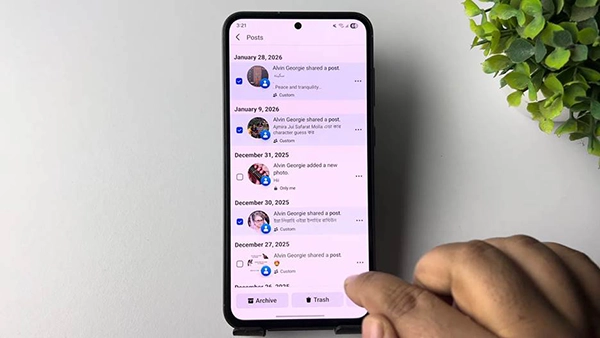
- Now checkmark the photos you want to delete and press the Recycle Bin button.
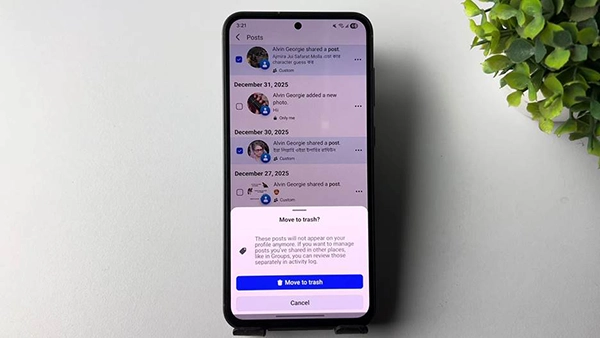
- Confirm “Move to Trash.”
How Do You Delete Facebook Profile Pictures?
If you want to remove a Facebook profile photo, go to profile pictures album and delete it from there. You can view the album just by clicking the existing profile picture. When you delete your current profile photo, others can see only a blank default image. Therefore, it becomes important to upload a new one.
Here is how to delete Facebook profile pictures:
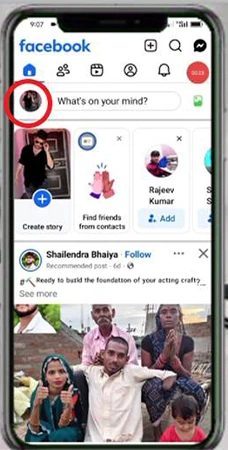
- Go to Facebook and click your profile photo
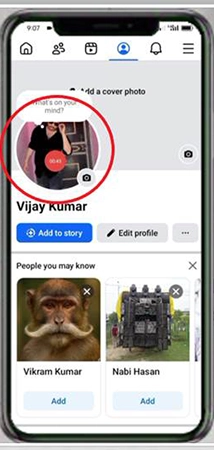
- Click your profile photo once again to see options
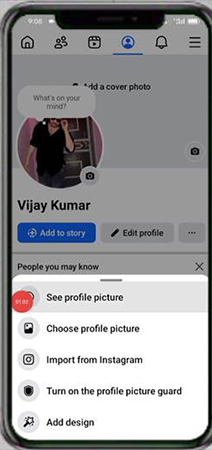
- Click See Profile Picture
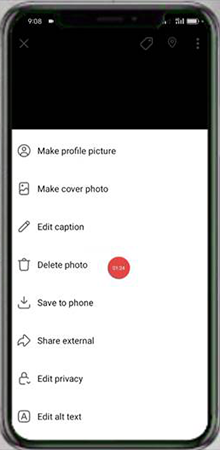
- Tap the three dots menu from the top right corner.

- Choose “Delete photo”
- Click “Delete”
What Happens After You Delete Photos From Facebook?
When you delete photos, these do not remove immediately. They go to trash bin where these remain for a short period of time. If you know this timeline, you need not panic even if you have removed something important.
- Your photos remain in Trash bin for 30 days before Facebook auto deletes them forever.
- You are free to restore any photos to your profile within this time frame.
- If you clear the trash bin manually, it removes the photos instantly.
- Comments, likes, and shares of photos are removed with them.
- If other users downloaded photos or shared them again remain as usual.
Deleting the photos is not the last option. You should compare these three options and choose the one that works for you.
| Action | What It Does | Reversible |
| Hide from profile | Photo remains live, but off your timeline | Yes |
| Delete | The photo is removed from Facebook | Only within 30 days |
| Archive | The photo remains private to you only | Yes |
What to Do If Someone Else Posted the Photo?
You cannot delete a photo which you did not upload on Facebook. Only the uploader has this special right. You can only remove tag if it is linked to you, hide it from your profile, request the uploader to delete it, or report it to Facebook at last.
- Hide from profile: You can keep the tag and stop it to show on your timeline so that your friends can’t see it. Facebook makes sure that it remains visible in search and Feed only.
- Ask the uploader: Contact the person and request him to delete the photo. This is the best possible way to get it removed.
- Remove tag: You can remove tag if the photo is tagged to your name. It then goes away from “Photos of You” section.
- Report it: Take the help of Facebook image privacy tool to report the photo in case it is against the rules or reveals private information.
Common Problems and How to Fix Them
These are the most common challenges which people face when they delete photos from Facebook. You can easily fix them with simple tips.
- Can’t see delete option: You can’t see the option to delete a picture you didn’t post. You can just remove tags from it.
- Deleted photo still available: You need to refresh the app or clear the cache quickly because Facebook might show you it temporarily.
- Photo shows up in feed: If someone else shared the same photo before you deleted it, it appears in Feed.
- No button to delete an album: It means this is a system album and you need to remove the photos individually from inside.
- Bulk delete option freezes: You should use it for small groups of around 20 to 30 photos rather than hundreds in one go.
Dos and Don’ts of Deleting Photos on Facebook
Make sure to read these dos and don’ts before you delete Facebook pictures.
Dos
- Save a copy of your photos from Download You Information before deleting them.
- Visit the Trash bin under 30 days in case you want to restore something.
- Do it album by album so that you keep in mind what you have already removed.
- Check tagged pictures separately as you can only untag them and not delete them.
Don’ts
- Don’t believe a shared or posted photo to remove if someone has already saved it.
- Never use any unverified extensions which require your login to delete photos in bulk.
- Don’t think that deletion is a quick process, it takes 30 takes to remove photos from the Trash bin.
Conclusion
We hope you have learned how to remove photos from Facebook using android, iPhone or a browser. You need to delete your photos from the three dot menu, group old photos using Manage Activity, and remove the tag if someone else posted your picture. Always keep in mind to back up before removing. You must check the Trash section to restore anything under 30 days only.
FAQs
Q1) How can I delete Facebook photos permanently?
Q2) Can I delete all Facebook photos in one go?
No, Facebook does not have any option for mass deletion. You can delete posts in batches using Manage Activity and delete self-created albums.
Q3) Can I delete my photos if someone else posts on Facebook?
No, all you can do is hide it from your profile, remove its tag, request one who posted to remove it, or finally report the photo to Facebook.
Q4) If I delete a Facebook photo, will people get notification for it?
No, Facebook does not send any notifications to people for it. However, users who were tagged or commented will no longer be able to see the photo.
Q5) Is there any way to recover a photo I deleted on Facebook?
Yes, you can recover a deleted photo within 30 days only. Go to Activity Log → Trash → and click the three dots at the top right corner and select Restore to Profile.
Q6) Can deleting photos from an iPhone discard them from Facebook also?
No, because Facebook and the photos are two different apps. If you want to delete photos from Facebook and photo, delete them from both places.
Sources:
Delete a photo that you uploaded to Facebook by Facebook Help Centre
Delete a Facebook profile picture by Facebook Help Centre
How to Delete a Photo from Facebook by Lifewire
Related Post's