No, you can’t hide your whole profile even after locking the profile. Other people can still see your name, profile photo, and cover photo. However, there is a way to show your photos, friend list, posts, and personal info to only friends under Audience and Visibility settings.
Blog
How to Make Facebook Private: 2026 Step-by-Step Guide
Worried how to make Facebook private? You can’t make Facebook private just in one click. Firstly, go to the Settings & Privacy, and use the Privacy Checkup in the Settings menu. Now change everything from who can see what you share (future posts, reels, past posts, friends list, and stories) to either friends or only me.
Learn how to make Facebook account private using a desktop and mobile app step-by-step.
Quick Answer:
Go through the below steps on how to make my Facebook private:
- First you need to open settings & privacy from the menu icon.
- Choose settings and then privacy checkup.
- Click “Who can see what you share” and set all profile info, future posts, and stories to “Only me.”
- Now limit past posts to make older public posts more private.
- Set your reels to friends only.
Table of Contents:
- How to Make Facebook Private?
- Why Make Your Facebook Profile Private
- What to Know Before You Change Your Settings & Privacy
- What Changes After You Make Facebook Private
- Profile Locking vs. Manual Privacy Settings
- Common Problems While Making Facebook Private
- Dos and Don'ts of Making Facebook Private
- Conclusion
- FAQs
How to Make Facebook Private?
If you want to make Facebook private, you can’t do it in a single click; you will have to follow multiple steps to make it private. There is a step-by-step guide that helps you make Facebook private in both the browser and mobile app.
How to Make Facebook Private on Mobile?
Follow these steps on how to make Facebook private using a mobile app:
1) Log in to your Facebook app and click your profile from the bottom right corner.
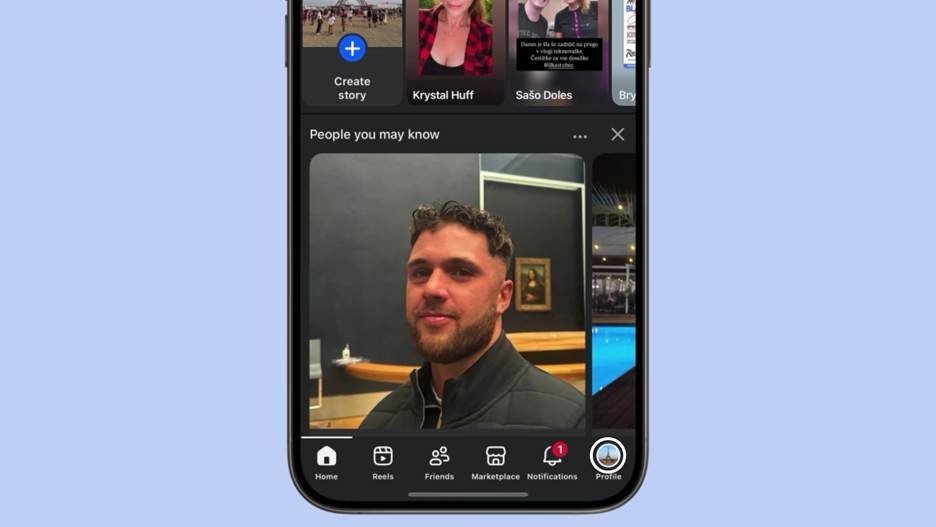
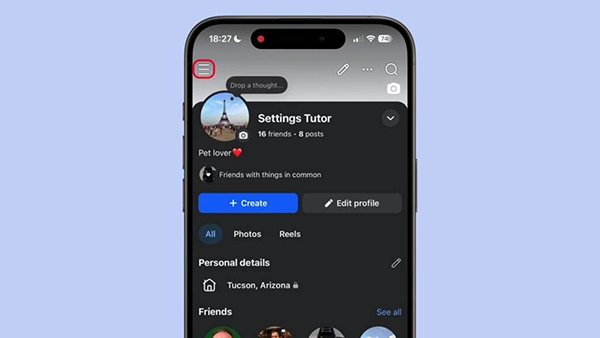
2) Click the menu icon showing three lines at the top left corner.
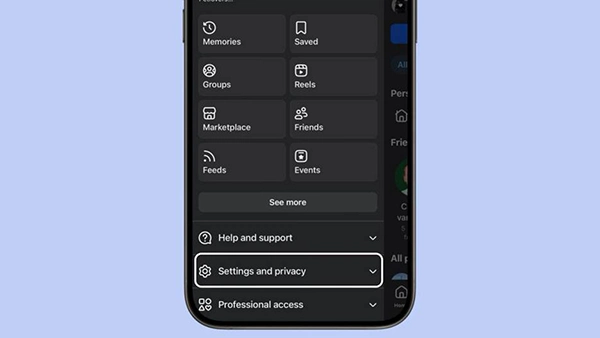
3) Go to Settings & privacy.
4) Click settings.
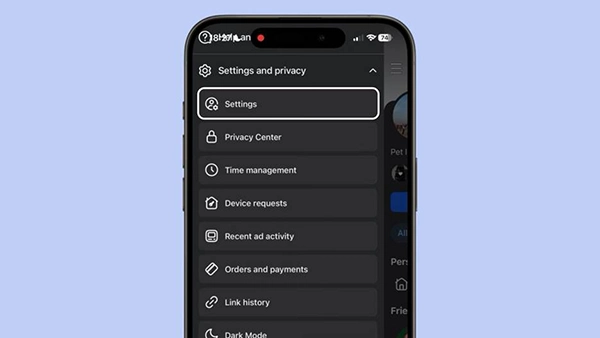
5) Click Privacy Checkup.
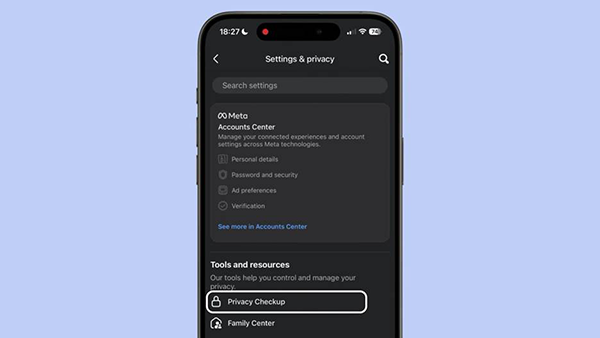
6) Now choose Who can see what you share.
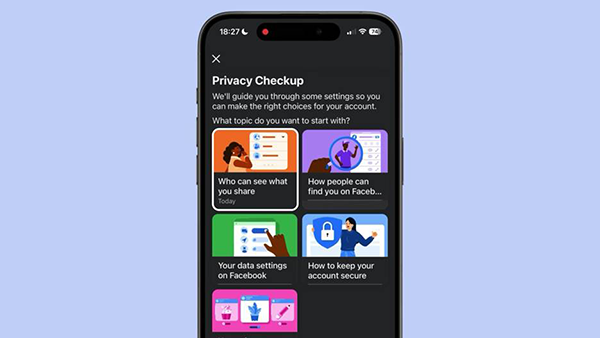
7) Click continue to start the setup.
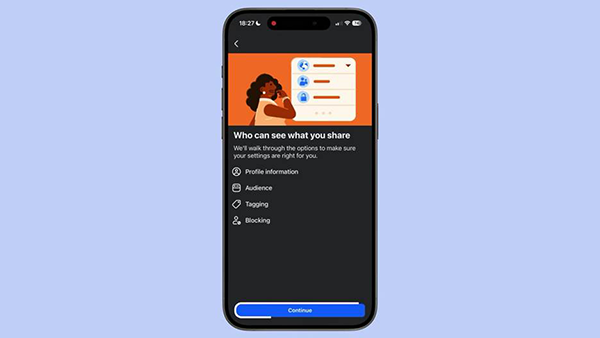
8) Keep your profile information to only me and click next.
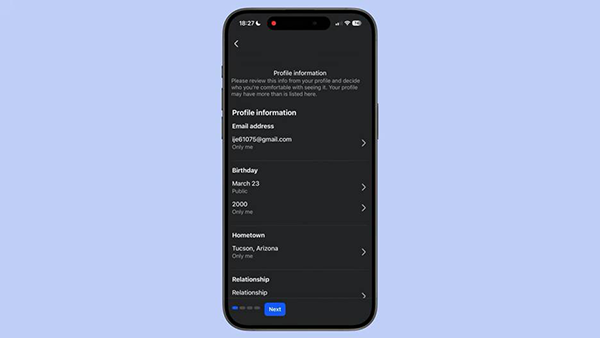
9) Now select the audience for your future posts and stories, then set it to Only me.
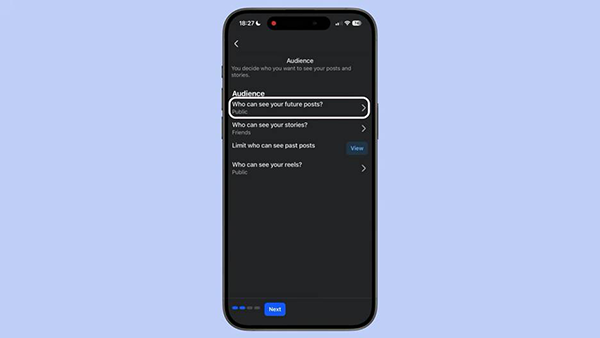
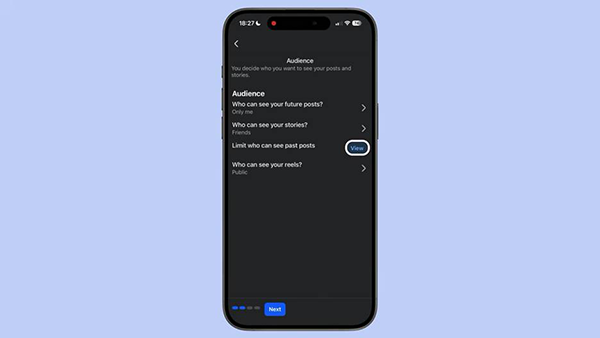
10) Now view limit past posts to make older public posts more private.
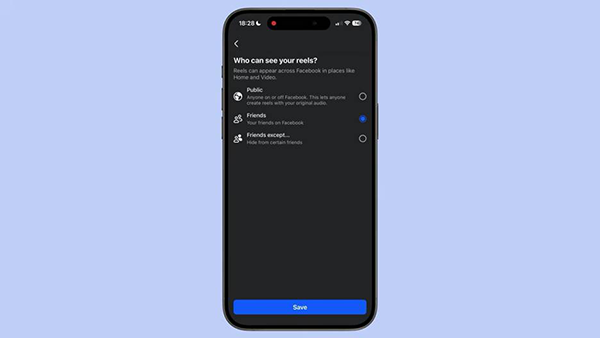
11) Manage who can see your reels to friends.
How to Make Facebook Private on Desktop?
Here is how to make Facebook private using a desktop browser with easy steps. Follow these steps as shown:
1) Open your web browser and go to Facebook.
2) Tap on the profile picture in the top right corner of the page.
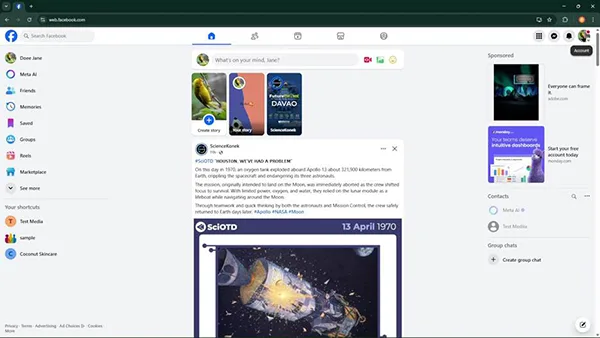
3) Go to Settings & Privacy.
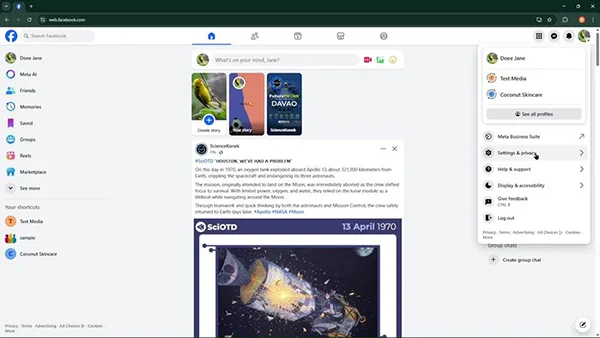
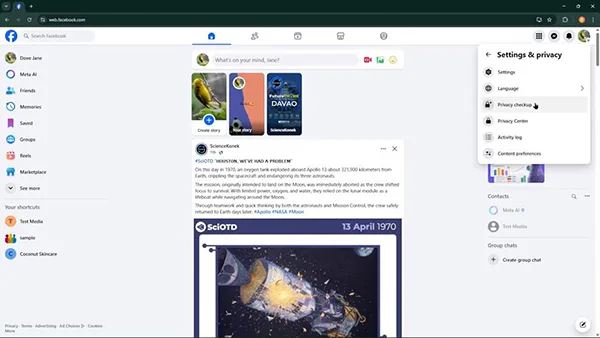
4) Select Privacy checkup under Settings and Privacy.
5) Click Who can see what you share.
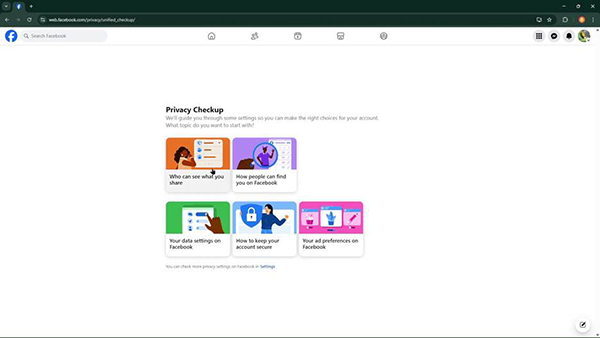
6) Set all your profile information to Only me.
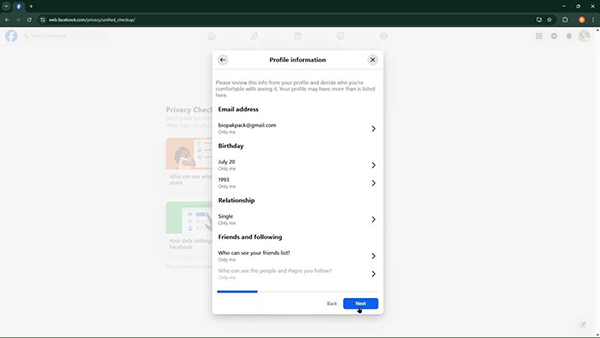
7) Click next and now choose the default audience for your future content.
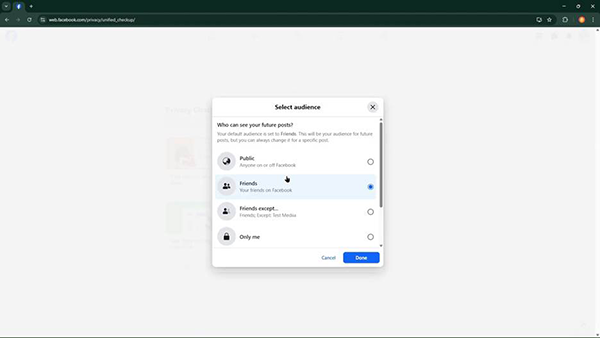
8) Now move to Limit Past Posts.
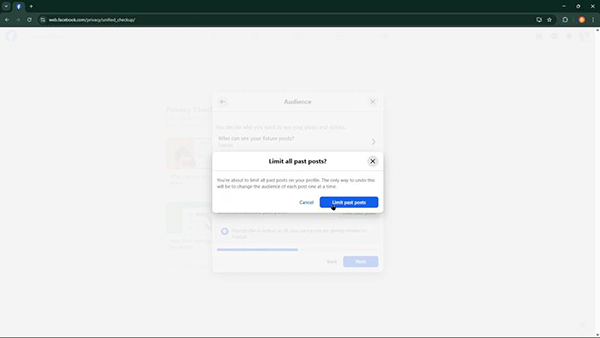
9) Click next and set tagging settings to you or your friends only.
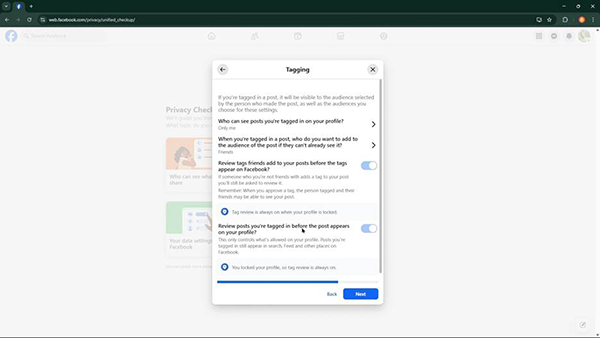
10) If you want to hide your content from specific friends, block them from here and finish the setup.
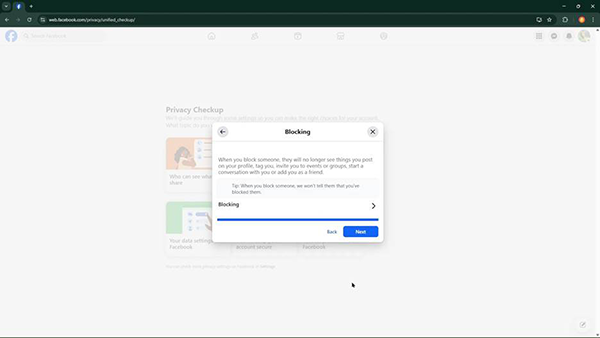
Note: Facebook offers the Lock profile option for some countries only. If you don’t find the Lock profile section, then Audience and Visibility is the only way to make Facebook private for you.
Why Make Your Facebook Profile Private
There are many reasons to make Facebook private, such as for protecting your photos and personal data. When you make your account private, Facebook will save your data from unknown people, cyber scammers, and data scrapers.
There are more reasons below:
- For hiding your profile, photos, and data from unknown people.
- To prevent stalkers or unwanted contacts from tracking your location and daily activities.
- Only a few people you approve of can see more of your posts and information.
- When you want to hide your old posts or photos from your current colleagues.
- Strangers or outsiders can’t easily know about your family members whose posts you upload.
- You can also use a custom list where you can allow only a few friends whom you want to see your profile.
What to Know Before You Change Your Settings & Privacy
Before changing your privacy settings, you need to know that privacy settings don’t hide everything on your profile. If you make your Facebook profile private, some information like your name and profile picture will still be visible to others.
- Everyone can see your name and profile picture even after you have locked your profile.
- Facebook doesn’t have one single “Make private” button for everything.
- The lock profile button offered by Facebook isn’t available in all countries, so some accounts may not have this option.
- Privacy settings will change only your future posts, your older posts may be visible.
- Some pages, groups, and marketplace listings have their own privacy rules.
What Changes After You Make Facebook Private
If you have followed the steps as given above, most of your information, like photos and personal details, becomes less visible to unknown users. But there are some changes that take place when you make your Facebook profile private.
- Only you or your friends can see your posts, photos, and stories depending on your settings.
- People will not be able to see your contact details, birthday, and your friend list.
- Your profile will not show up in Google searches and other search engines.
- If profile locking is available in your account and is on, strangers have limited access to your profile and cover photos.
- Other users who are not your friends can still send you friend requests unless you change that in settings.
Profile Locking vs. Manual Privacy Settings
There are two ways to make accounts private: one is single-click profile locking, and the second is manual privacy settings under “Audience and visibility.” The differences between both of them are shown below:
| Factor | Profile Locking | Manual privacy settings |
| Availability | Available only in some countries. | Offered for all Facebook users. |
| Speed | Can lock your account in a single click and make less effort. | Takes more steps to set up. |
| Coverage | Controls posts, future content, and photos. | Gives you full control to decide. |
| Old public posts | Make all your profile content automatically for friends only. | Let’s choose settings yourself through “limit past posts.” |
| Best for | Locks and protects your profile quickly. | Set up separately each settings by yourself manually |
If Facebook offers you the option to lock your profile, then you can make your profile private quickly. Otherwise, you will have to choose manual privacy settings to hide your posts and personal information with some more effort.
Common Problems While Making Facebook Private
Many Facebook users face some problems when they try to make their Facebook account private.
Here are some steps to resolve these problems:
- Can’t find profile locking: Facebook offers a lock profile button only in selected countries. If you can’t find it, you can use Audience and visibility settings.
- Old posts still show as public: Posts shared in the past might still be visible. To hide it, use the Limit past posts to show it to “friends only.”
- Profile picture still visible to everyone: If profile locking is not active, others may find your profile through your name or profile picture.
- Still appearing in Google search: Your profile can sometimes show in search results on Google. Because stopping search engine linking works for new content only.
- Menu looks different: Use the settings search bar to find options like “posts” or “Friends list.”
Dos and Don’ts of Making Facebook Private
There are some important points that you should take care of while making your Facebook private so that you know each and everything about it.
Dos:
- Check your privacy settings timely because Facebook updates it quite often.
- Always turn on two-factor authentication for extra safety.
- Use Limit Past Posts to hide your old public posts.
- Use the “View As” option to see what other people can see on your profile.
Don’ts:
- Don’t think profile locking hides everything. Your name and profile picture will still be visible.
- Don’t forget to check tagged photos separately, as tagging settings are not the same as post settings.
- Don’t depend on the profile locking button because it’s available only for selected countries. If you don’t find it, use privacy settings manually.
- Never think that you can manage all privacy in one setting; Facebook pages, groups, and marketplaces all have different privacy rules.
Conclusion
Now you have all the information about how to make Facebook private using mobile and desktop. You can use both ways: “profile locking” and “manual privacy settings.”
If you have hidden your profile, it doesn’t mean that all your information is invisible; your name and profile picture will still be visible to everyone. Check your profile privacy monthly, as Facebook updates it often. Use a strong login password for safety.
FAQs
Q1) Can I make my entire Facebook account private?
Q2) Is Facebook profile locking available everywhere?
No, Facebook offers the profile locking feature to only selected countries. India also has this feature. But if it is not available in your country, go for audience and visibility privacy settings.
Q3) If I make my Facebook profile private, will it hide old posts too?
No, changing your general account settings will hide your new content only. To hide old posts, you need to visit the Limit past posts section in settings. You will find it under Audience and Visibility.
Q4) Can strangers still send me friend requests after I go private?
Yes, If you don’t change it in settings. To restrict friend requests from people, you need to manage who can send you a friend request from Everyone or Friends of Friends only.
Q5) Does making Facebook private stop it from showing in Google search?
If you make your Facebook profile private, it will stop the search engine from linking, which indexes new content. Even then some of the old data may appear in Google search results for some time.
Q6) Is a private Facebook profile the same as an archived group?
No, a private profile just manages who all can see a creator’s personal content. While archiving covers a group, pausing posts even when users can view content that is not related to someone’s personal profile privacy.
Sources:
Control who can see what you share on Facebook – by Facebook Help Centre
Guiding You Through Your Privacy Choices – by Meta
Limit who can see your Facebook posts – by Facebook Help Centre
Lock your Facebook profile – by Facebook Help Centre
Related Post's