No, Snapchat web login will require an account. You will have to approve the first time you log in to the mobile app. The same steps work for the profile.snapchat.com requiring a previous sign-in either on Android or iOS.
Blog
Snapchat Web Login in 2026: Steps, Fixes, and Safety
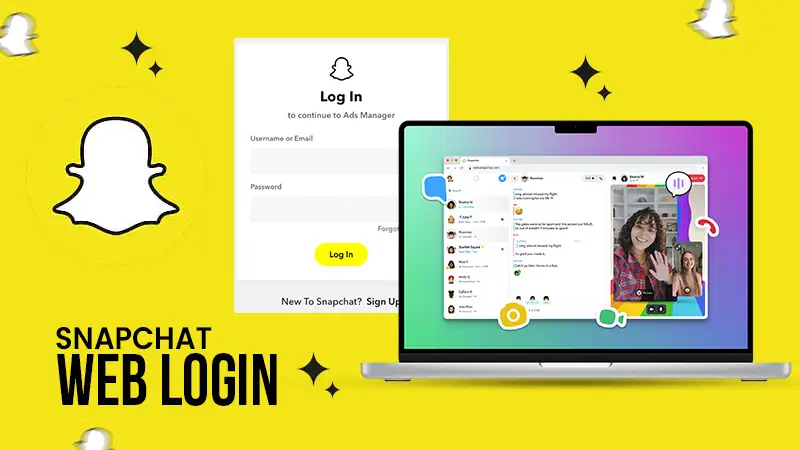
The Snapchat web login requires a reliable web browser on your system and a search for web.snapchat.com. Sign in with either your mobile number, email, or username, and fill in the password. Then confirm the first-time login request on your phone. You can easily call, chat, or share snaps on Edge, Chrome, and Safari.
Here you will learn Snapchat web login, password reset, error codes, and their solutions.
Quick Answer
How can I do Snapchat web login?
For Snapchat web login, go to your system browser (Safari, Edge, or Chrome) → type web.snapchat.com in the address bar → enter your mobile number, username, or email → click Log in → write your password and tap Next → approve the request on your phone for the first-time login.
Table of Contents:
What Is Snapchat Web Login?
Snapchat web login is an official method of using your account in a web browser rather than in the mobile app. Snap introduced the Snapchat for Web option in July 2022 only for Snapchat+ subscribers in just five countries. Later, this feature was rolled out for every country in September 2022 and availed without Snapchat+ subscription. This web version works smoothly not only on macOS and Windows but also on Chromebooks for free.
Keep these points in mind before trying snapchat.com login on a computer browser:
- No extra cost: All users can access this web version for free of cost. Snapchat+ is not needed for it.
- Account required: You must have the same account on the mobile app to use it on the web version.
- Supported browsers: Use the latest versions of Safari, Microsoft Edge, and Google Chrome.
- One login at a time: You can only log in on a single computer at a time.
How to Do Snapchat Web Login?
The Snapchat web login hardly takes one minute. Open a browser and go to web.snapchat.com, type your email or phone number linked to your account, and approve the sign-in request from your phone.
Below are the steps to log in to a Snapchat account on a browser:
Snapchat Web Login Steps on a Desktop
1) Open a browser on your computer, such as Safari, Edge, or Google Chrome.
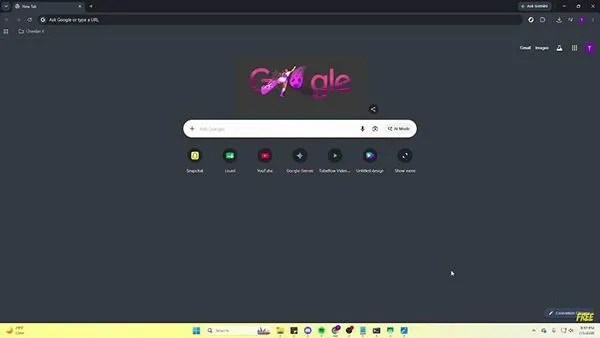
2) Type the official Snapchat web address (snapchat.com.)
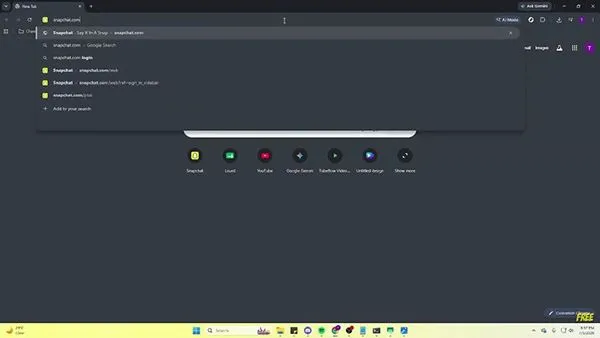
3) Enter either your username, mobile number, or email address and click Log in.
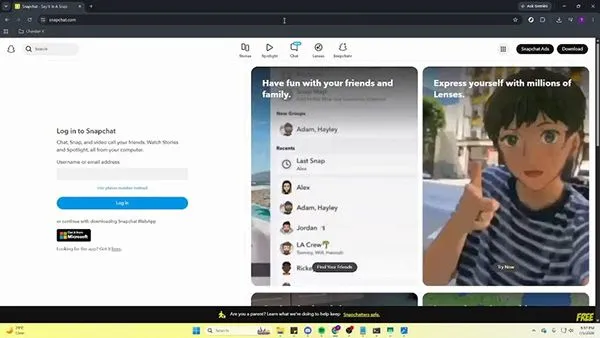
4) Enter your password and tap Next.
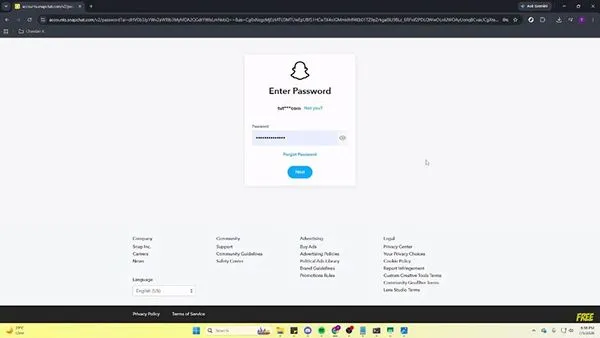
5) Go to the Snapchat mobile app on your device and approve the sign-in request.
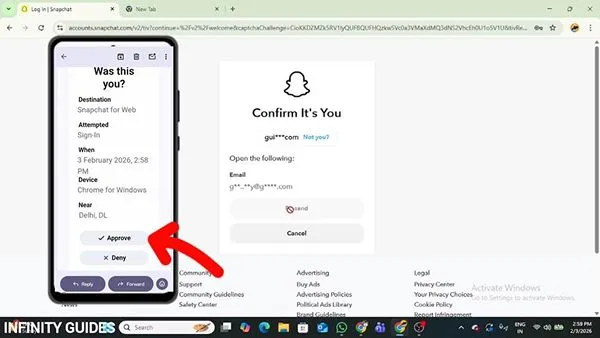
Note: If you try to log in to another computer, Snapchat will automatically log out from the first one.
What You Can and Can’t Do on Snapchat Web
Snapchat for web login is primarily used for chatting and calling, but the mobile app has some additional features. Here is the table that shows what changes between the mobile app and the Snapchat.com login browser.
| Feature | Snapchat Web | Snapchat App |
| Change account settings | Not available | Available |
| Chat and chat reactions | Available | Available |
| Lenses | Limited set in calls | Full library |
| Managing posted Stories | Not available | Available |
| Memories | Not available | Available |
| Send Snaps from camera | Available | Available |
| Voice and video calls | Available | Available |
Snapchat is constantly adding new features to the web version; thus, you should use the Android or iOS app for settings, Memories, and Story management for now.
Snapchat Not Logging In: Error Codes and Solutions
If Snapchat won’t let you log in, it is the problem you are facing; you will get an error code on the display showing the reason. You should read the code and apply the given solutions.
Most of these codes show a banned device, temporary safety blockage, or an unstable internet connection instead of a broken password.
| Error Code | What It Means | What to Do |
| SS02 | A lot of failed login attempts | Wait for some time before trying again |
| SS01, SS03, SS08 | Access blocked temporarily | Wait for 48 hours and try again. |
| SS04 | Locked account | Go to accounts.snapchat.com, click Unlock |
| SS10 | Phone fails integrity checks | Log in from a different device |
| SS06, SS18 | Phones are banned for abuse | Support can’t unban the devices |
| C13A, C14A, C16A | Service can’t finish the login request | Connect to Wi-Fi or turn on mobile data |
| SS07 | Using many accounts on a single phone | Try on a different phone |
If you receive a blocked network pop-up rather than a code, try these fixes:
- Switch networks: Turn on your mobile data or switch to another stable Wi-Fi connection.
- Turn off a VPN: Deactivate a VPN and try logging in again, as the VPN traffic may lead to a network blockage.
- Check the app: Make sure you are using the latest Snapchat app version and the same account.
- Wait for some time: IP blocks are mostly temporary and get cleared automatically.
Snapchat Password Reset in a Browser
If you are trying a Snapchat password reset, make sure you have linked your mobile number or email to your account. It will not be possible to reset your password without them. Because you will receive an OTP on the phone number and a reset link in your email.
Go through the browser method shown below if you are locked out of the app and the web.
1. Snapchat Password Reset Through Browser
1) Go to the Snapchat accounts website.
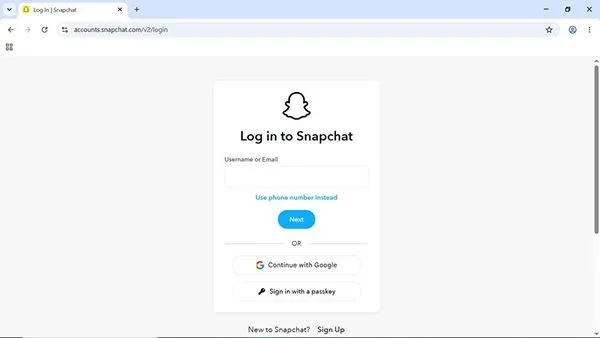
2) Enter an email or phone number linked to your account.
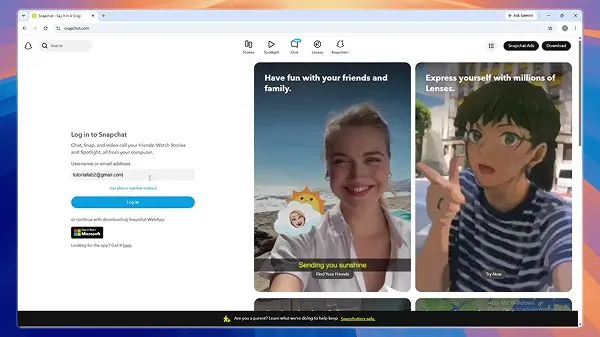
3) Click “Forgot password”.
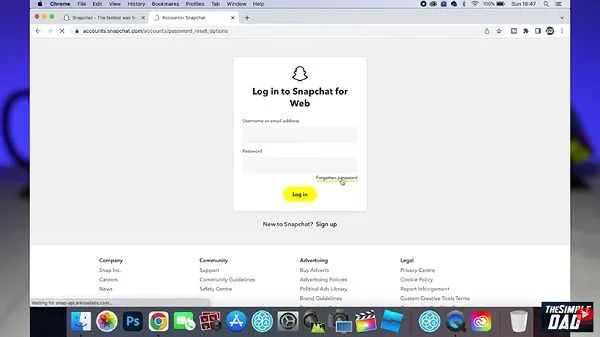
4) Choose either way to reset your Snapchat password.
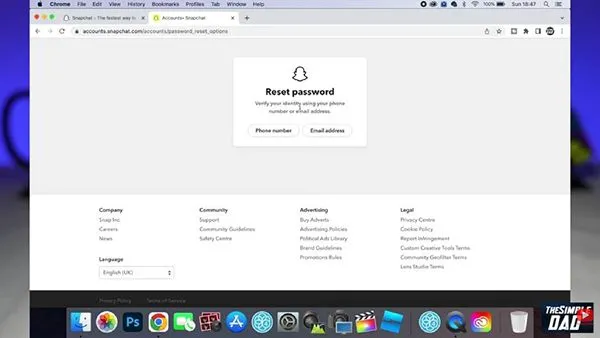
5) Enter your country code and mobile number.
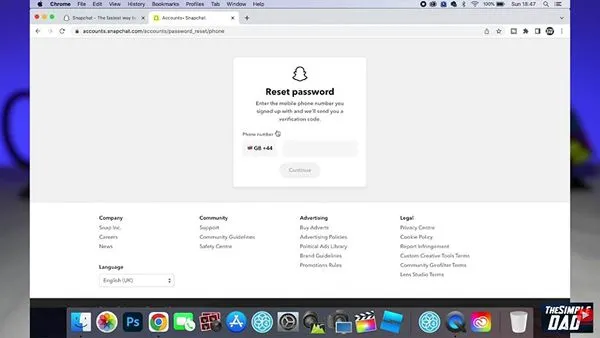
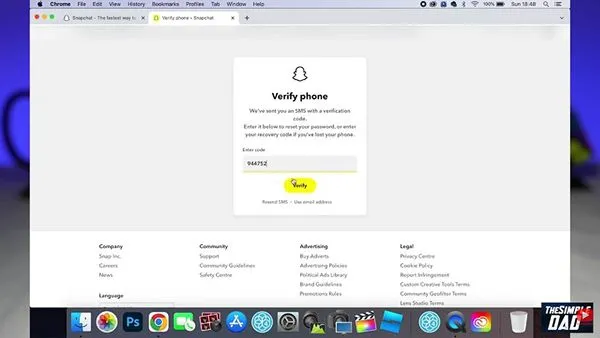
6) Enter the code you received on the phone and click Verify.
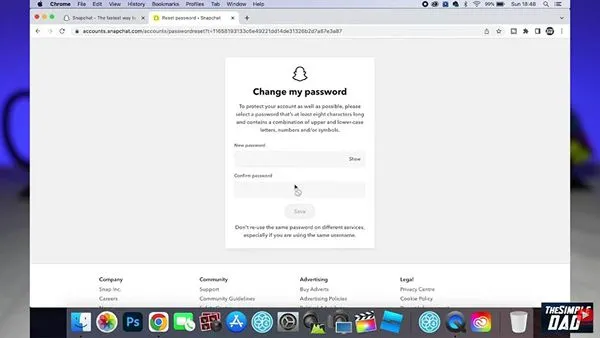
7) Now you need to create a new password for your Snapchat account and click the Save button.
2. Reset From the Snapchat Login Screen
Click “Forgot your password?” on the login window and choose a method: email or SMS. If you choose the SMS option, you will receive a code on the linked mobile number, enter the code, click Continue, and reset the password through Settings.
Snapchat password rule: Use a minimum of eight characters; do not use your phone number, name, birth date, or username. Use a mix of symbols, numbers, and lowercase and capital letters.
How to Change Snapchat Password?
You are free to change your Snapchat password anytime, even if you know it. It becomes important for safety purposes after you log in to a public or shared computer or receive a sign-in alert not done by you. There are two ways wherein you can change the password on Snapchat; one is in-app, and another is via a browser route. You can use either of these methods within two minutes.
- In the app: Go to My Accounts, click the gear icon to open Settings, click Password, and follow the further steps.
- In a browser: Do Snapchat web login using accounts.snapchat.com using your username or email, enter the verification code, and follow the on-screen prompts to change your Snapchat password.
Note: Snapchat does not ask for verification codes or your password. You will always receive official emails from the accounts.snapchat.com domain and always be aware of login links you receive in texts.
Dos and Don’ts for Snapchat Web Login
Make sure you keep these dos and don’ts in mind while attempting Snapchat web login.
Dos
- Always prefer web.snapchat.com because copycat Snapchat login websites will need your passwords.
- Enable 2-factor authentication and save a recovery code for 4-digit security.
- Sign out from all public or shared computers after you are done with your work.
- Keep your phone handy when you log in to Snapchat for the first time for approval.
Don’ts
- Never try wrong passwords again and again, as it will lead your account to an SS02 block.
- Do not use illegal or old passwords whenever you reset.
- Do not use a VPN if an error code shows the network is blocked while logging in.
- Never share the login code with anyone, even if he claims to be from Snapchat support.
- Do not believe that you can access Memories or Snap Map in the web version.
Conclusion
Snapchat web login hardly takes one minute. Always prefer a supported browser, log in through an official web address, and confirm the approval request from your mobile app. If your login attempts fail, check the error code before changing anything, and deactivate a VPN if it shows a blocked network.
Keep your mobile number and e-mail linked to your account, as only these can help with a Snapchat password reset.
FAQs
Is it possible to use Snapchat web login without the mobile app?
Why is Snapchat not logging in on my browser?
Snapchat not logging in on your browser can take place due to multiple reasons, including a locked account, an unsupported or outdated browser, an incorrect password, or a blocked VPN. Thus, you should update your browser, such as Edge, Chrome, or Safari, deactivate the VPN, and check the error code that appears.
Is a Snapchat password reset possible without an email?
Yes, you can use your phone number, which is linked to your account on Snapchat. Send an SMS request code rather than an email one. If you do not have the registered number or email, you can’t reset your password.
Can I use Snapchat.com on a phone browser?
Yes, you can use it, but Snapchat Web is designed for desktop browsers on Chromebooks, Windows, and macOS. So, when you try using it on a phone browser, it will prompt you to use the app.
Can I log in to my Snapchat account on two computers at the same time?
No, you can’t log in to your Snapchat account on more than one computer at the same time. Even if you try to log in to another computer, it will automatically log you out of the first computer.
Is changing my password enough after a sign-in alert?
You should change your password immediately if you receive a sign-in alert for an attempted sign-in not by you. Check the signed-in devices and remove the ones you aren’t aware of, and enable two-factor authentication for safety.
Related Post's