Yes. As per Instagram’s Help Center, you must have 1,000 followers or more to start a Live video. Private accounts cannot go live even if they have enough followers. So, to go live, switch your account to public and build your audience first.
Blog
How to Go Live on Instagram in 2026 With Mobile and Desktop
Do you want to know how to go live on Instagram? Well, it doesn’t take more than a minute. Go to the app, click the plus icon, select Live, enter a title, and click Go Live. Your Instagram account must be public with at least 1,000 followers.
Here, you will learn how to go live on mobile and computer, requirements, saving replays, scheduling, and the most common problems.
Quick Answer:
How do you go live on Instagram?
If you want to go Live on Instagram, go to the app, click the plus icon or swipe right, swipe to Live, enter a title, select audience type Public, and click Go Live. Now your account must be public and have at least 1,000 or more followers for it. Moreover, you can also Practice Live to test it without even going Live.
Table of Contents:
How to Go Live on Instagram
Now you can go live on Instagram using a mobile phone and desktop too. The steps for the app and web version are not the same. Therefore, you need to follow the steps for both devices separately.
1. How to Go Live on Instagram on Mobile
Now you can go live on Instagram from both the Android and iPhone app within a minute. Just open your Instagram app, click the camera, select Live, enter a title, and go live. According to the Instagram Help Center, you can now swipe right from the feed to get the same live screen.
Here is how to go live on Instagram step by step;
- Go to your Instagram app.
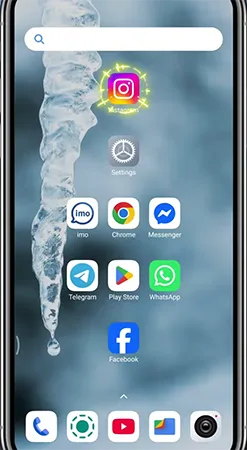
- Either click the plus icon or swipe right from your feed to open the camera.
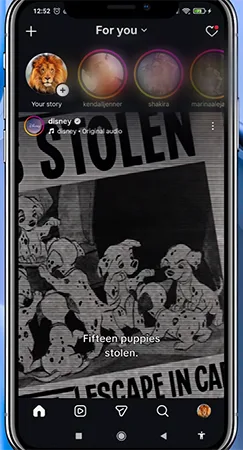
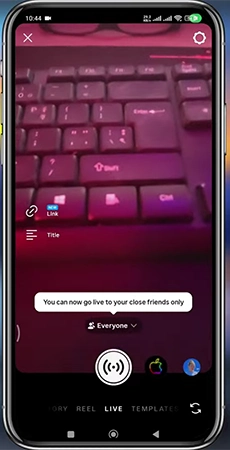
- Swipe across to Live from the bottom of your screen.
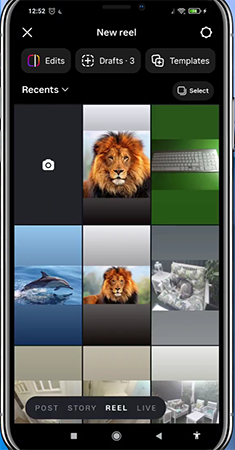
- Enter a title so that viewers know what this Live is all about.
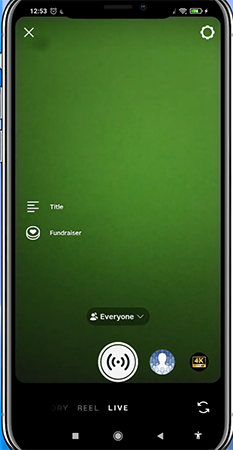
- Select your audience type. Choosing “Everyone” will take you Live to all followers, while Practice starts the live video for no one.

- Click Go live. Instagram first connects and then starts your broadcast.
Click End when you are done. Now decide whether you want to share a Replay or not.
Important: your followers will receive a notification whenever you go live; therefore, it is better to plan your topic properly first. Two names on the menu may change in app versions, so go with similar wording.
2. How to Go Live on Instagram From a Desktop
To go live on Instagram, you need to use Instagram Live Producer on the platform along with streaming software like OBS Studio. Because there is no specific button to go live for desktop on Instagram. However, there are several guides that say Live Producer works on a professional (business or creator) account, while some claim that Instagram gives it limited access.
Here is how do you go live on Instagram using a computer;
- Search Instagram.com on your desktop browser.
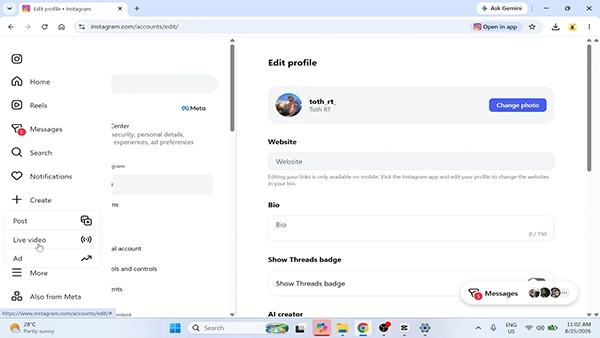
- Go to your account and click + Create.
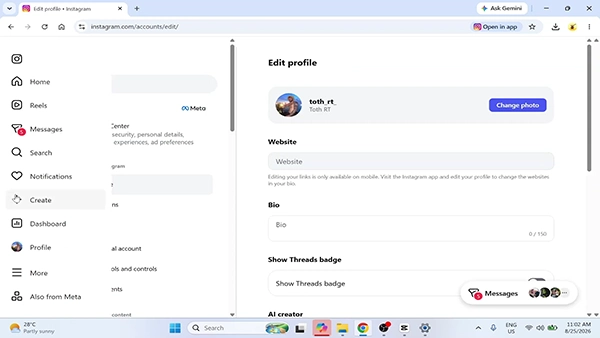
- Choose Live video.
- Write a suitable title for it and click Next.
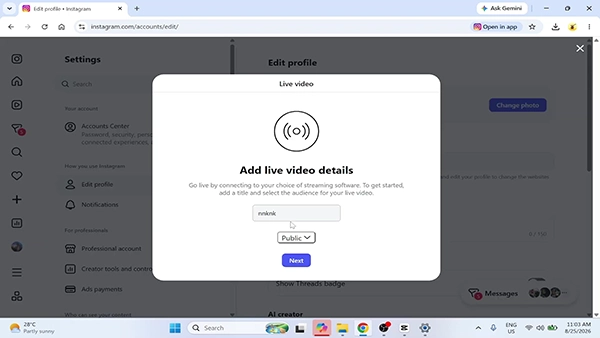
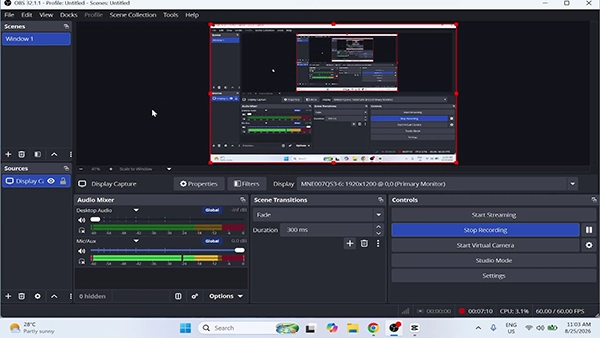
- Open OBS Studio or any other.
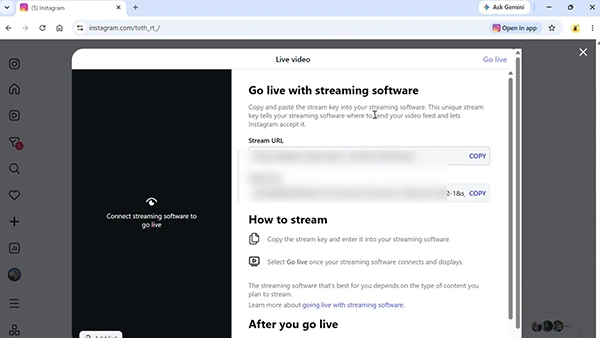
- Copy the stream URL and stream key.
- Paste these values in the relevant OBS field.
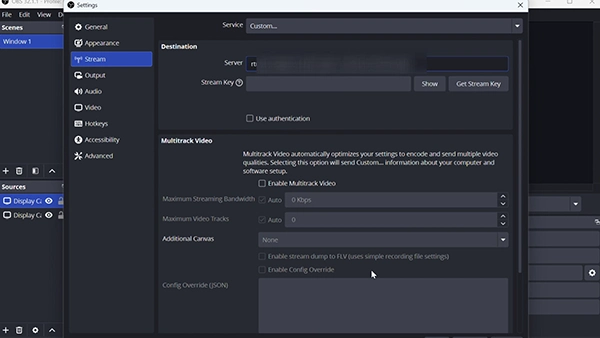
- Set a canvas vertically, for example 720 x 1280, just to skip cropping.
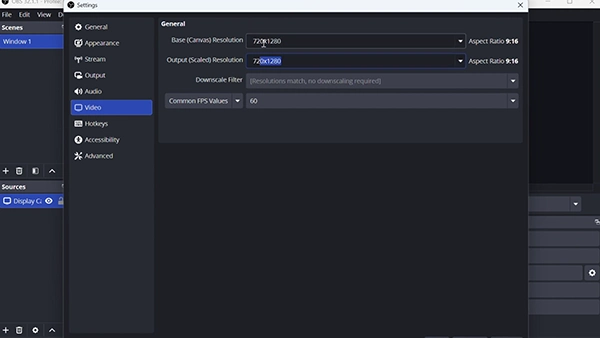
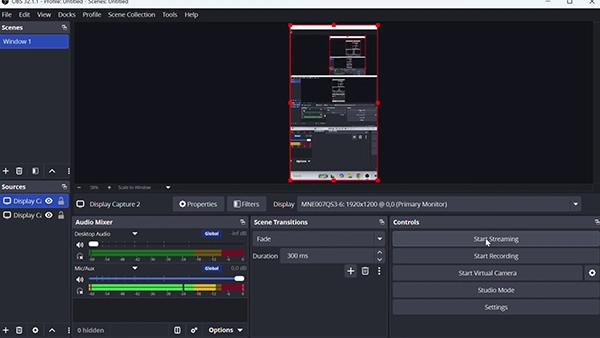
- Start live streaming in the software and wait for the preview in Live Producer.
- Now tap Go Live in the top right corner.
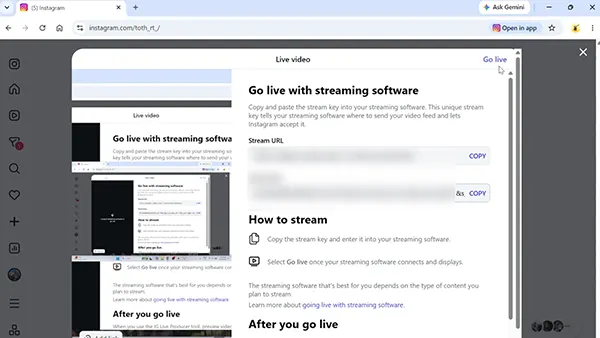
Note: The stream key will change every time. Whenever you finish, end the broadcast in the Live Producer first, then stop your software; otherwise, the audience may experience a frozen screen. Scheduling video is not available for Instagram desktop.
3. How to Go Live with a Guest
According to Instagram, you can now add up to 3 guests on Instagram Live when you start it. Guests will show up in a split-view screen, which is perfect for podcasts, joint Q&As, and interviews. However, you and all guests must follow each other.
Here is how to go live with a guest on Instagram;
- Start your Live normally.
- Click Add people from the bottom right corner.
- Choose a user from the list and click Invite.
Wait until they accept the invite. After accepting, they will appear in your live room.
Note: Invite one guest at a time if you want to have them in speakers during various parts of the stream.
Instagram Live Requirements in 2026
According to Instagram help center, all users who have a public account with at least 1,000 or more followers can start an Instagram Live.
| Requirement | What You Need |
| Account privacy | Public |
| Account standing | No Live restrictions |
| App version | Latest version |
| Connection | Stable internet |
| Followers | 1,000 or more |
| Teen Accounts | Live is off by default |
Instagram users who are under the age of 16 and have a teen account will have to take their guardians’ or parents’ permission to enable live. Those who are either 16 or 17 years old are able to enable it themselves.
Although there is no information on whether the practice mode works for under 1,000 followers, you had better try it out. Check the Live option in your app because Instagram can change eligibility criteria by account status.
Instagram Live Settings to Check First
When you click Go Live on Instagram, it is best to add a title, specific audience, and Live Archive options. These options will decide who all watch the live stream and whether you need its copy. It hardly takes 30 seconds to check all of this and avoid the most common mistakes for IG Live.
- Title: Give a specific title like “Q&A: Trading Strategy for Beginners”
- Audience: Select Public audience type for followers, or Practice just to test your sound, internet connectivity, or lighting.
- Scheduling: You can use the scheduling option on the Live screen to set a future date. Some guides report a time frame from one hour to 90 days in the future, and followers also receive a reminder.
- Camera and audio setups: Make your sitting light facing and use headphones to avoid unnecessary noise.
- Live Archive: Turn it on before you begin, as Instagram will save the broadcasts only if this setting is enabled.
After the Live: Save, Share, and Archive
After ending your live session, you can share a replay or access it through the Live Archive, according to Instagram’s Help Center. Remember that your broadcast will reach the archive only if you enabled Live Archive before starting the live session. Follow the steps given below to find it later:
- Go to your Profile and click on the Menu.
- Open Archive.
- Switch the dropdown from Stories Archive to Live Archive.
- Click on the video to download it or share it.
Downloaded Lives include only the video, not comments, likes, or viewers. Instagram also allows you to save the video to your camera roll or share it as a Reel. According to Instagram’s 2020 announcement, a mobile live session can last up to four hours.
Why You Can’t Go Live on Instagram
If you can’t start a live session on Instagram, it’s most probably because of your account, not your phone. Check for the following possible causes and fix them fast:
- No Live option: Make sure that your account is public and has at least 1,000 or more followers. Instagram may also notify you if your account is no longer eligible.
- Teen Account: Live is not enabled for teen accounts. Parental permission is needed to enable it.
- Account restriction: Violations of Instagram Community Standards can limit Live Streaming.
- Outdated app: Ensure that the app is updated. If not, update it, restart it, and check the camera screen again.
- Weak internet: Choose between Wi-Fi and mobile data for a stable connection. A stable speed is a must for smooth streaming.
- Frozen desktop stream: To fix this, end the broadcast in Live Producer first, then stop your software.
Dos and Don’ts of Going Live on Instagram
Given below are the Dos and Don’ts to be followed to run a smooth Instagram Live and to prevent possible issues. Most of the problems can be avoided just by preparing properly before you start your broadcast.
Do:
- Use Practice Mode to check your setup before your first public streaming.
- Tell your audience in advance and schedule your Live on mobile.
- Switch on Live Archive before you start streaming to save your broadcast.
- Check Instagram Insights and find out a time when your followers are most active.
- Ensure that you have a stable connection and your phone is completely charged.
Don’t:
- Don’t use any other apps for streaming. Use only Live Producer.
- Don’t purchase fake followers to reach 1,000, because fake followers don’t bring real viewers.
- Don’t close your software too early. End the Live broadcast in Live Producer first.
- Don’t skip the title, as it tells your viewers what your Live is about.
Conclusion
Starting an Instagram Live is simple if you meet the requirements. Ensure that your account is public, has 1,000 followers, and the app is updated. A stable connection is also a must for smooth streaming. Use Practice before broadcasting. Enable live archive if you want to save replays. Once everything is in place, start your first broadcast.
FAQs
Q1) Do you need 1,000 followers to go live on Instagram?
Q2) How long can an Instagram Live last?
An Instagram Live on mobile can last up to four hours per session. If you want to continue beyond that, you will need to start a new broadcast. Computer streaming may have shorter limits, so check your setup before hosting any long event.
Q3) Can I go live on Instagram from a computer?
Yes, you can go live on Instagram through Instagram Live Producer on Instagram.com. You will need streaming software such as OBS Studio for that. Copy the stream URL and key into the software, check the preview, and then click on Go live to start streaming.
Q4) Does Instagram save my Live video?
Yes, it will be saved only if you turn on Live Archive before starting the live session. Saved lives will stay in your archive for 30 days; until then, you can download them or share a replay. Downloaded videos contain only the video, not comments or likes.
Q5) Can I test an Instagram Live before going public?
Yes. Select Practice on the Live setup screen to test audio and lighting before going live. However, Instagram does not confirm this feature for accounts with less than 1,000 followers. So, check your account’s eligibility first.
Q6) Why can’t I go live on Instagram?
It could be because you have fewer than 1,000 followers, a private account, a Teen Account with Live off, or an outdated app. Check these possible issues first, then update the app, restart it, and try again.
Sources:
Start a live video on Instagram by Instagram Help Centre
Start a live video in a channel on Instagram by Instagram Help Centre
Related Post's