Yes, you can update your Instagram highlight cover with the latest app versions even without posting a story. Click “Edit Cover” and then upload a picture just from your camera roll. Neither does it go to your story, nor do your followers get any notification about this change.
Blog
How to Add Instagram Highlight Cover: 2026 Guide to Setup
The Instagram highlight cover is a small circular icon. You can add it within a minute and update it likewise using the Instagram app. There are two ways to add it, either through a story frame or a design that you created from your camera roll.
Here you will learn how to add an Instagram highlight cover, correct size, safe sources to download, and common fixes.
Quick Answer
How can I add an Instagram highlight cover?
Follow these steps to add an Instagram highlight cover;
1) Go to your profile menu and choose the highlight you want to add a cover.
2) Click Edit Highlight from the three dots menu.
3) Now choose the one from your camera roll or a frame from your saved stories.
4) Drag it into the circle and click Done.
The cover will reflect immediately just as you tap Done.
Note: Insta Covers are simple images, even if you use a GIF, it will be treated as an image without motion.
Table of Contents:
- What Is an Instagram Highlight Cover?
- How to Add an Instagram Highlight Cover
- Using Custom Cover Without Posting a Story
- Instagram Highlight Cover Size and Safe Area
- Where to Get Instagram Highlight Cover Images
- Cover Ideas for Me, Friends, Family, and Brother
- Common Problems and Fixes
- Dos and Don'ts of Instagram Highlight Covers
- Conclusion
- FAQs
What Is an Instagram Highlight Cover?
The Instagram highlight cover is only a thumbnail picture which Instagram shows users for a saved story group on their profile.
The app takes the first frame of the oldest story in the group by default. It also looks random. Story Highlights feature was launched by Instagram in December 2017. It helps user’s favourite stories to remain on a profile rather than disappearing just after 24 hours.
Here is what a good cover does for you;
- It gives visitors a hint about what is inside before tapping a story.
- It makes your profile look consistent and well-optimized.
- It creates brand recognition as the same icon and colour combination go across each circle.
How to Add an Instagram Highlight Cover
You can add the cover from the Edit Highlight option in the Instagram app only. There are two sources allowed; a picture from your camera roll and an already saved story frame. These both follow the same process. You are free to repeat this process as many times as you wish without even removing the highlight.
Here is how to add the Instagram Highlight Cover;
Follow these steps on either iPhone or Android mobile app.
- Go to the Instagram app and click your profile at the bottom right.
- Click the highlight wherein you want to add the cover.
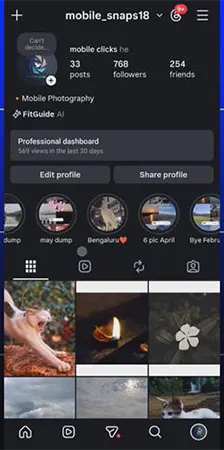
- Click the three dots menu at the top right.
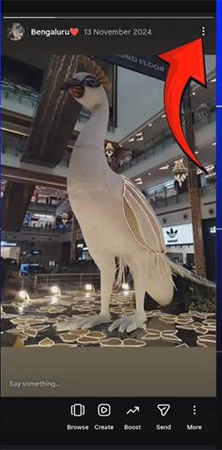
- Tap “Edit Highlight” from the options.
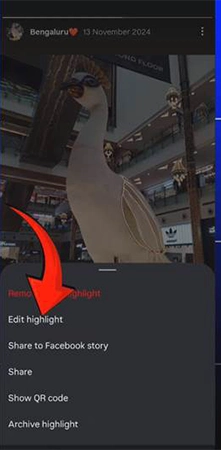
- Click Edit cover.
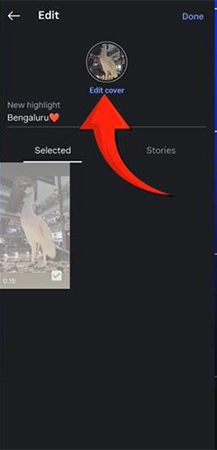
- Tap gallery icon to access your camera roll.
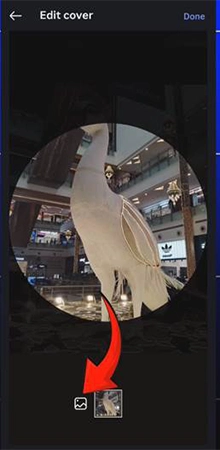
- Choose the cover photo from your gallery and tap Done at the end.
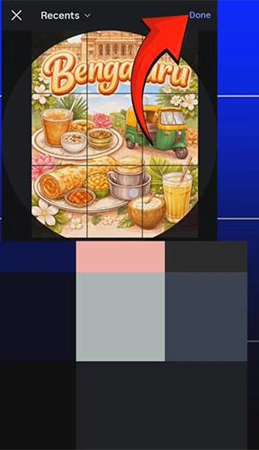
- Once again click Done to finish.
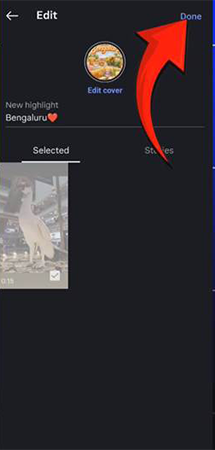
Using Custom Cover Without Posting a Story
When you update the Instagram highlight cover using the camera roll option, it does not post the image to your story. Therefore, none of your Instagram followers get any notification for this change.
The old guides say that you need to post your icon as a story first; only then you will be able to add it to the highlight. It still works fine but is not required in the latest app versions.
In case your app shows story frames only, go to the App Store or Play Store and update it once, and then try again.
What can you do on a desktop?
Editing Instagram highlight covers is designed for mobile apps and not for web versions. You will not get all the features on Instagram.com just as on the mobile app. However, you can create your own design using a laptop or desktop, then send it to your phone and change it in the app.
Instagram Highlight Cover Size and Safe Area
You had better build your cover design at 1080 x 1920 pixels with a 9:16 ratio. This will give you a standard canvas for your stories. Instagram will automatically crop the middle into a circle and show it on your profile.
You should set your letter or icon at the center and leave the rest of the space, as Instagram will remove extra space.
| Setting | Recommended Value |
| Aspect ratio | 9:16 |
| Display shape | Circle crop |
| File format | PNG or JPG |
| Image size | 1080 x 1920 pixels |
| Motion | Simple image only |
| Safe area | Centre of the frame |
Where to Get Instagram Highlight Cover Images
To get Instagram highlight cover images, you should try free and genuine websites where you can find Instagram highlight cover images. Do not pick any images from Google or Pinterest randomly because those are someone else’s, and you don’t have any right to use them.
Here are the free and safe sources that you can use to Instagram highlight covers download:
- Abode Express: Get free templates and icons to set with a simple preview in a circle size.
- Canva: Thousands of free templates for Insta highlight covers that you can edit and download them as PNG.
- Unsplash and Pexels: A great place to get free photos and textures that will perfectly align with your background covers.
- Your own phone: Use a personal photo or insert a black colour background from any editor.
Black Instagram Highlight Covers, Free
Instagram highlight covers black are very demanding as a dark circle looks attractive under your Instagram bio and makes white icons bright. In order to find black Instagram highlight covers for free, go to Canva and build a design at 1080 x 1920 pixels; keep the background black.
Set a white line icon in the middle and download it in PNG format. Keep repeating the same process for all the highlight covers so that all match perfectly.
Cover Ideas for Me, Friends, Family, and Brother
Your highlight covers should match the icon you use in them. It will help other users understand it quickly. Like me, Instagram highlight cover generally works better at the beginning or for portraits. Whereas the relationship highlights are icons with simple lines. Make sure to use the same background colour for all the circles and one icon style for all rows.
| Highlight Name | Cover Idea |
| Brother Instagram Highlight covers | Sibling silhouette or fist-bump icon |
| Family Instagram Highlight cover | Small house or a family icon |
| Food Instagram Highlight covers | A fork icon or a coffee cup |
| Friends Instagram Highlight cover | A two-person outline icon |
| Me Instagram highlight cover | You’re beginning in a clean font |
| Travel Instagram Highlight covers | Map pin or an aeroplane icon |
A family, friends, and brothers Instagram highlight cover looks perfect in a combination. Therefore, you must create all of them in one go.
Common Problems and Fixes
Users face some common problems related to covers. Most of them are just because of cropping, file size, or outdated app versions. Go through these solutions before believing that something is broken.
- Icon is cut off: Go to Edit Cover and zoom out your cover so that the icon perfectly fits into the circle.
- Can’t see Edit Cover option: You need to update your app and then go to Highlight from your profile, not from any story.
- Cover seems blurry: Create the cover at 1080 x 1920 pixels at a 9:16 ratio, which works best rather than taking screenshots of the design.
- Highlights disappeared: Recheck the highlights tab on your profile before believing that these were removed.
- Animated cover does not move: Instagram does not support GIFs as a cover. Even if you try a GIF, it will still treat it as a picture showing the very first frame.
- Missing gallery icon: It is either your app version is outdated or you have mistakenly clicked Edit Highlight on someone else’s profile, not yours.
Dos and Don’ts of Instagram Highlight Covers
Make sure you keep these points in mind when you create Instagram highlight covers.
Do’s
- Create the highlight cover in one go to have the same colour combinations and icons.
- Keep your created covers in your phone storage to reuse them quickly in the future.
- Always use your important letter or icon at the centre.
- Make sure to check it on your phone display as covers look small.
Don’ts
- Never mention any icon or text at the edges because Instagram auto-crops the cover.
- Don’t download paid icons from any unofficial sites, as you can get a lot for free at Canva or Adobe Express.
- Do not use busy pictures as your highlight cover since most detail disappears at circle size.
Conclusion
Uploading an Instagram highlight cover hardly takes 2 minutes. It gives your profile an everlasting touch which profile visitors notice at first glance. Create at 1080 x 1920 pixels, set an icon or letter at the centre, and edit free Adobe Express or Canva templates. Upload Instagram highlight covers directly from your camera roll now. Complete the setup first and then check it on your device before finishing.
FAQs
Q1) Can I change my Instagram highlight cover without posting a story?
Q2) What is an ideal size for Instagram highlight covers?
You should use an Instagram highlight cover image in 1080 x 1920 pixels with a 9:16 ratio. Save it either as a JPG or PNG file. You had better keep your letters or icon in the center with enough space. Because Instagram will auto-crop it into a circle.
Q3) Where can I get black Instagram highlight covers free?
Go to Canva or Adobe Express to get free dark templates for your Instagram highlight covers. There, you are free to edit and download them as PNG files. You can even create one by yourself too by using a black background and a white icon at the center.
Q4) Can highlight covers also work as animated GIFs?
No, Instagram does not support GIFs as highlight covers. If you use one, Insta will treat it as an image only. The animation remains unsupported and the first frame becomes visible without motion.
Q5) Is it possible to edit highlight covers on the Instagram browser?
No, editing Instagram highlight covers is designed only for mobile apps. However, you can create a cover using artwork on your laptop in Adobe Express or Canva, then send it to your phone and use it via Edit Highlight.
Sources:
Add a story to your Story Highlights by Instagram Help Centre
Introducing Stories Highlights and Stories Archive by About Instagram.com
Related Post's