Create the Instagram account as usual, then go to your profile, click the three lines (☰) menu, choose Account privacy, and switch to a private account. If any user is below 18, Instagram will automatically keep your profile as a Teen Account, which remains private by default.
Blog
How to Make Instagram Private in 2026: Follow Quick Steps
If you prioritise privacy on social media, you should make your Instagram private. After your account gets private, only approved users will be able to see your reels, stories, and posts.
Here you will learn how to make Instagram private, what remains public and private, and common fixes.
Quick Answer
How to make Instagram private?
Open the Instagram app on your phone and click your profile picture in the bottom-left corner. Now click the three lines (☰) menu and choose Settings.
Table of Contents:
How to Make Instagram Private
It hardly takes 60 seconds for you to make your Instagram account private using Account privacy under settings. Users over 16 years of age have public accounts at the beginning, but you can turn yours private at any time. You can do this not only on the Instagram app but also on a desktop browser.
How to Make Instagram Private on the App
Here is how to make Instagram private using the official app.
- Open the Instagram app on your phone.
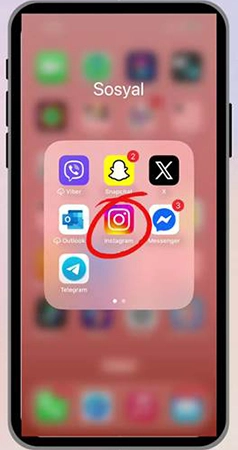
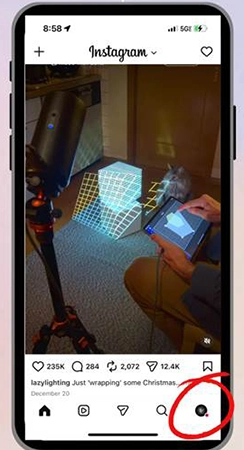
- Click your profile picture in the bottom right corner.
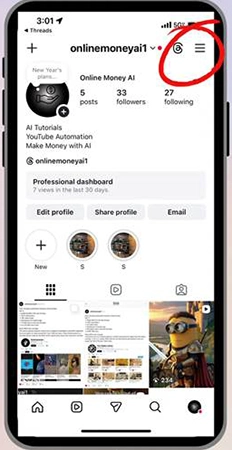
- Click the three-line menu and select Settings.
- Scroll down to Account privacy.
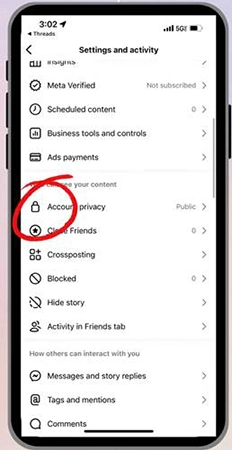
- Click the toggle button for Private account and confirm the pop-up.
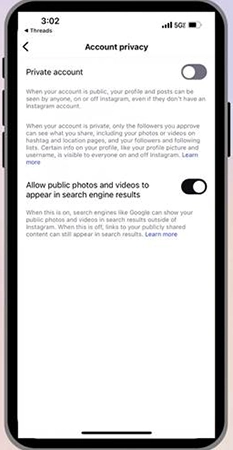
Note: People who followed you before the switch will still be following you. New users will have to send you a follow request.
How to Make Instagram Private on Desktop
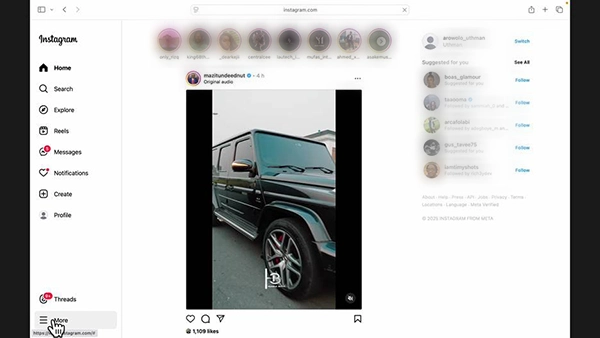
You can switch to a private account using the Instagram desktop web. The only difference you will see is that the desktop has the More menu at the bottom of the left side corner rather than the three-lines (☰) icon. This is all that users need to know how to make private Instagram using a web browser.
Follow these steps in any desktop browser:
- Search https://www.instagram.com on a desktop browser and log in to your account.
- Click More in the bottom left corner.
- Choose Settings.
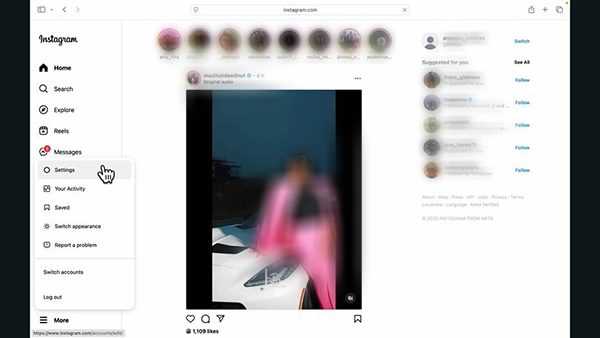
- Click Account privacy.
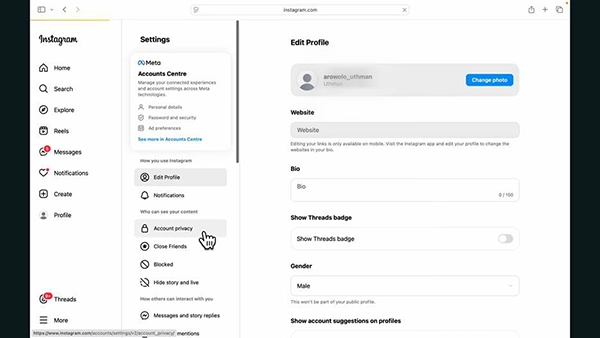
- Enable the toggle beside Private account.
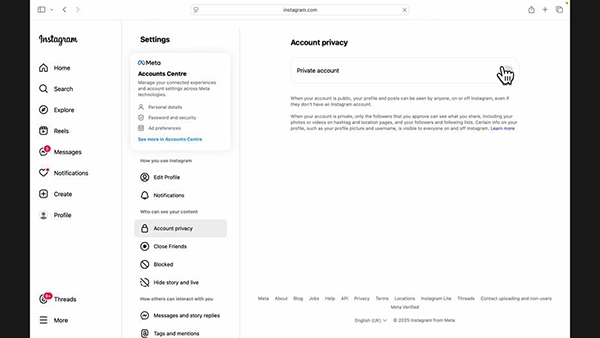
- Now click “Switch to private” on the pop-up for confirmation.
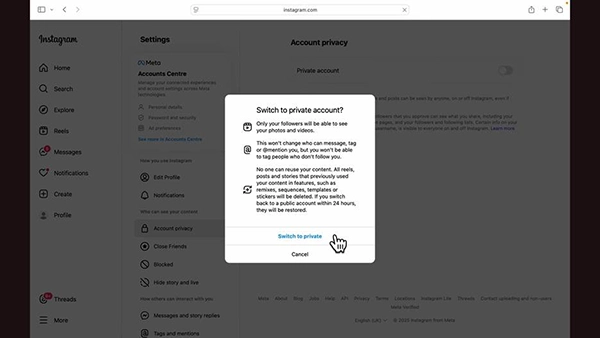
Tip: Now open your Instagram profile in a logged-out browser to check it. Because a private account will show logged-out visitors a “This account is private” notice.
What Changes in Public and Private Instagram
A private account sets limits on your reels, follower lists, and posts to approved followers only. While everybody has access to all of these on a public account.
Whenever you switch to a private account, users will have to send a follow request to see your posts and follower and following lists. Your posts no longer remain in Explore photo results and on location or hashtag pages.
| Feature | Public Account | Private Account |
| Explore and search | Can appear | Hidden from non-followers |
| Follower and following lists | Visible to all | Visible to followers |
| Hashtag and location pages | Shown to all | Shown to followers only |
| New followers | Follow instantly | Must send a request |
| Professional tools | Available | Not available |
| Who sees posts and reels | Anyone | Approved followers |
Advice: Continue using a public account if your goal is growth from hashtags and Explore. Switch to a private account if privacy matters most to you.
What Stays Public on a Private Account
You must know that a private Instagram account will not make you invisible. Your name, profile picture, username, links, Instagram bio, and follower count always remain public even when you switch to a private account. This is the most important information that most guides on how to make your Instagram private do not clearly explain.
Here is what non-followers can still see:
- Your name and username
- Your profile picture
- Your bio and links
- Your follower and following counts
- Your comments and likes on posts added on public accounts, including your username.
Note: In order to trust your privacy settings, make sure to remove your city name, school address, full name, or phone number from these fields.
Instagram Teen Accounts: Private by Default
If your age is below 18 years, Instagram will automatically create your account private through Teen Accounts. These accounts are set private by default; thus, teens must have to approve new followers. Users who are under 16 years old need parental permission to loosen these protections.
Here is how these rules work according to age:
- Under 16: Account remains private by default, even for teens who are already on Instagram. They need a parent’s approval to go public.
- 16 and 17: Account remains in the Teen Accounts category, but they are free to update the settings themselves as long as their parents do not set supervision.
- New Sign-ups under 18: Accounts remain private by default.
Note: Instagram set the account type as private for new users who were under 16 in July 2021. But research showed that 8 out of 10 teen users wished to have more privacy and setting controls.
Troubleshooting: Private Account Option Missing
Users face problems when they learn how to make Instagram private and apply it. Most problems occur due to age settings, type of account, or even switching frequently. Here are some common issues with solutions.
- The Privacy account button is unavailable: You are more likely on either a business or creator account; therefore, you first need to switch it to personal using the above-mentioned steps.
- The account switched to public automatically: Whenever you switch to a professional account, it will automatically convert your profile to public. There are some third-party tools like auto-DM apps that work only for Business or Creator accounts; thus, using one such tool may have changed it. Now check what type of account it shows first.
- Unable to approve follow requests: Instagram may have set daily approval limits for accounts that constantly switch from public to private. You need to stop toggling and wait for some time to approve them.
- A teen is unable to update the settings: Users under the age of 16 need a parent’s approval to update their settings. Set up parental supervision.
- Old followers can still see my posts: Existing followers remain as they are even when you go private. Thus, you need to remove them from your followers list.
Do’s and Don’ts of Private Account
Make sure to keep these dos and don’ts in mind whenever you switch your Instagram account to private.
Do’s:
- Make sure to check your follower list immediately whenever you switch to private.
- Approve follow requests only from people you already know.
- Update your name, bio, and photo when going private.
- Check your account type in case you are unable to see the switch button.
Don’ts:
- Never switch your account from public to private to increase followers.
- Do not switch to a business or creator account if privacy is your top priority.
- Do not think that a private account means you have become invisible on Instagram.
Conclusion
I hope you have learned how to make Instagram private using both the app and desktop as of now. You need to turn on a private account under Account privacy in settings and switch to a personal account first. Update the details that you have set to public. Go to Instagram and check your followers list right away.
FAQs
How to create a private Instagram account when signing up?
Will I lose my current followers when I go private?
No, users who are currently following you will be able to see your posts even when you switch your account to private. New users will have to send a request. If you still want specific followers to cut off, go to your followers list and tap Remove beside their name.
Is there any way to create a creator or business Instagram account that is private?
No, business or creator accounts cannot be set to private. You need to switch to a personal account first with the help of Account type and tools in the settings. Now you can turn your account private, but you will lose other insights and professional tools after switching.
Can other users still see my profile picture on a private account?
Yes, users can still see your name, profile picture, username, and bio even if you switch to private. Because these things remain visible to all, even those who don’t follow you can see them. You had better remove personal information such as your residential address or phone number for safety.
Why did my private Instagram account become public?
One of the most likely reasons for it is switching to a business or creator account, which converts a private account to public and also accepts all pending follow-up requests. If you want to keep your account private, switch back to a personal account again.
Can I switch my Instagram account between public and private frequently?
Yes, but Instagram does not recommend it. Accounts that switch too frequently may get some temporary limits, like a daily cap on approving follow requests or removing pending requests, whenever switching to public again.
Sources:
Make your Instagram account private by Instagram Help Centre
Why you’re limited from approving follow requests on Instagram by Instagram Help Centre
Related Post's