The Facebook page will be deactivated as soon as you start the deletion but it takes 14 days to delete it permanently. During this time frame, you can cancel the deletion process.
Blog
How to Delete a Facebook Page: 2026 Step-by-Step Guide
Curious to know how to delete a Facebook page? You need to go to Settings, then click on Access and Control, choose Delete Page, and enter your password to confirm. Your Facebook page will be hidden from Facebook instantly, but it will be deleted permanently only after 14 days.
Here you will learn how to delete a Facebook page on a browser or mobile and deactivate it.
Quick answer:
- Sign in first, and go to the page that you want to delete.
- Tap your profile picture; after that, go to Settings & privacy.
- In the left sidebar, click Access and Control.
- Click the delete page, then select Continue and follow the on-screen prompts.
- Enter your password and confirm.
Facebook will deactivate your page instantly, and it will be automatically deleted after a 14-day period.
Table of Contents:
- How to Delete a Facebook Page
- How to Remove a Facebook Page from Business Portfolio?
- How to Deactivate a Facebook Page?
- Reasons Why Users Delete a Facebook Page
- What to Know Before You Delete a Facebook Page
- What Happens after You Delete a Facebook Page
- Delete vs. Deactivate: Which One Fits You
- How to cancel Deletion and Reactivate a Page
- Common Problems While Deleting a Page
- Do's and Don'ts of Deleting Facebook Page
- Conclusion
- FAQs
How to Delete a Facebook Page
You can delete a Facebook page if you have full control or admin access. There is no direct button to delete a page. It is in the Access and Control menu under the settings. The steps to delete a Facebook page are almost the same on both a mobile app and a desktop browser. You can undo the deletion only within 14 days.
1. How to Delete a Facebook Page on Desktop?
You need to follow some steps on how to delete a Facebook page on a desktop browser.
1) Go to Facebook and click your profile picture in the top right.
2) Click to see all profiles and choose the page that you want to delete.
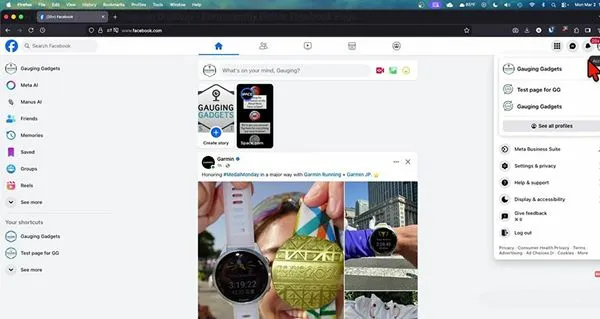
3) Click the page’s profile picture.
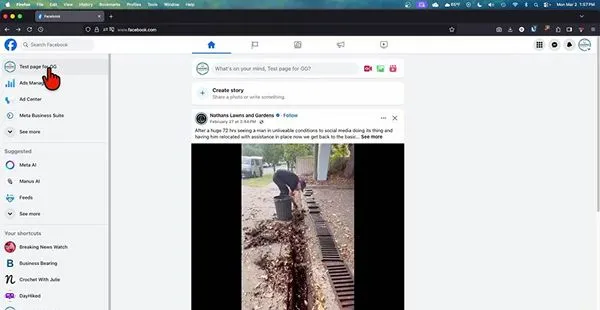
4) Now go to settings.
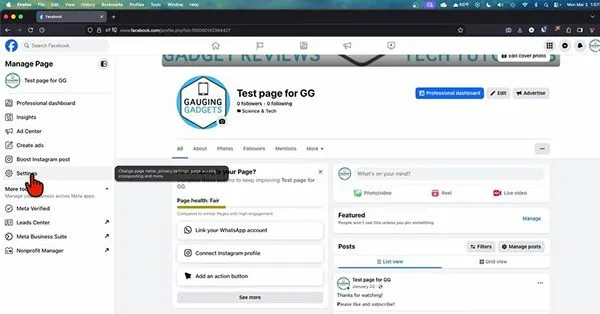
5) Look for Access and Control in the left menu.
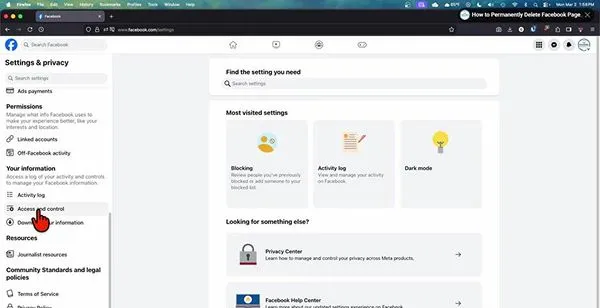
6) Click the Delete page and follow instructions to confirm.
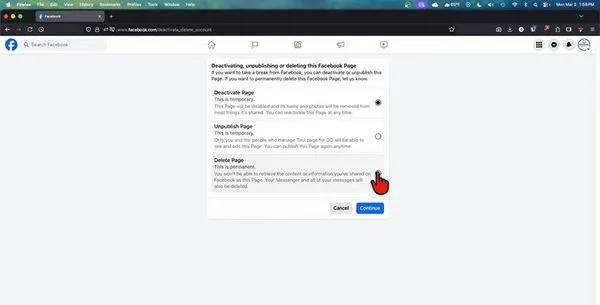
7) Click Continue.
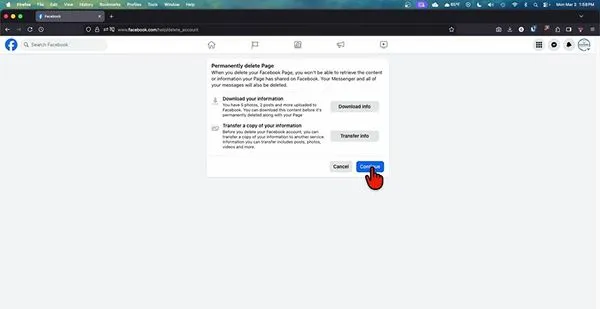
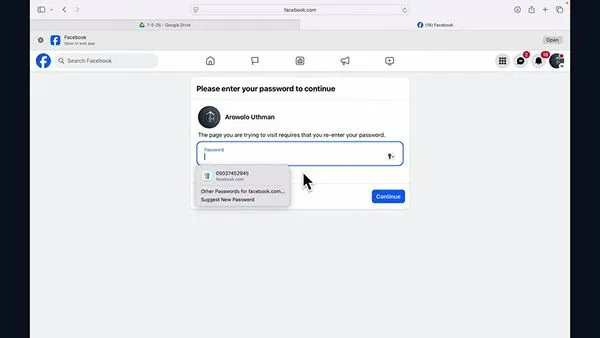
8) Enter your password and continue.
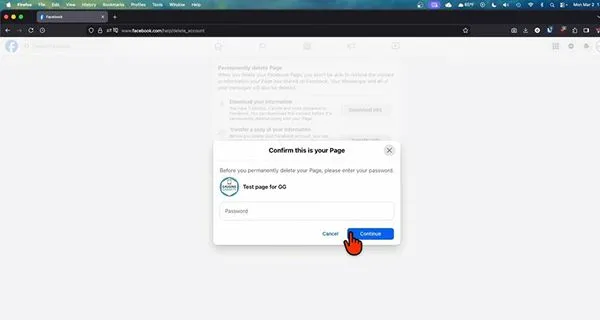
Note: You need to have Facebook page access or full control to delete it. If you don’t have full access, you will not be able to see the “delete page” option.
2. How to Delete a Facebook Page on Mobile?
Here is how to delete an FB page using the Facebook app on Android mobile or iPhone:
Log in to your Facebook.

Click the Profile menu icon at the top right.
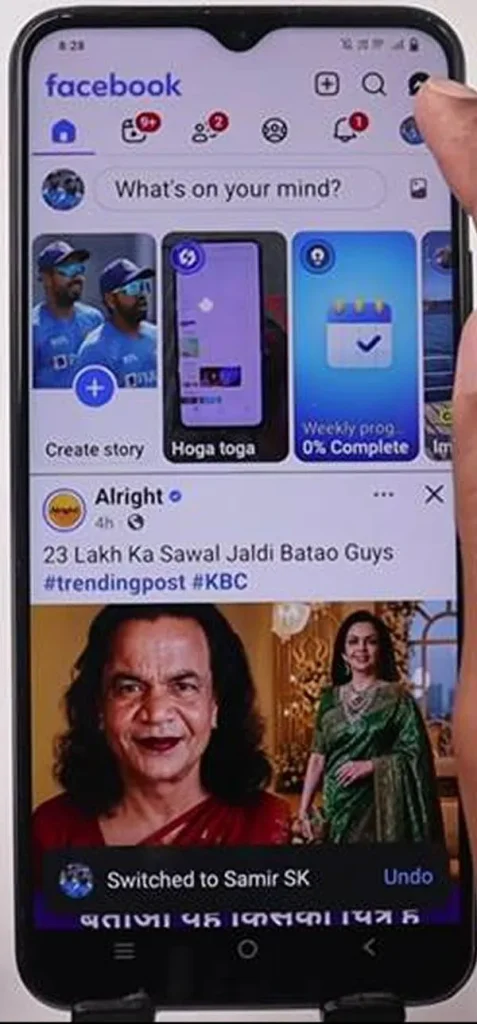
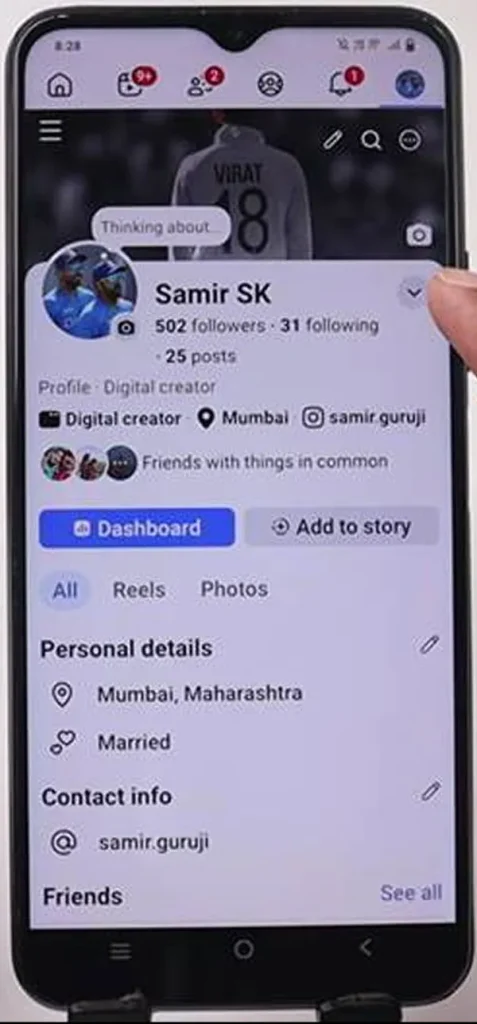
Click the drop-down arrow beside your name.
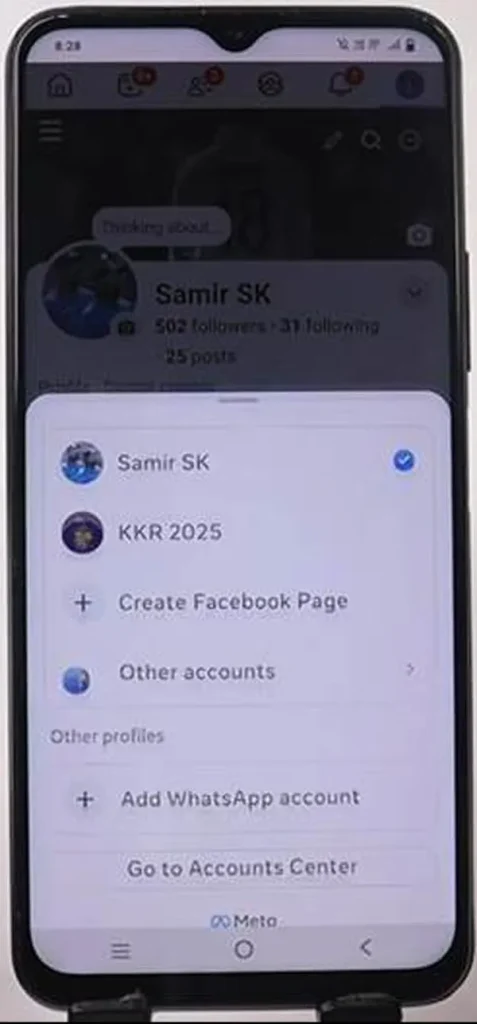
Select the page you want to delete and switch to your page profile
Click your page’s Profile icon at the top right.

Click the three-line menu from the top left.
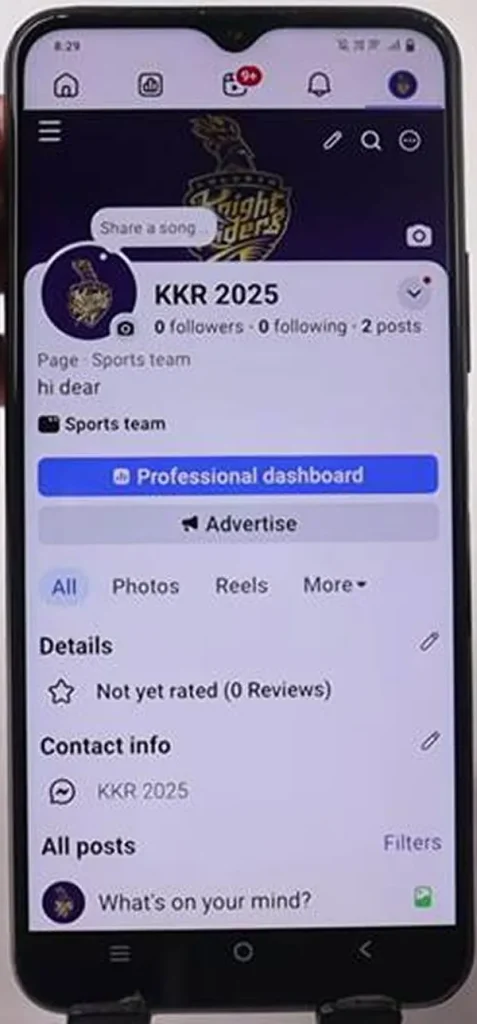
Now go to Settings & Privacy.
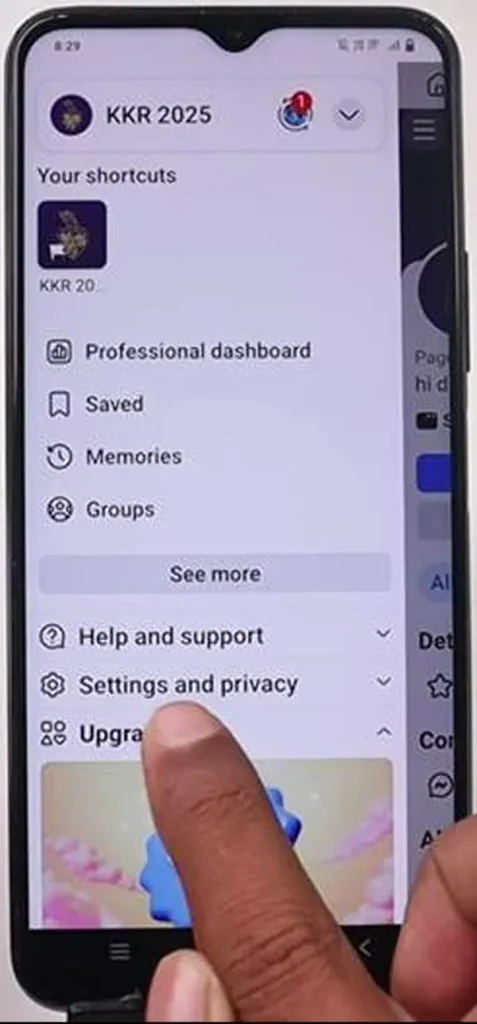
Click settings.
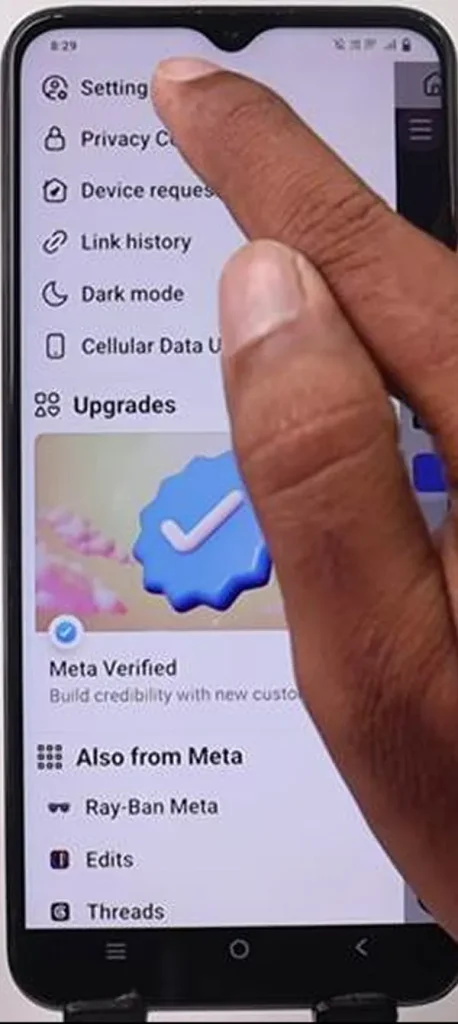
Scroll down and tap Access and Control.
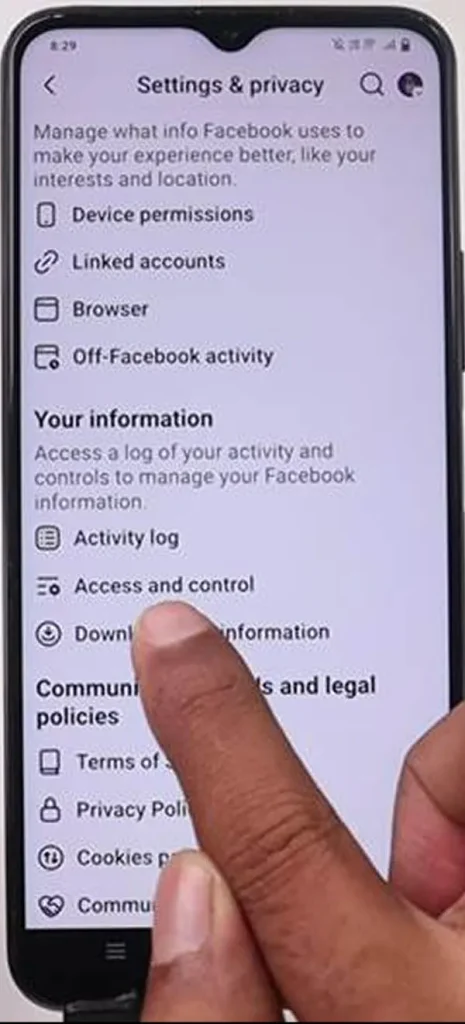
Select Delete Page
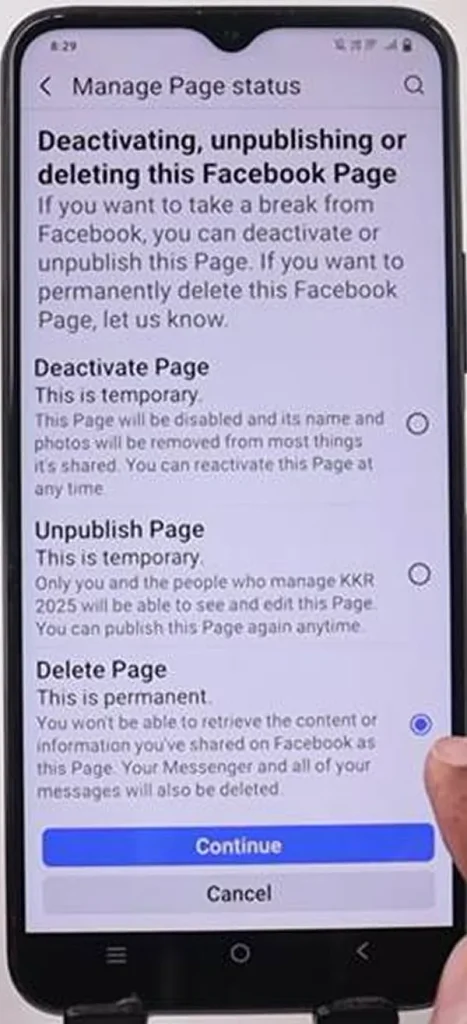
Click continue.
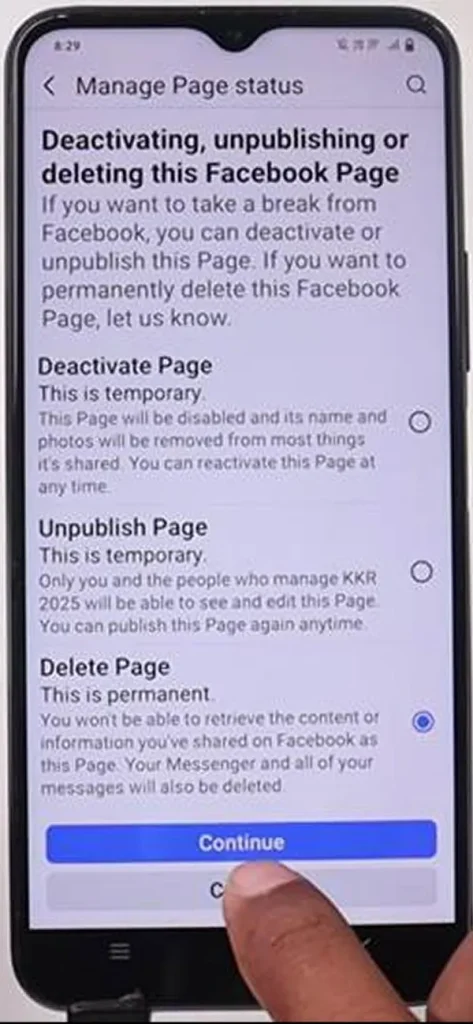
Select any one reason why you are deleting a page.
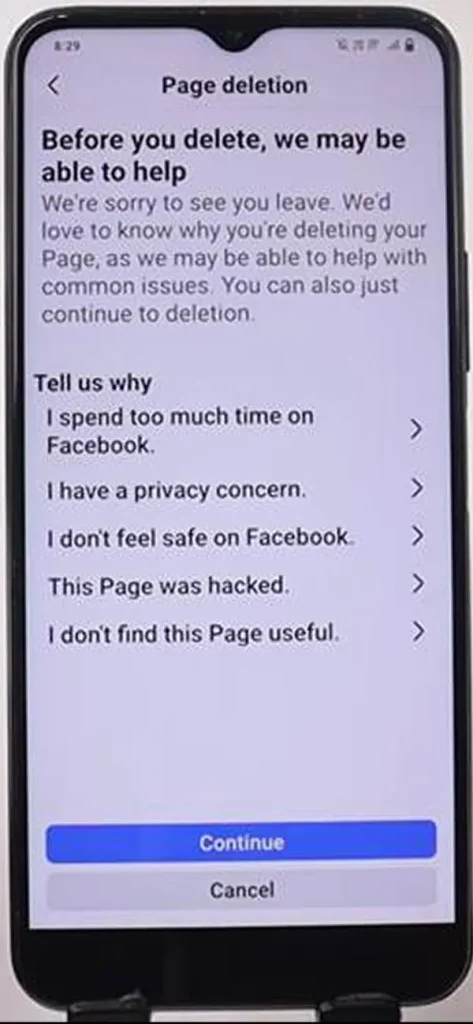
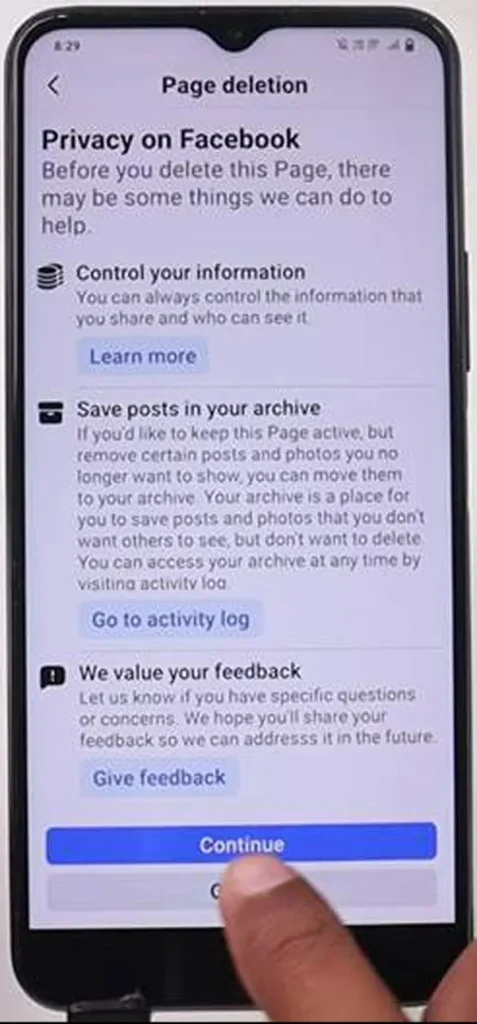
Click Continue.
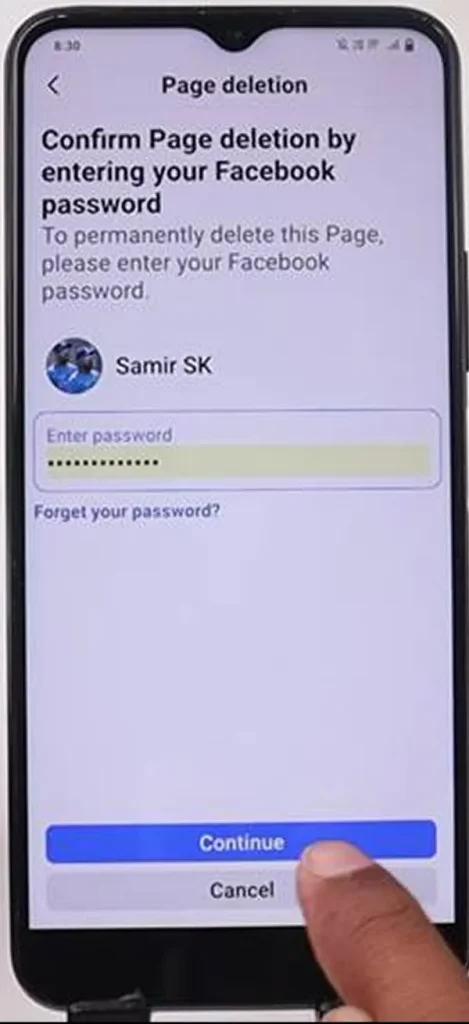
Lastly, enter your account password to confirm.
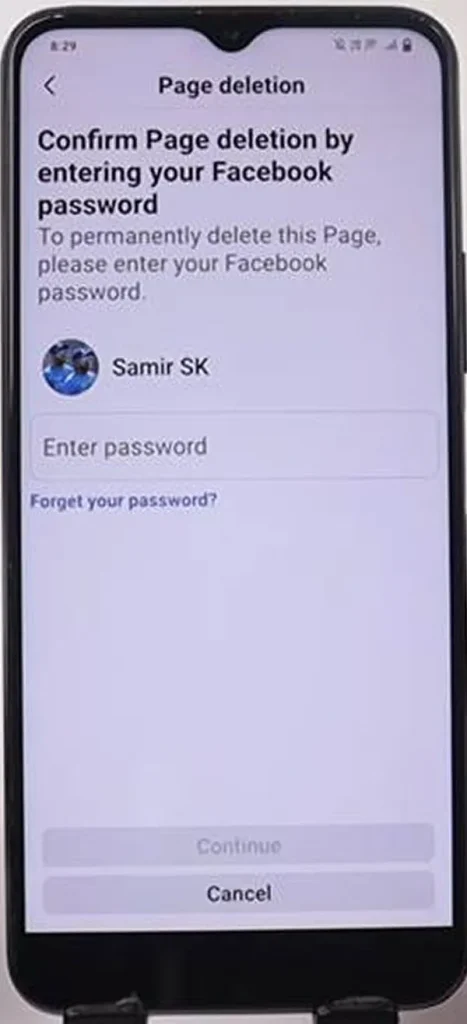
Click continue.
Click “Delete Page”
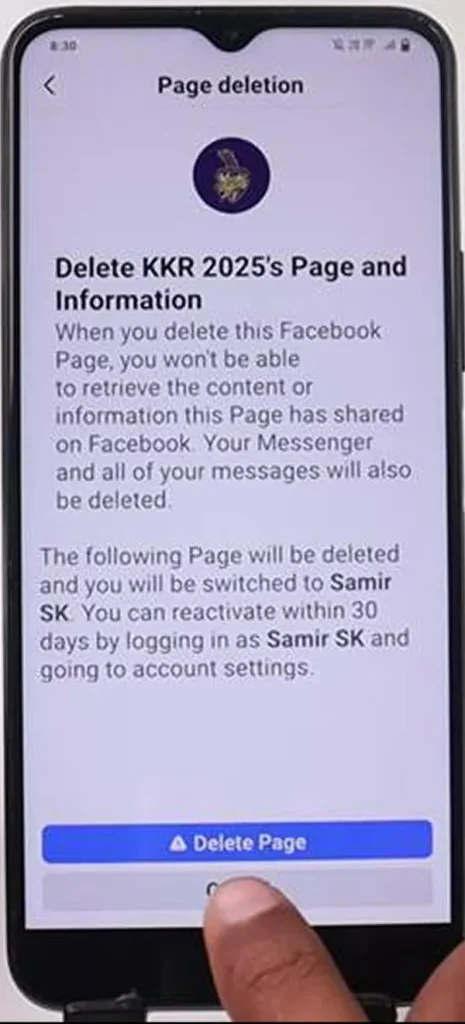
Note: Deleting a page will not delete your Facebook page. You get 14 days’ time to cancel and reactivate your page.
How to Remove a Facebook Page from Business Portfolio?
If you remove a Facebook page from Meta Business Suite, it will not be deleted. The page will be unlinked from your business portfolio, but it will be present on Facebook as usual.
Here is how to remove a Facebook page from Meta Business Suite:
1) Log in to your Facebook account and go to your profile.
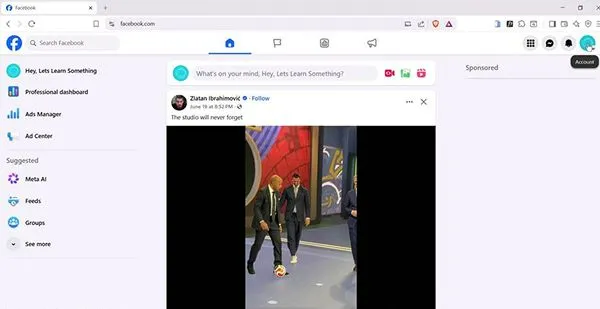
2) Open Meta Business Suite.
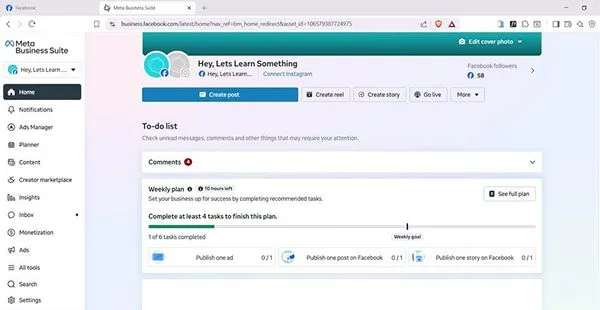
3) Click the top left to see all the business portfolios.
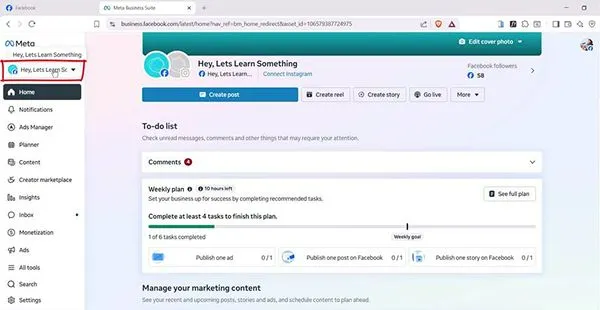
4) Choose a business profile you no longer need.
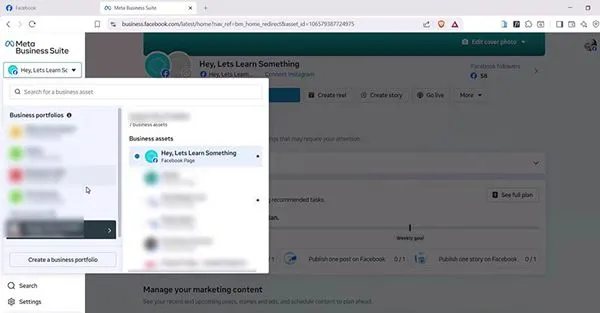
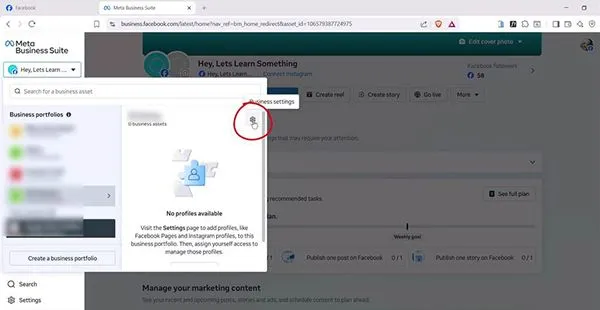
5) Click the settings icon.
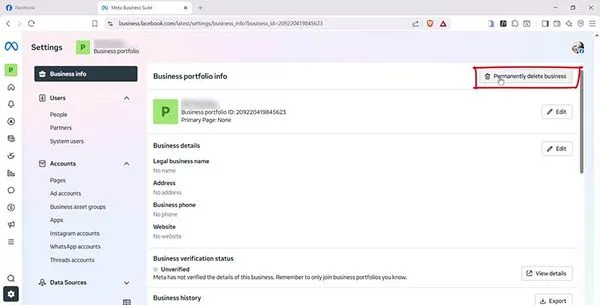
6) Click Business Info.
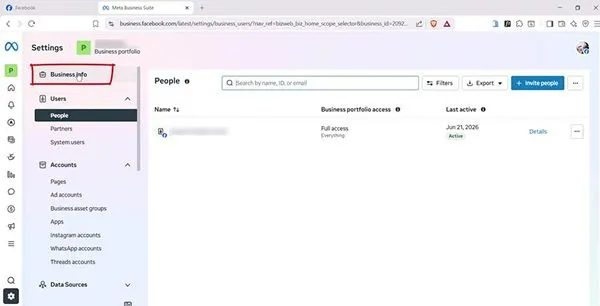
7) Click “Permanently delete business” at the top right.
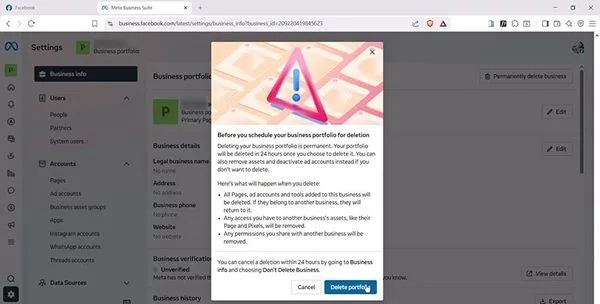
8) Click “Delete portfolio.”
9) Choose “Back to Facebook.”
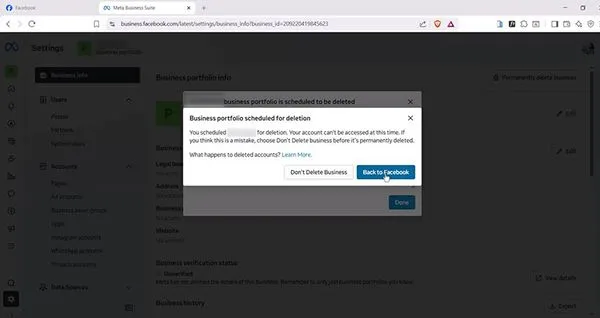
Note: You get 24 hours’ time to cancel the removal of your portfolio from the Meta Business Suite.
How to Deactivate a Facebook Page?
When you deactivate a Facebook page, Facebook will not delete it but hide it from search results and the follower’s feed. The good thing is that your photos, reels, and comments will be saved. Deactivation is the best choice for you if you want a short break.
Here are the steps on how to deactivate your Facebook page:
Log in to Facebook, and go to the menu on top right.
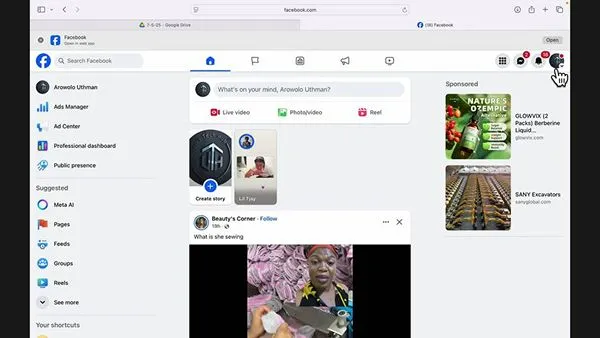
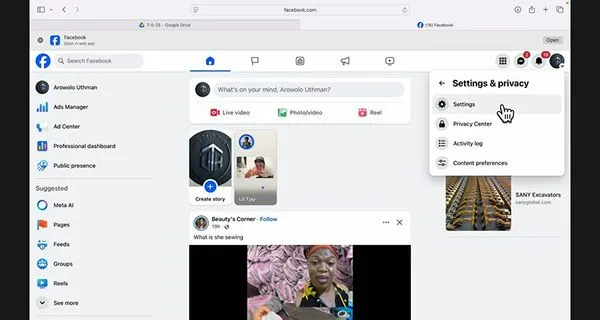
Now go to Settings & Privacy and click Settings.
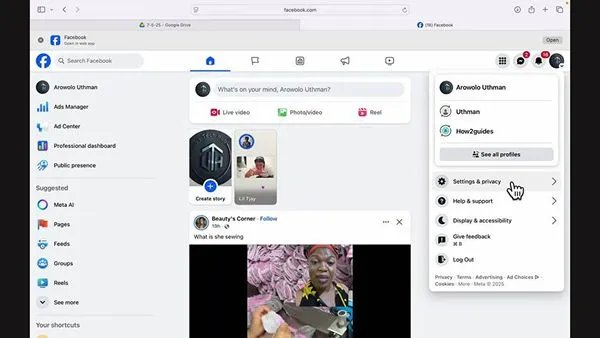
Click on the Settings.
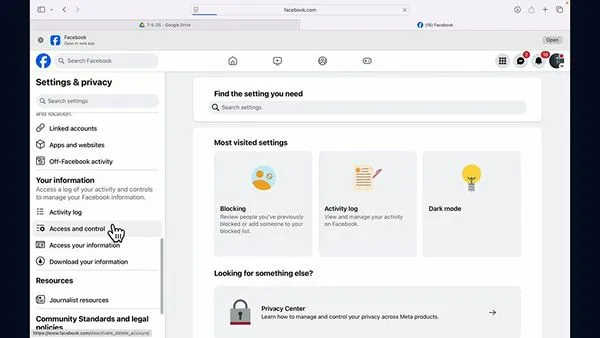
Select Access and Control.
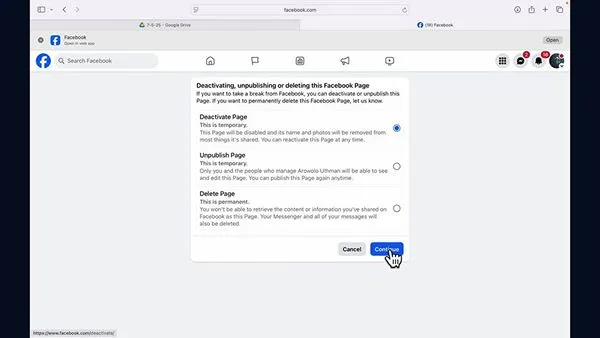
Choose “Deactivate Page” and click “Continue.”
Enter your password and click “Continue”.
Reasons Why Users Delete a Facebook Page
There are many reasons for people to delete a Facebook page, such as not having time to manage posts, the purpose of the page ending, or because of negative comments.
Here are some more reasons that Facebook users have given before they delete the page permanently:
- The company, brand, or community project has ended, so they close the page.
- Users accidentally created a duplicate page and didn’t need it.
- The page gets too many negative comments and spam.
- When people’s interest shifts to other social apps like WhatsApp, Instagram, and LinkedIn.
- People want to keep their privacy secure.
- When the page is not getting enough followers, likes, or results.
What to Know Before You Delete a Facebook Page
Facebook doesn’t delete your Facebook page instantly whenever you want. It takes 14 days for the deletion process.
Here are some points to know before you start the deletion:
- You can delete a Facebook page only when you have full control of the page.
- Download your data and save your photos and documents to your phone, whichever you may need later.
- If none has full control of a page, Facebook will automatically deactivate it and schedule for deletion.
- Your personal Facebook profile will be safe even if you delete your page.
- Before closing your personal profile, you must give control to others to save your page from auto-deletion.
- You must check if your Page is connected to Instagram, ads, or other services before deleting it.
What Happens after You Delete a Facebook Page
The process of deletion is in two steps; firstly, Facebook will deactivate your account instantly, and after 14 days, your page will be deleted permanently. There are a few changes you may see while deleting it.
- Your page will be unavailable to people, and they will no longer visit it.
- The page’s name and content will stop appearing in Facebook search.
- Your followers will not be notified about your page’s removal.
- After deleting the page, if you wish to bring it back, then it’s possible only within 14 days.
- If the deletion period is completed, all your data will be erased.
- Other people can create their account using the same username as your page.
Delete vs. Deactivate: Which One Fits You
If you have a little bit of doubt, you should deactivate it instead of deleting it. You can get back your data during deactivation but not during deletion. You can know the difference between both of them:
| Factor | Delete Page | Deactivate Page |
| Best for | The page you no longer want to use | You can bring it back later. |
| Content | Content is removed once the deletion becomes permanent. | Your page’s content stays saved. |
| Visibility | Permanently hides the page | Temporarily hides the page |
| Reversible | Recovery is not possible after 14 days. | You can get it back at any time. |
| Admin Access | You will lose the page’s control after deleting it | Still, you will have full control of your page |
How to cancel Deletion and Reactivate a Page
After deleting the page, you wish to cancel it within a 14-day period. Here are the steps to follow:
1) Click on your profile menu from the top left corner on Facebook.

2) Go Settings & Privacy.
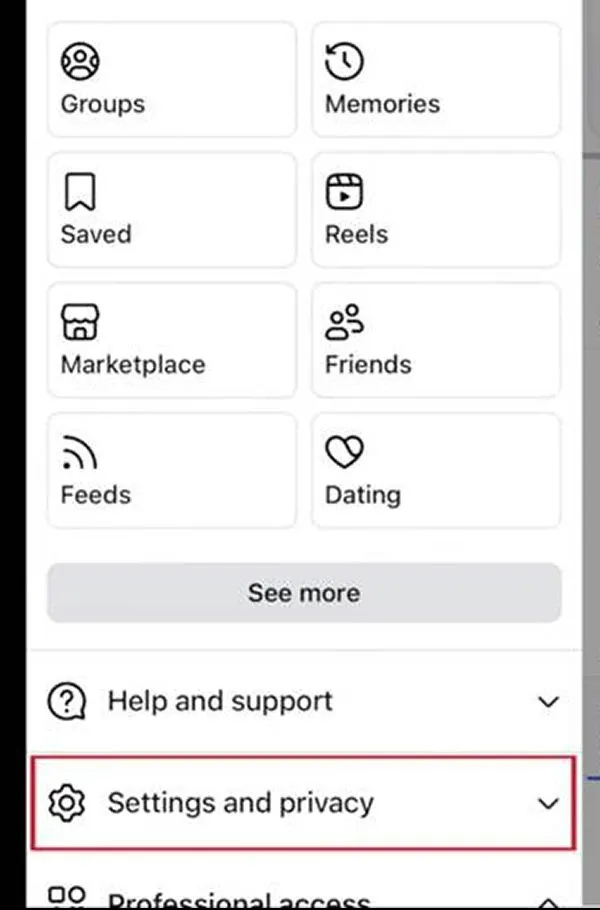
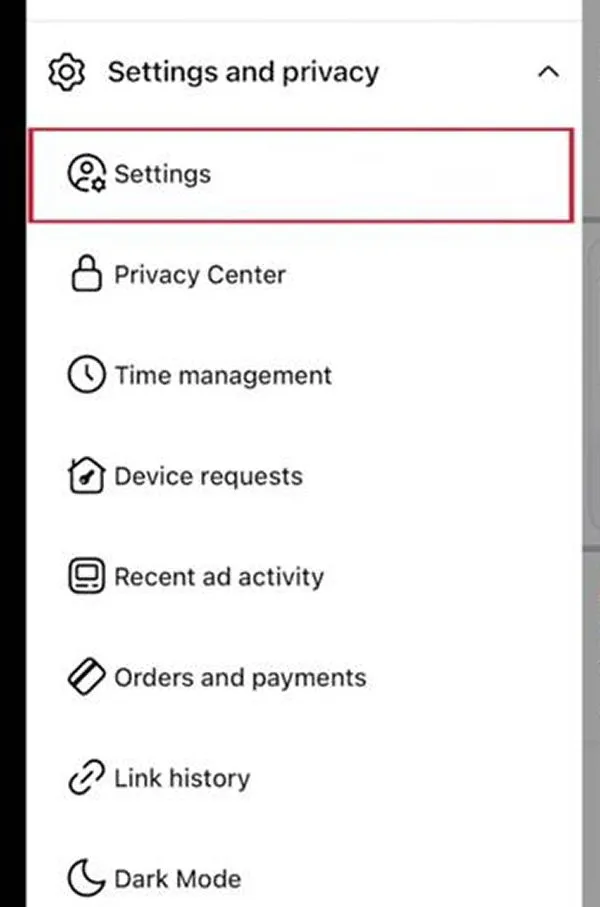
3) Select Settings.
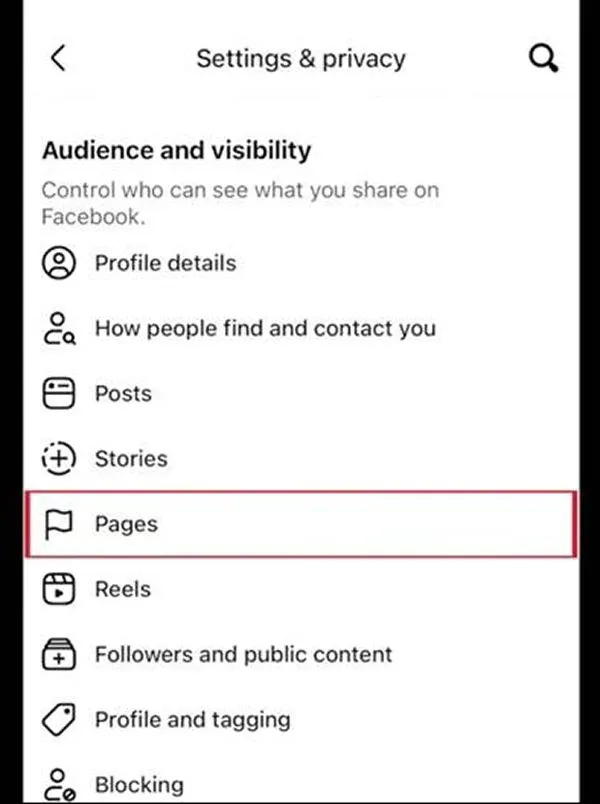
4) Now scroll down to Page under Audience and visibility.
5) Click View.
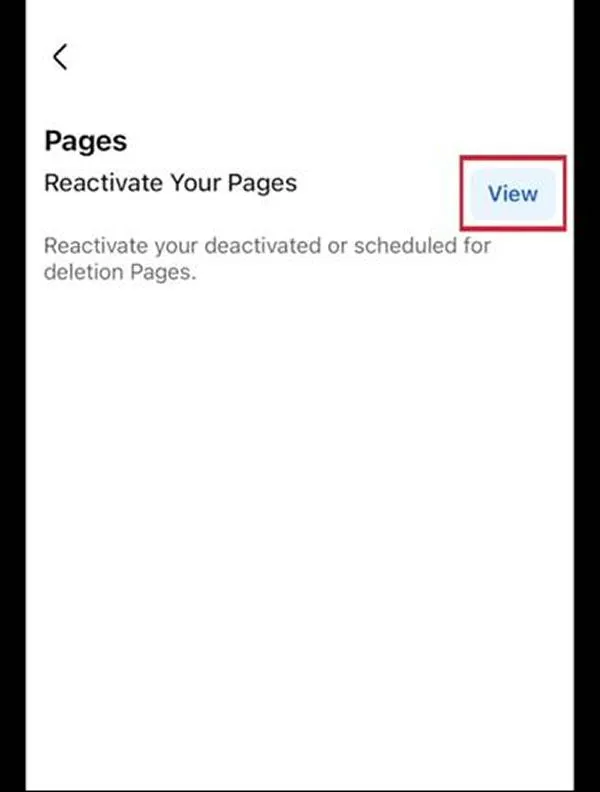
6) Lastly, click Reactivate for the page you want to stop deletion.
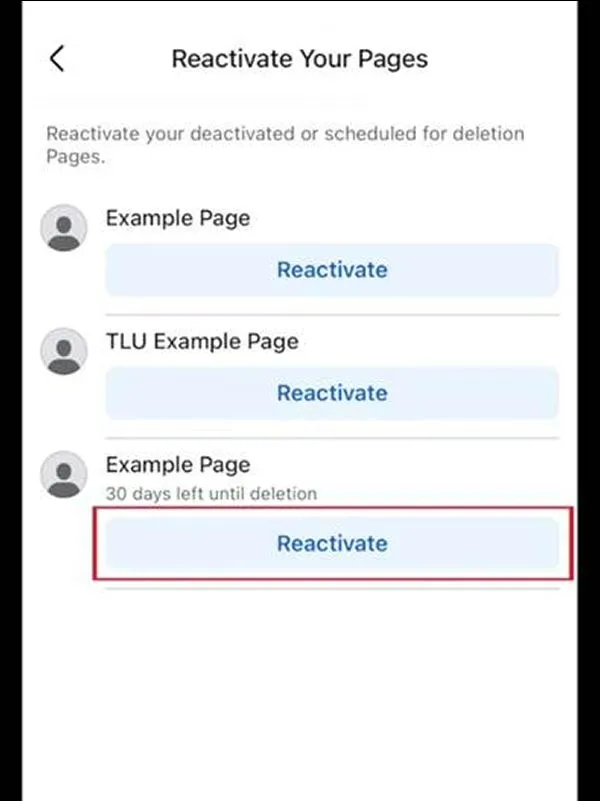
7) You will be redirected to the page profile.
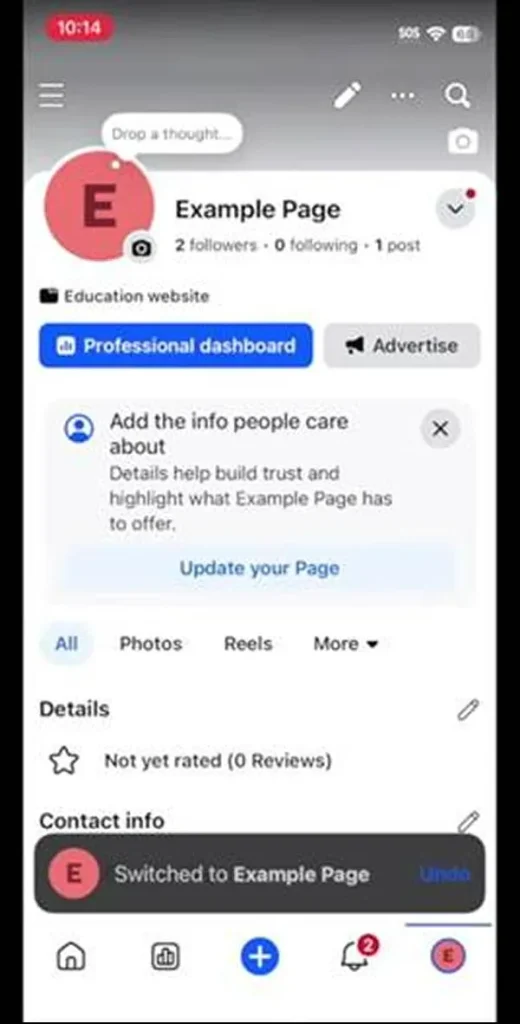
Note: This will help only if your Page is not deleted permanently.
Common Problems While Deleting a Page
Many of the problems you face are because either you are not permitted or the file path is broken. It’s not the fault of a software bug. You need to try these steps to fix it:
- No Delete Page Option: If you don’t find a “delete” option, it means you don’t have full access to your page. Ask Admin to give you full control of the page.
- Wrong Profile Open: You are still using your personal profile. Go back to the profile page first, then go to settings.
- Old Menus on Screen: You may see different layouts in some accounts, so you need to search “delete” in settings.
- Deletion cancelled by itself: If another admin has full control, he can cancel the deletion within 14 days. You should check with your team first.
- Removal Request Pending: The other party has 14 days to approve or reject your request for page removal if sent through a business portfolio.
- Page isn’t yours: If this is an impostor page, you have no right to delete it. But you can report it through Find Support or the Report page.
Do’s and Don’ts of Deleting Facebook Page
There are some important things to remember when you delete a Facebook page permanently:
Dos:
- Back up your important data. Must save page information you may need later.
- Inform your followers or customers about your other accounts to contact you before 7 days.
- Make sure to check the correct page’s username before deleting it if you handle many pages.
- Review linked accounts—check Instagram, Meta Business Suite, or other services connected to the page.
- Choose deactivating the page instead of deleting if you are confused about it.
Don’ts:
- Don’t wait more than 14 days to recover it. After that, it will be gone forever.
- Don’t forget to disconnect or close your active ads campaign before deleting the page.
- Don’t remove yourself, as you are the only admin; before deleting the page, you lose the ability to manage it.
- Never forget that removing a page from a business portfolio is not the same as deleting it.
Conclusion
Now you have all the details about how to delete a Facebook page from a browser or a mobile app. You get a 14-day period before deletion becomes permanent, and you must have full control of the page.
Do save your data on the phone, inform customers before closing, and choose the correct page’s username that you wish to delete. If you are unsure, then choose deactivation instead of deleting it.
FAQs
How long does it take to delete a Facebook page?
How can I delete a Facebook page if I am not the admin?
If you are not an admin or do not have full control of a Facebook page, you will not be able to delete it. However, you can report a page that violates the privacy policy.
Does deleting a Facebook page delete my personal profile?
No, deleting a Facebook page will not delete your personal profile. It will only remove the page’s data including photos, videos, messages, and documents. You must save if you delete the Facebook page.
Can I recover a deleted Facebook page?
Yes, you can recover your deleted Facebook page only if the deletion process does not exceed 14 days. After this period, you will not see the reactivate page option for the same page you wish to bring back.
How do I deactivate a Facebook page instead of deleting it?
You need to go to your Facebook page first, then go to Settings & privacy – in the left-hand menu, click Access and Control, then select Deactivate. Enter your password to confirm.
Do followers get notified when a Facebook page is deleted?
No, followers will not get any notification when you delete a Facebook page. Therefore, it is very important to keep them posted about your page’s closure at least 1 week in advance.
Sources:
Delete or cancel deletion of your Facebook Page by the Facebook Help Center
How do I remove a Facebook Page from my business portfolio in Meta Business Suite? By Facebook Business Help Centre
Deactivate or reactivate your Facebook Page by Facebook Help Center
Delete or cancel deletion of your Facebook Page More by Facebook Help Center
Related Post's