No, you can create a duet using only a mobile app on iPhone or Android. There is no option to create a duet on the web, so you need to open TikTok on your phone, find a video you want to create a duet with, click the share button, and select the Duet option.
Blog
How to Do Duet in TikTok: Simple and Easy Steps Guide
Curious to learn how to do duet in TikTok? First, open a video, then click on the share arrow and choose Duet. Record your video alongside the original and publish it. Make sure the original video is allowed to have duets by its original creator.
In this article, you will learn easy steps on how to do Duet in TikTok, choose a layout, duet with others, and fix your missing duet option.
Quick Answer
How to do duet in TikTok?
To make duets on TikTok, first, you need to open a video, then click on the share arrow on the right side of your screen. Select Duet, then choose your preferred layout and click on Record to make your video beside the original one. After that, click the checkmark to edit your video. Now click on Next and write your caption, then tap Post to publish it.
Note: Keep in mind that you can make duets only in the TikTok mobile app, and the creator must allow content to be reused by others.
Table of Contents:
What Is A Duet on TikTok?
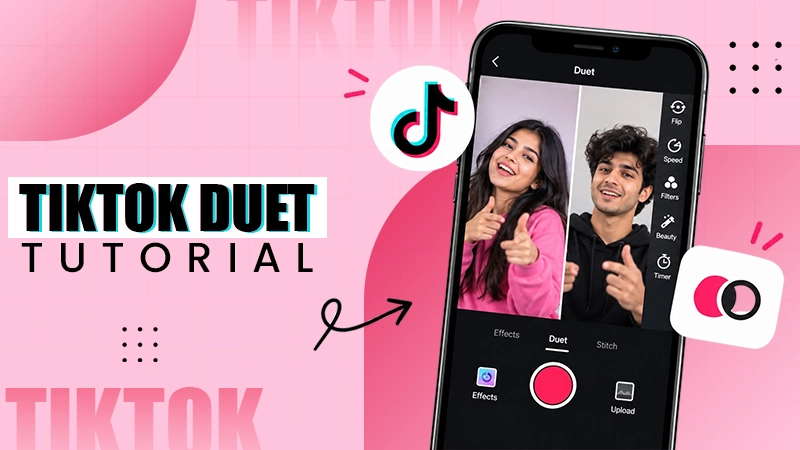
A TikTok duet is a split-screen video where two videos appear side by side on the screen. You can make and record your video alongside another creator’s video at the same time. TikTok will combine both videos into one video.
There are some points that will help you know more about duets;
- The duet video can appear only on the profile of the creator. It will be decided by the privacy settings of their account who can see and even download the video.
- The creator of the original video will get credit in the captions along with the link to their video.
- You can create duet videos only using the mobile app; there is no desktop web option for this.
How to Do Duet in TikTok
To create a duet on TikTok, first you need to open a video, click on Share, select Duet, then record your part and publish it. The same steps work for both Android and iPhone. These steps are based on the official guide of TikTok.
Here are some simple steps that you need to follow:
- Open your Tiktok and search the desired video you want to duet.
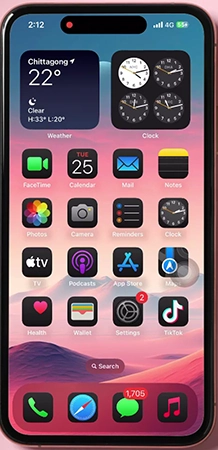
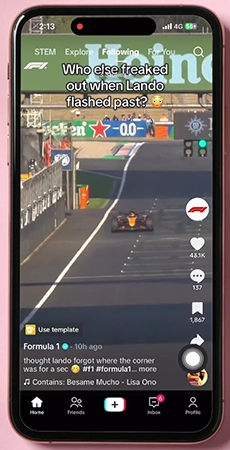
- Hit the share arrow located at the bottom right side of the screen.
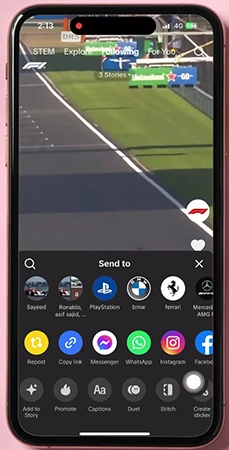
- Select the Duet icon; if you are unable to see it, then swipe left in the row.
- Now click on Layout to select how your video displays next to the original video.
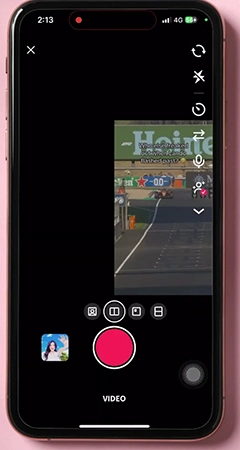
- Add any desired filter or effect. Press and hold the red circle icon to record your video.
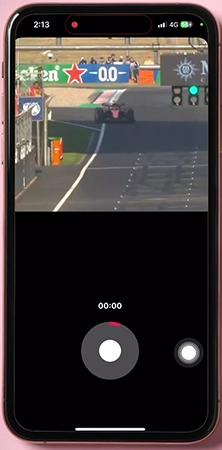
- Choose the tick mark option to edit your videos using text and stickers, and you can adjust sound effects for both videos.
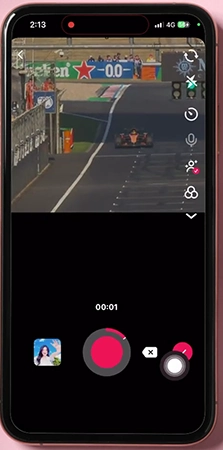
- Press Next to write a description, add relevant hashtags, and set the privacy option.
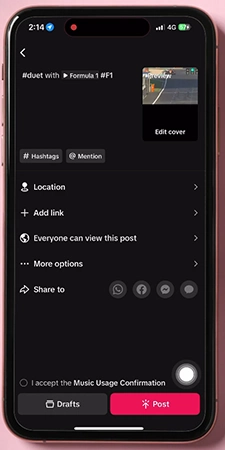
Finally, tap on Post to share your video with your audience or save it in drafts for later.
Which Duet Layout Should You Choose?
The perfect duet layout is based on what type of video you want to make. If you want to achieve your desired goal, you need to select the appropriate layout offered by the TikTok menu from four layouts: Right & Left, Green Screen, React, and Top & Bottom.
Here are the details of each layout and how it works:
| Layout | How it Looks | Best For |
| Left & Right | Play both videos side by side. | Especially for singing and reacting to videos |
| Top & Bottom | Keep the videos one on top of the other. | Plays before-and-after videos |
| React | Shows in a small window over the original video | Showing live reactions |
| Green Screen | Shows the original video in the background | Explaining & commenting on videos |
From the above-mentioned layouts, the left & right and Top & Bottom layouts provide you with the necessary options to appear your video on your preferred side of the screen.
How to Duet in TikTok with Others
If you want to make a duet with others on TikTok, you both need to have public accounts, and the content must be permitted by the creator for reuse. When this is done, either person is able to create a duet following the above rules.
There are some tips below to follow for better collaboration:
- First, ask your partner to turn on and allow reuse of content for everyone. After this step, both of you will be able to duet without following each other.
- Now choose hashtags such as #duet, #duetthis, or #duetme to search for other content creators who are interested in your videos.
- You can also create a duet with your own videos, which is very useful for sharing before-and-after videos or showing your improvement.
How to Turn On Duets for Your Videos
Recently, TikTok brought a new feature called Reuse of Content to manage the functions of duet. TikTok has replaced the menu “Who can duet with your videos” with the above-mentioned option, Reuse of content, but you may still see this menu in older guides.
For All Your Videos:
- Go to your profile and tap the menu icon in the top-right corner.
- Choose Settings and privacy and click the privacy option.
- Press Reuse of content, then tap Allow reuse of content from.
- Pick Everyone to let anyone create duets with your videos, or Friends to allow people who follow you back.
For One Video:
To turn on duets for a particular video, first you need to open a video that you have posted, click More options (…), then select privacy settings and enable Allow reuse of content.
Important: When you disable the duets option, others will not be able to stitch your videos, make stickers from them, or add them to stories. In addition, your account has to be made public for others to create duets on your videos.
Duet vs. Stitch: What is the Difference?
A duo allows you to show two videos alongside each other. Meanwhile, a Stitch lets you add a small excerpt to another video, then show your video. Both features use the same reuse of content approval.
| Feature | Duet | Stitch |
| Format | Shows two videos beside each other | Plays the short clip first before your content |
| Original length used | Full-length video | Uses up to 5 seconds of original video |
| Best for | Performance and reactions | Answering or responding to someone |
| Where it shows | On your page | On your account |
Why Can’t I Duet on TikTok?
If you are not able to see the duet button or it is greyed out on TikTok, it usually means that the original creator has not allowed others to use their videos for the duet. However, it is not an issue with your device or account.
Here are some common issues to keep in mind:
- Duet is greyed out: It means the creator has turned off reusing for that video. Choose another video or ask the creator to allow duets.
- Duet is missing from the menu: You may have failed to scroll the menu properly; swipe left to see if the duet option appears.
- Some followers can’t duet you: It is possible that you have turned on the settings to friends only. Change the setting to “everyone” to allow people to duet your videos.
- Nobody can duet you: If you switch your account to private, no one can use your content. Change the setting and make your account public.
- The Creator is a teen: TikTok doesn’t allow duets and stitches with videos created by people younger than 16-17. For users 16 to 17, the default setting is Friends.
- Using a Computer: You can make a duet in the mobile app only because this feature is not available on the desktop web. Update your app and try using it on your phone.
Do’s and Don’ts of Doing Duets on TikTok
Here are some simple do’s and don’ts that you need to follow before posting your next duet:
Do’s:
- Include something useful like a new idea, a correction, a hint, and a skill.
- Start responding quickly within 2 seconds of the video.
- Include captions to explain, because viewers listen to two audio tracks at the same time.
- Make it clear in the video that it is a sponsored one. Don’t write it in the description only.
Don’ts:
- Don’t just post your face reacting silently; add something else useful & interesting.
- Don’t click on Remove all in reuse in content history until you are confirmed. Your created post and all its linked duets and stitches will be removed permanently.
- Don’t assume that collaborating with a big creator increases your reach. TikTok has pointed out that the number of followers doesn’t directly affect video recommendations.
Conclusion
Now you understand how to do Duet in TikTok. Just click Share, select Duet, then choose a layout, record your video, and post it. If others are not able to duet your videos, check your content settings and make sure your account is public.
To start, choose a video in your niche and add ideas to make it better. This is the quickest way to make your duet interesting.
FAQs
Can you duet on TikTok from a computer?
Can I duet a saved video from my camera roll?
Not directly; you can create and record your video live while the original clip plays. To use a saved video on your phone, you can create or edit both videos together and upload it as a regular post. Give credit to the user who created it.
Does the creator know when you duet their video?
Yes, your duet provides credit to the original creator by adding a link in the caption. The creator can also see duets made of their videos in their settings under privacy → Reuse of content and then Reuse of content history at any time.
Can you duet your own TikTok video?
Of course, creators can create duets for their own videos if the option to reuse content is enabled for their videos. It is useful for showing before-and-after videos, sharing updates, or answering questions from your older videos.
Does turning off Duet delete existing duets?
No, if you disable reuse of content, it will disable future duets only. If you want to remove previously created duets, go to the Reuse of Content History. But keep in mind that Removing All will remove the original video along with all your duets and stitches, so download the original videos before using this.
Can teens use Duet on TikTok?
Duet on TikTok is restricted for content posted by users below 16 years. For users 16 to 17, the default setting is Friend; this means their videos can be dueted with followers whom they follow back. Users who are younger than 16 cannot use this feature at all.
Sources:
How to Duet on TikTok by Groovy Post
How to Duet on TikTok by Nealschaffer
How to Duet on TikTok by Later
Related Post's