
This could be because Snapchat does not have location permission or filters are disabled. To resolve this, allow location “While Using the App,” turn on filters in Settings > Manage, update the app, and then close and reopen Snapchat to refresh the sticker drawer.
Blog
Temp on Snapchat: How to Add Temperature to Snaps in 2026
To add temp on Snapchat, capture a snap, click the sticker icon on the right toolbar, and then select the weather sticker showing your current temperature. Snapchat needs permission to access your location to show it correctly.
In this article, you will learn how to add a temperature snap, turn on location on iPhone and Android, switch between Celsius and Fahrenheit, and fix the sticker if it’s missing.
Quick Answer:
How to add temp on Snapchat?
Open Snapchat and take a photo or video. Click the Sticker icon (the square with a folded corner) on the right toolbar, then select the weather sticker at the top of the drawer, or search for “weather” in the search bar to find it.
Table of Contents:
- What Is the Temperature Sticker on Snapchat?
- How to Add Temp on Snapchat (Step by Step)
- How to Change Celsius to Fahrenheit on Snapchat
- 3 Ways to Show Temperature in Snapchat
- How to Turn On Location for Snapchat
- 7 Quick Fixes When Temp Snap Sticker Is Not Showing?
- Does Ghost Mode Hide the Temperature Sticker?
- Dos and Don'ts of Using Temp Snapchat
- Conclusion
- FAQs
What Is the Temperature Sticker on Snapchat?
The temperature sticker is a live sticker that displays the current temperature of your area. As per Snapchat’s official help page, some stickers in the sticker drawer show the current temperature, the time of day, or the location where the Snap was taken. You can use this sticker on photo snaps, video snaps, and stories.
A brief history explains why many people are unable to find it:
- Older versions of the app showed temp in Snapchat as a swipe filter on the preview screen.
- Later, Snapchat moved the feature to a different section of the app, but today, it appears alongside other info stickers such as time, date, and location.
How to Add Temp on Snapchat (Step by Step)
Adding a temp on Snapchat takes less than a minute once the location is on. The same steps can be followed for both iPhone and Android, because the sticker is in the Snapchat app. Follow the steps given below:
- Open Snapchat and go to the camera screen.

- Click on the shutter button to take a photo, or hold it
to record a video.
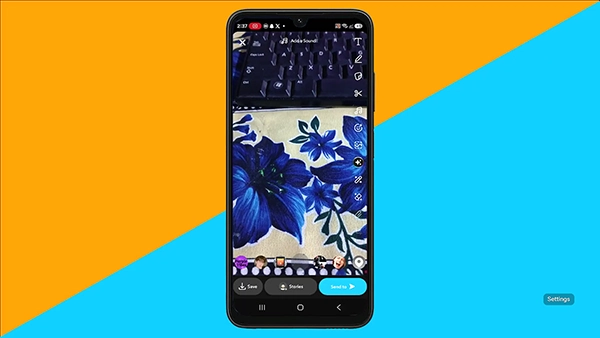
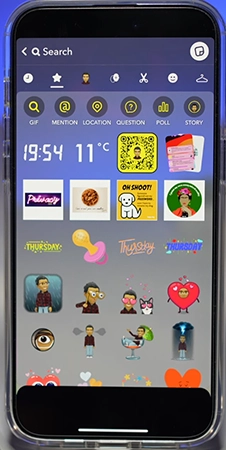
- Tap the Sticker icon (square with a folded corner) on
the right toolbar.
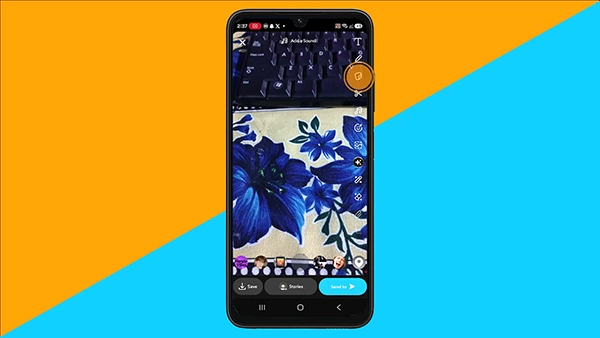
- Go to the top of the sticker drawer for the weather
sticker with a number and a degree sign.

- Tap the sticker to add it to your Snap.
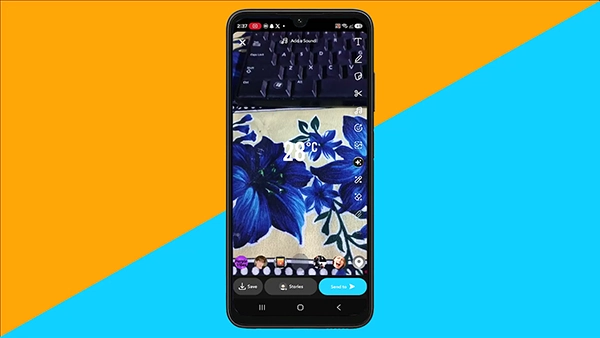
- Move it to the preferred location and
pinch to make it bigger or smaller.
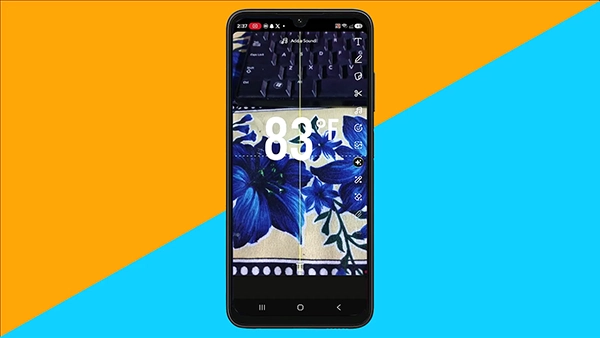
- Tap Send To.
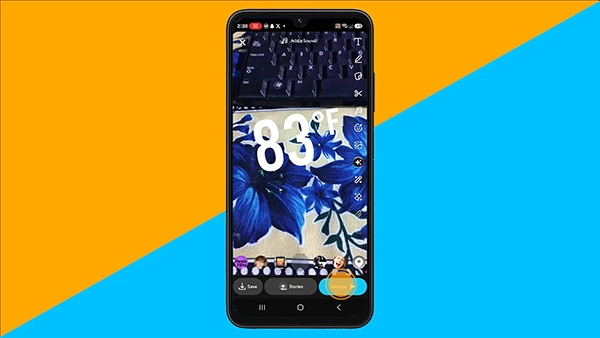
- Now pick friends or post it to My Story.
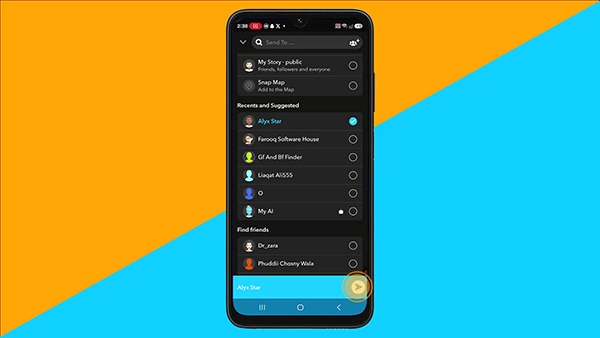
Note: For a video snap, you need to press and hold the sticker on an object to pin it so it follows that object’s movement, rotation, and size. In order to remove a sticker, press and hold it, then drag it to the trash.
How to Change Celsius to Fahrenheit on Snapchat
You can switch between units by tapping the sticker after you have placed it on your Snap. Each tap changes the sticker’s appearance, and the temperature switches between °C and °F.
Follow these steps to change °C to °F:
- Add the weather sticker to your Snap.
- Tap the sticker once to change its style.
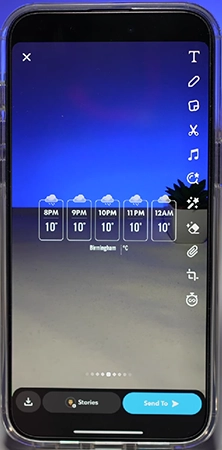
- Keep tapping until the required unit appears.
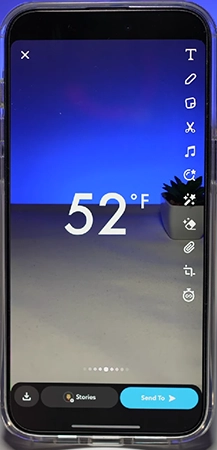
- Now click “Send To” on the Snap.
Tip: The unit change applies only to that Snap. It has no effect on your phone’s weather settings, and designs can vary depending on your app version.
3 Ways to Show Temperature in Snapchat
Temperature in Snapchat can be shown in three different ways: the live weather sticker, the sticker search bar, and a manual text caption. Each option suits a different need. The table below compares these methods:
| Method | Live Data | Needs Location | Best For |
| Weather sticker | Yes | Yes | Fast, accurate reading |
| Sticker search (“weather”) | Yes | Yes | Sticker not on top of drawer |
| Text tool (type “32°C”) | No | No | No location access |
To add it manually, click on the T (Text) icon, type the temperature with a degree symbol, and style it. This is a good alternative, but the number will not update automatically.
How to Turn On Location for Snapchat
The temperature snap sticker requires location access because Snapchat reads the weather for your current location. Without permission, the sticker may disappear or show no temperature. Follow the steps mentioned below for your phone.
1. How to Turn on Location on iPhone
- Open Settings.
- Go to Privacy & Security → Location Services and make sure it is on.
- Scroll down and click on Snapchat.
- Select While Using the App.
“While Using the App” allows location access only while the app or one of its features is on your screen. You can also turn Precise Location off if you want to share only your approximate area.
How to Turn on Location on Android
- Open Settings → Open Apps → Snapchat.
- Tap Permissions → Location.
- Select Allow only while using the app.
Note: Menu names can also be slightly different on Samsung, Xiaomi, OnePlus, and other brands.
7 Quick Fixes When Temp Snap Sticker Is Not Showing?
If the Temp Snap sticker is missing, the reason is generally related to the Filters settings, location permission, or an outdated app version. Follow these quick fixes one by one:
1) Allow location for Snapchat by following the steps mentioned above.
2) Turn on Filters: Click the gear icon on your profile to open Settings, click on Manage under Additional Services, and turn Filters on. Snapchat Support recommends this, along with device location services, when filters do not work properly.
3) Search the drawer: Type “weather” in the sticker search bar.
4) Update Snapchat from the App Store or Google Play.
5) Force close and reopen the app so it can pick up new permissions.
6) Check your internet connection: The sticker needs an internet connection to retrieve current weather data, so make sure your internet connection is stable.
7) Restart your phone: Restart the device if the problem continues. Apple also recommends quitting and reopening before restarting the app when fixing location issues.
Good to know: The sticker uses weather data based on your detected area, so its reading can be slightly different from the one shown in another weather app.
Does Ghost Mode Hide the Temperature Sticker?
No, it doesn’t. It only hides your location on Snap Map. The weather sticker needs your phone’s location permission to work. It also helps us understand how much location information each sticker shows:
| Sticker | Task |
| Location sticker | Displays the exact venue or place name. |
| City Geofilter | Shows your city or area. |
| Weather sticker | Displays only a temperature, which reveals the least location information. |
For public stories, the weather sticker is the safest choice to share the mood of your day without revealing the exact location.
Dos and Don’ts of Using Temp Snapchat
Make sure to keep these dos and don’ts in mind before posting a temp Snapchat Story.
Dos:
- Select “While Using the App” rather than “Always” for location access.
- Check the unit before sending, particularly to your friends abroad.
- Use the sticker search bar to save time.
- Make sure that the app is updated for the latest stickers.
Don’ts:
- Don’t post a typed temperature text as live data.
- Don’t use exact location stickers in public Stories if you value privacy.
- Don’t assume that Ghost Mode disables location access.
Conclusion
Adding a temp on Snapchat is very easy: just capture a Snap, open the sticker drawer, and click the weather sticker. If it does not appear, enable location access, turn on Filters, and update the Snapchat app. Click the sticker to change the temperature unit from Celsius to Fahrenheit. If you value privacy, then choose the weather sticker instead of a location sticker. Give it a try on your next Snap!
FAQs
Why is there no temperature sticker on my Snapchat?
How can I change the temp in Snapchat from Fahrenheit to Celsius?
First, add the weather sticker to your Snap and then click it. Tapping the sticker not only changes the design but also switches the unit between Fahrenheit and Celsius. So, keep tapping until the required unit appears on screen.
Is the Snapchat temperature accurate?
The temperature is close, but it is not always exact. Snapchat uses weather information for your detected location, so the temperature can be slightly different from your phone’s weather app, particularly when Precise Location is turned off on your device.
Can I add temperature to an old Snap from Memories?.
Yes, you can add temperature to old snaps saved in your memories. However, the weather sticker shows the weather for your current location, so it might be different from the weather on the day you clicked that photo.
Can I show temperature on Snapchat without sharing location?
No, this can’t be done without location access, as the weather sticker requires location access to function. Instead, you can use the Text tool and add a degree symbol. It will look fine, but the temperature won’t change automatically.
Does the temperature sticker reveal my exact location?
No. It does not reveal your exact location, as it only shows a temperature reading, not the place name. However, viewers might guess your general location from unusual weather conditions, but it reveals far less than a location sticker.
Sources:
How do I add stickers to my Snaps by Snapchat
How do I enable Snapchat Filters in Settings by Snapchat
Turn Location Services and GPS on or off by Apple Support